

Teams Plan
IN THIS ARTICLE
The Teams plan is suitable for teams within one company and for agencies managing multiple clients.
For internal teams, it helps organize work within a single account and centralize processes. Company data is stored in one structured environment, employees collaborate within shared projects and use common connections, while managers control access, monitor workflows, and track activity from one interface.
For agencies, the Teams plan helps structure client work while maintaining full oversight. You can create separate work areas for each client, isolate their data, and grant access only to the relevant parts of the account. At the same time, administrators oversee all projects from one place, with billing managed centrally for easier financial control.
Structure of Teams plan
The Teams plan offers two levels for organizing your processes: Workspace and Project.
Workspace
A Workspace is your company’s or team’s main working environment in Albato.
Inside a Workspace you will find:
- subscription plan and pricing;
- team members;
- workspace settings;
- projects (working areas).
Important: the subscription plan is linked to the Workspace.
This means:
- The payment is made for the Workspace, not for an individual user.
- The subscription plan and transaction package are selected at the Workspace level.
- All Projects within the Workspace share the same plan and transaction limit.
- Billing management is available to roles with billing permissions (Workspace Owner, Workspace Admin, Workspace Accountant).
In other words, this is your “company account” where you invite members, configure access rights, choose a plan, manage payments, and monitor limits.
You can be a member of multiple Workspaces if you work with different companies or clients. For each direction, you can create a separate Workspace. Each one operates independently, with its own structure, data, and billing, and you can quickly switch between them in the interface.
If you are a member of multiple Workspaces (for example, your company’s Workspace and a client’s Workspace), you can easily switch between them from the Workspace selector in the interface.
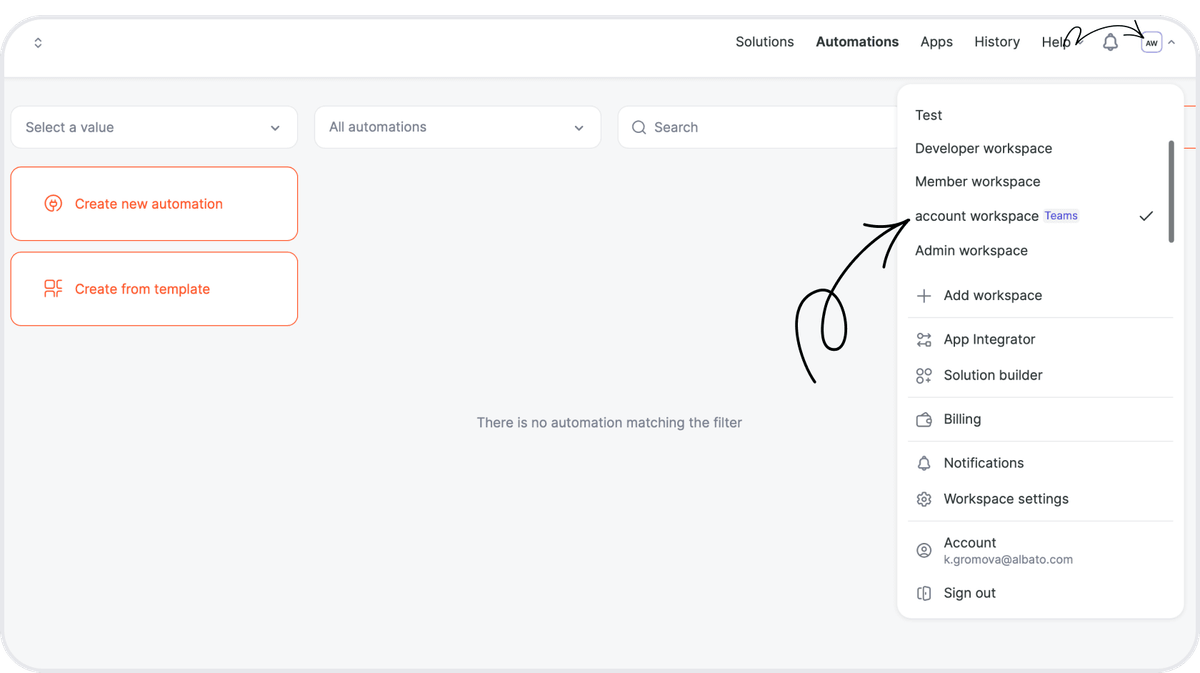
Each Workspace operates independently:
- it has its own subscription plan;
- its own transaction package and limits;
- its own Projects, connections, and automations.
For example, as shown in the screenshot, one Workspace is on the Teams plan.
Project
A Project is a working area inside a Workspace where the main Albato content is stored:
- automations;
- connections;
- solutions.
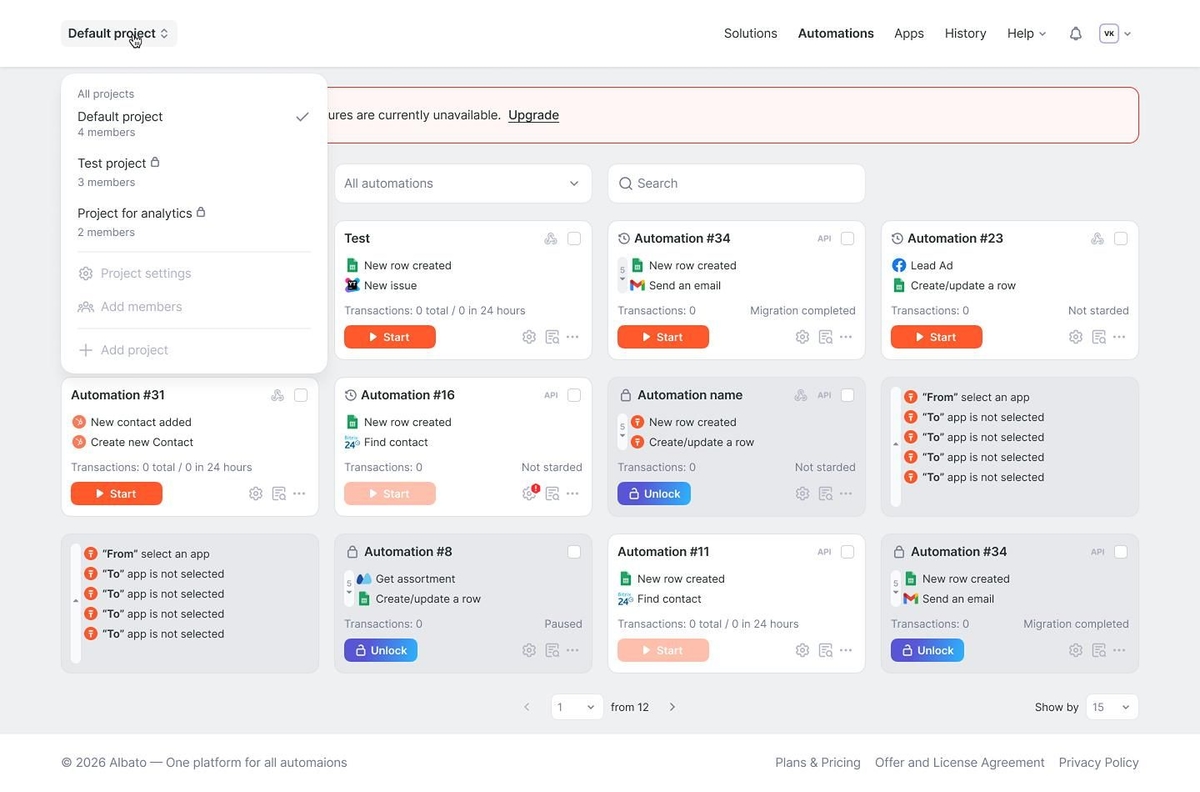
A company can create as many Projects as needed, for example, by departments (Marketing, Sales, Support, Analytics, Finance). If you are an agency or integrator, Projects are convenient for separating work by clients: one Project per client.
You can see the list of Projects and Project settings on the left side of the interface.
Access rights and roles
This structure makes it easy to manage users and permissions. Within the Teams plan, the account owner:
- adds members to the Projects and assigns roles;
- selects a transaction package during account setup;
- creates Projects;
- defines which Projects each user can access.
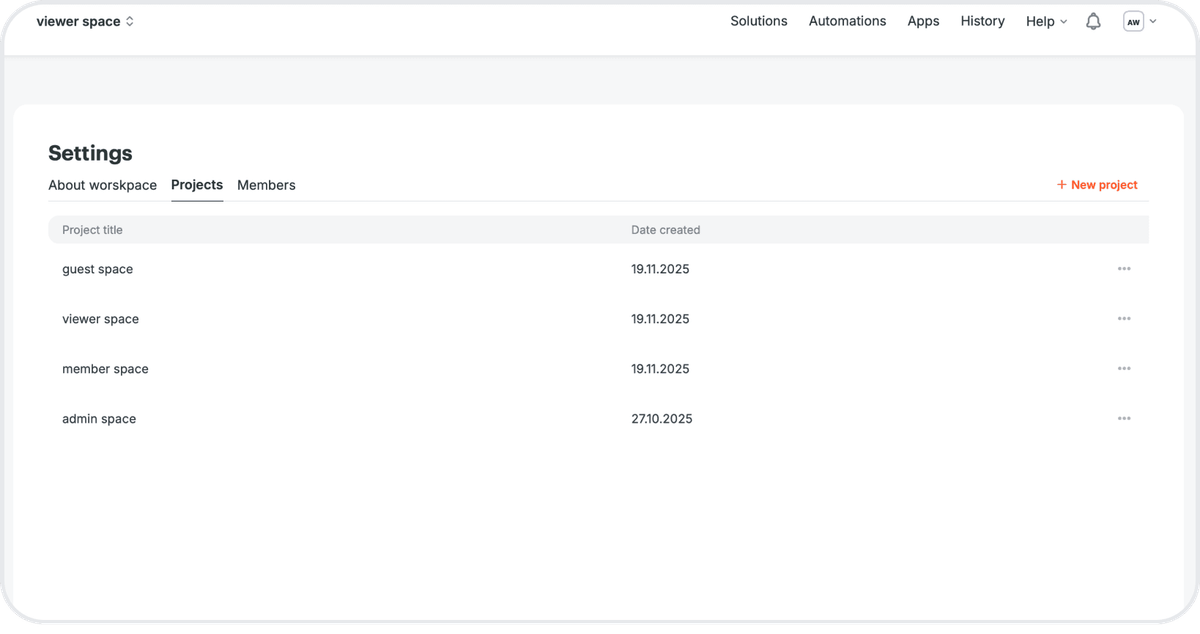
Important: You can add up to 5 members under the Teams plan.
If you need more seats, please contact our support team, we can offer custom terms based on your needs. The plan is currently in testing. Limits and conditions may be updated in the future.
How to add a user
Users are added in the Workspace settings.
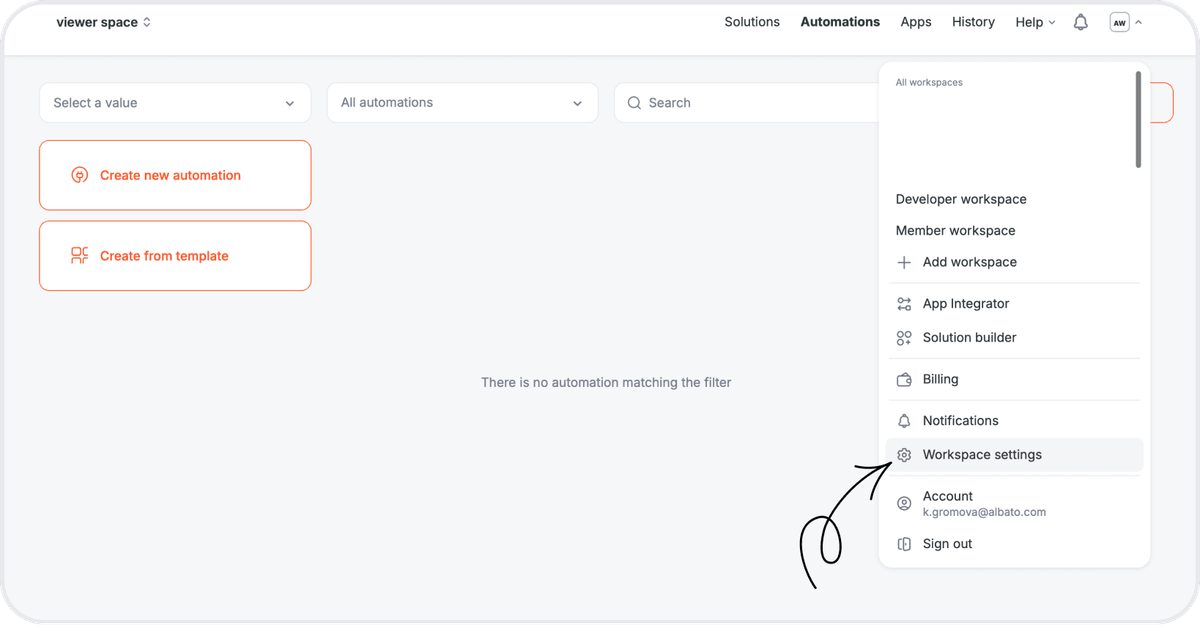
To invite a new member, you need to specify:
- the user’s email;
- the list of Projects they can access;
- their role in each Project.
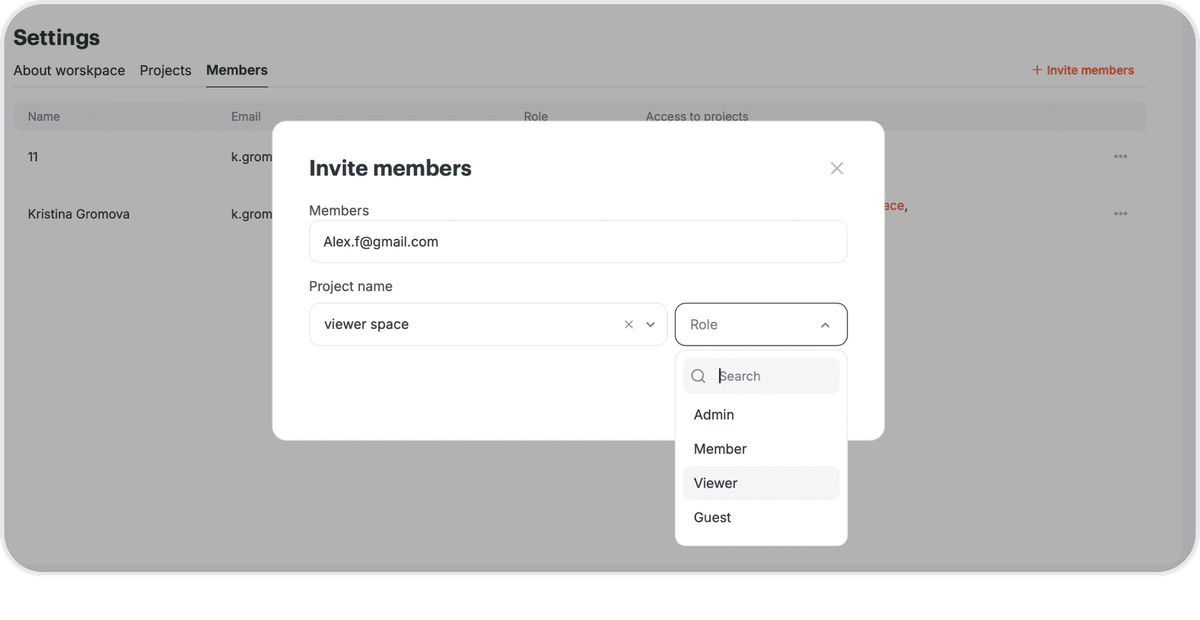
The user will receive an invitation email. Using the link in the email, the user is directed to the Albato registration or login page:
- If the user is not yet registered in Albato, they complete registration and gain access to the specified Workspace and Projects.
- If the user already has an Albato account, they log in and are automatically added to the invited Workspace.
By default, the system assigns the Member workspace role. If needed, we can later change their role at the workspace level, for example, to Accountant or Developer.
After joining, the new Workspace appears in the user’s menu.
Workspace roles
Owner
The Workspace Owner has the highest level of access.
Admin
By default, the Workspace creator becomes an Admin. The number of Admins is unlimited. Admins can assign or revoke Admin roles.
Permissions:
- full access to Workspace settings;
- inviting new users to the Workspace;
- managing the user list and roles;
- removing users from Projects or the Workspace;
- access to Workspace statistics;
- managing subscription plans and billing information;
- full access to all Projects as a Project Admin;
- access to user activity logs;
- access to the overall automation log across all Projects;
- full access to the App Integrator section;
- full access to the Solution Builder section.
Accountant
A role for financial team members.
Permissions:
- switching between accessible Projects;
- managing Workspace subscription plans and billing information.
Member
Basic Workspace role without administrative permissions.
Developer
Designed for developers working with the App Integrator and solutions.
Permissions:
- all Member permissions;
- full access to the App Integrator section;
- full access to the Solution Builder section;
- ability to switch between accessible Projects;
- no access to Workspace settings
Project roles
Admin
Role with full control over the Project.
Permissions:
- managing connections (create, edit, delete);
- managing automations;
- access to automation logs;
- inviting users to the Project with any role;
- managing Project users (add, remove, change roles).
Member
Recommended for business unit employees.
Permissions:
- managing automations;
- access to automation logs;
- inviting users to the Project, only with the Project Guest role.
Restrictions:
- no access to connection management (Apps section is restricted).
Viewer
Recommended for analysts and observers.
Permissions:
- access to automation logs;
- view automations without editing rights.
Restrictions:
- cannot manage automations;
- cannot invite users;
- no access to connection management (Apps section is restricted).
Guest
Recommended for temporary or external access (for example, to demonstrate automation settings).
Permissions:
- view automations without editing rights.
Restrictions:
- no access to automation logs;
- cannot manage automations;
- cannot invite users;
- no access to connection management (Connections section is restricted).
Conclusion
The Teams plan is designed for companies and agencies that need structured collaboration inside Albato.
It allows you to:
- organize your work with Projects;
- manage access with flexible roles (from full control to view-only);
- use shared connections inside a Project, so team members don’t need to set them up individually;
- keep automations within the company, even if team members change;
- centralize billing and transaction limits at the Workspace level.
It does not matter who runs the automation — all usage is counted against the Workspace’s package.
Users can join different Workspaces and switch between them, while each Workspace remains independent with its own plan and limits.
Note: To learn more about Albato plans and prices, visit our Pricing page.
If you have any questions, please feel free to support in live chat.
Did this answer your question?