

AI Agent: How to Set It Up
IN THIS ARTICLE
AI Agent is a separate step inside an automation that can make decisions on its own by analyzing incoming data and choosing the right action depending on the situation.
No more manually setting up conditions and branching. Just describe the task in plain language, add instructions, and connect the right tools. The agent will use the selected LLM to choose the most appropriate action based on the situation.
How AI Agent differs from regular automation steps
A regular step always performs one specific action: sending a message, creating a record, or updating data. AI Agent works differently: it analyzes incoming data and decides what action to take based on the instructions you provide.
An agent has four parts:
- Model ("brain"): makes decisions, reads instructions, and chooses what to do.
- Instructions (prompt): a description of the task in free form and in any language.
- Tools (actions): actions in third-party apps the agent can perform. Connections must be set up in Albato in advance.
- Memory of previous runs: turned off by default, but can be enabled to keep context between runs. This is useful for chatbots.
For example, when a new contact is added in HubSpot, the agent can analyze the contact data and decide what to do next. If the Want to Book a Demo? field is set to Yes, it sends a notification to Slack. If the contact’s Job Title contains Head, Director, Founder, or CEO, it adds the contact to a Google Sheet for high-priority leads, all within a single step.
What AI Agent can do
- Analyze incoming data and make decisions without manual conditions.
- Use actions from connected apps as tools.
- Work with data from previous steps.
- Fill in required fields in actions automatically.
- Act strictly within the guardrails you set.
How to add AI Agent to an automation
In this video, we’ll set up a sales AI Agent for Telegram. It can answer product questions, check availability in Google Sheets, and create a deal in HubSpot when a customer shares their contact details.
Step 1. Add the agent
AI Agent can only be added as an action. It needs input data, so the automation must start with a trigger, such as a webhook or a schedule.

When you click + to add a new step, you will see a new option: AI agent.

After you add it, the Create AI agent window opens.
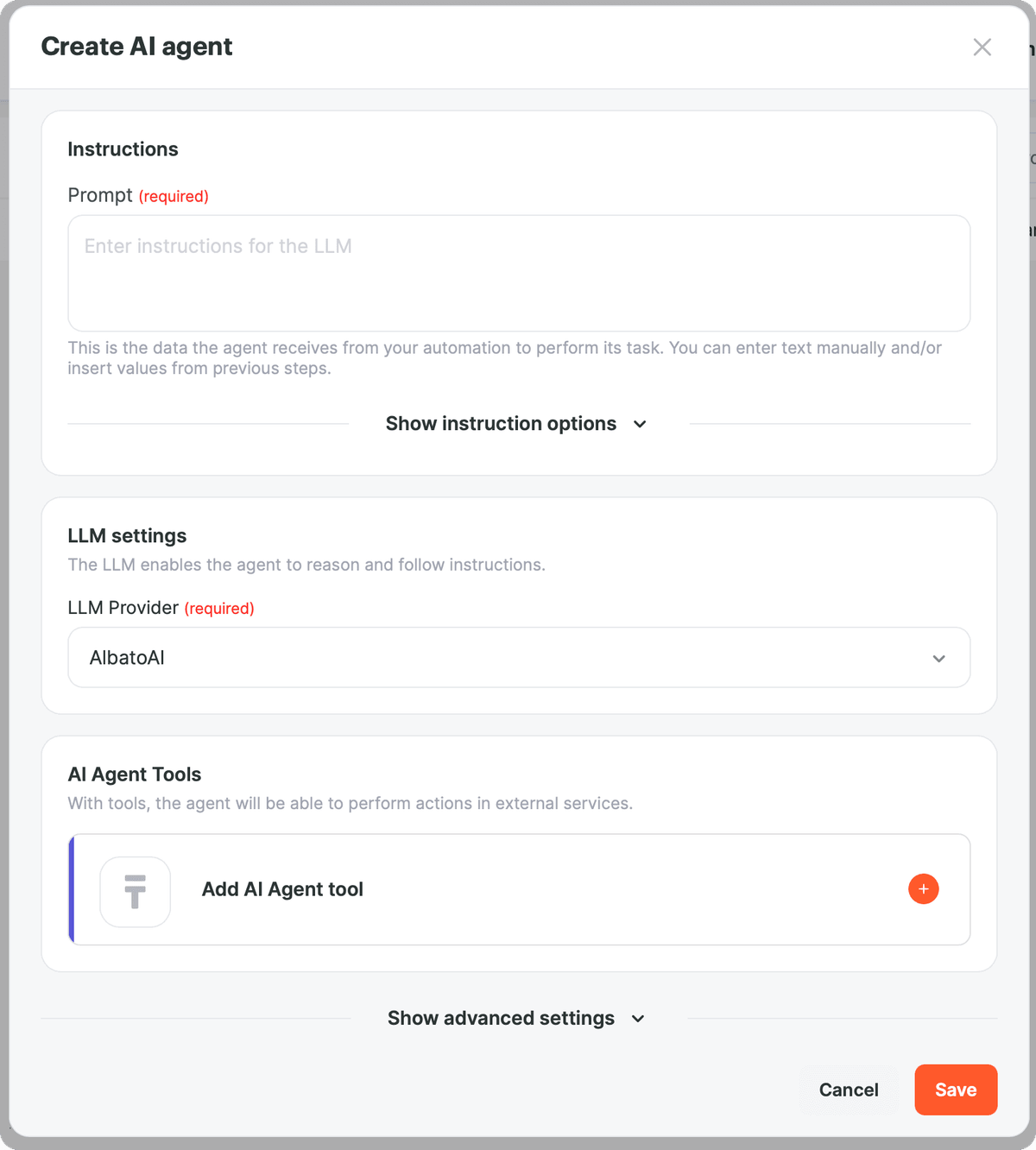
It includes:
- Instructions: the prompt and additional instructions the agent will follow.
- LLM settings: the model that will make decisions.
- AI Agent Tools: the actions the agent can perform.
- Show advanced settings: additional settings.
Step 2. Configure the agent instructions
In the Instructions block, fill in the Prompt field.
Prompt (required) is the task for the agent and the data it will work with. Here you can describe what the agent should do and insert values from previous steps of the automation. Maximum: 1,000 characters.
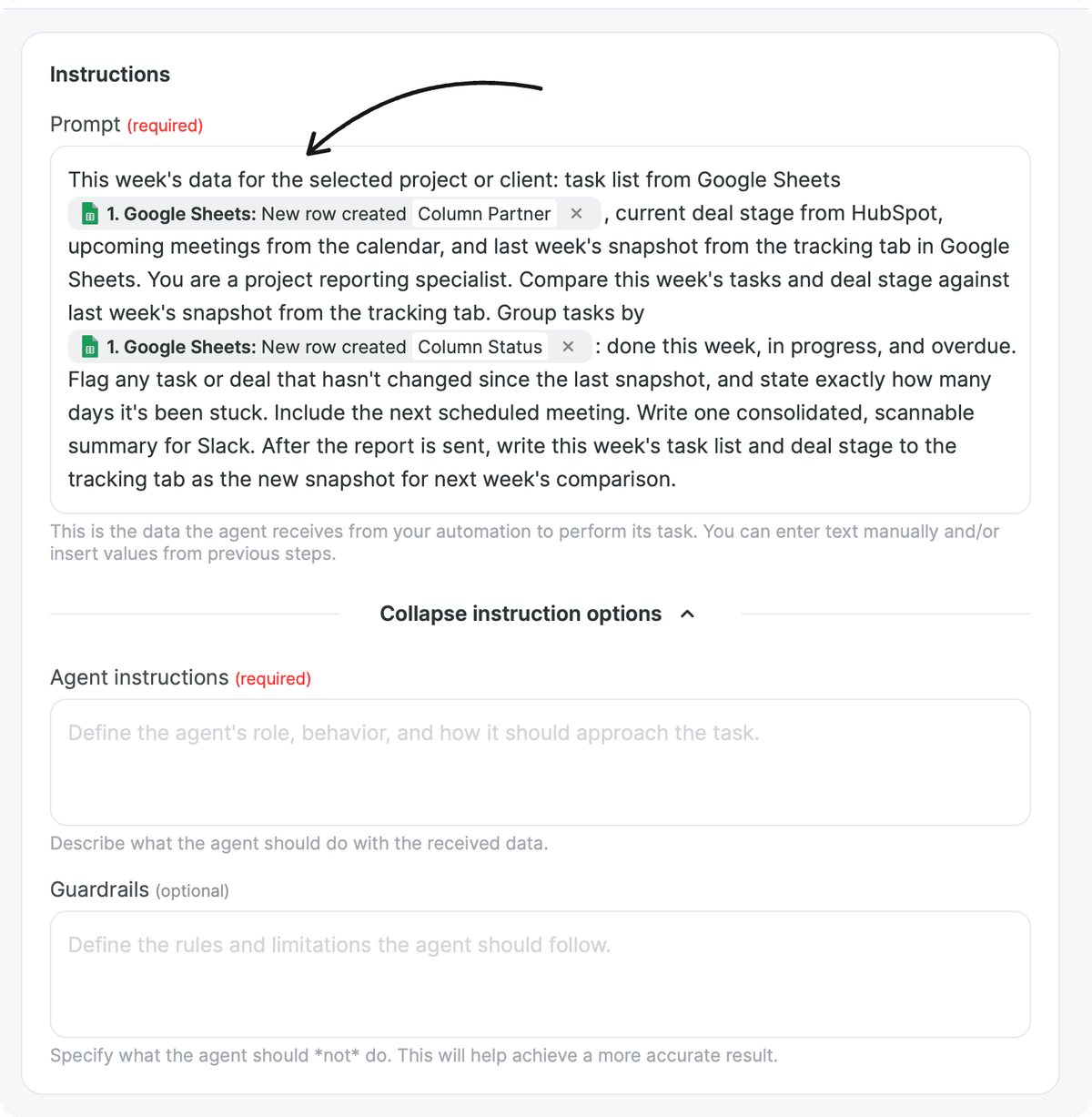
For example: You are an AI agent that processes new HubSpot contacts. Analyze the contact data. If the Want to Book a Demo? field is set to Yes, send a notification to Slack. If the Job Title contains Head, Director, Founder, or CEO, add the contact to the Google Sheet for high-priority leads. If neither condition is met, do not use any tools. Use only the contact data. Below, insert the values from the trigger step: name, email, job title, and the Want to Book a Demo? field.
To describe the agent's role in more detail or set boundaries for its work, click Show instruction options. Two more fields will appear:
- Agent instructions (required): the agent's role, behavior, and how it should approach the task, that is, what the agent should do with the received data. Maximum: 1,000 characters.
- Guardrails (optional): additional rules and boundaries the agent must follow. Specify what the agent should not do. Maximum: 1,000 characters.
To hide these fields, click Collapse instruction options.
The AI Agent receives the prompt, the agent instructions, and the guardrails, if you add them. Together, these form the task for the model. The more clearly you describe the task, the more accurately the agent will act.
Tips for writing instructions:
- Briefly describe the agent's role and task.
- List which data it should analyze.
- Clearly state when it should act and when it should not.
- Define Guardrails and important rules.
- Avoid unnecessary details, repetition, and conflicting wording.
The Save button becomes active only after all required fields are filled in.
Step 3. Connect a language model
The LLM is the "brain" of the agent that makes decisions.
In the LLM settings block, choose a model in the LLM Provider field. Available providers:
- ChatGPT (OpenAI)
- Albato AI (shown as AlbatoAI in the list): Albato's built-in model. No separate LLM connection required. See the Pricing section for details.
- Gemini AI
- Claude AI (Anthropic)
- DeepSeek
The list of available models will expand over time.
If you choose Albato AI, no further setup is needed.
If you choose another provider, two required fields appear below it:
- Connection: select an existing connection to this provider or add a new one.
- Model ID: the model from the provider you want to use, for example Claude Opus 4.7 for Claude AI, or gpt-4 or gpt-5 for OpenAI.
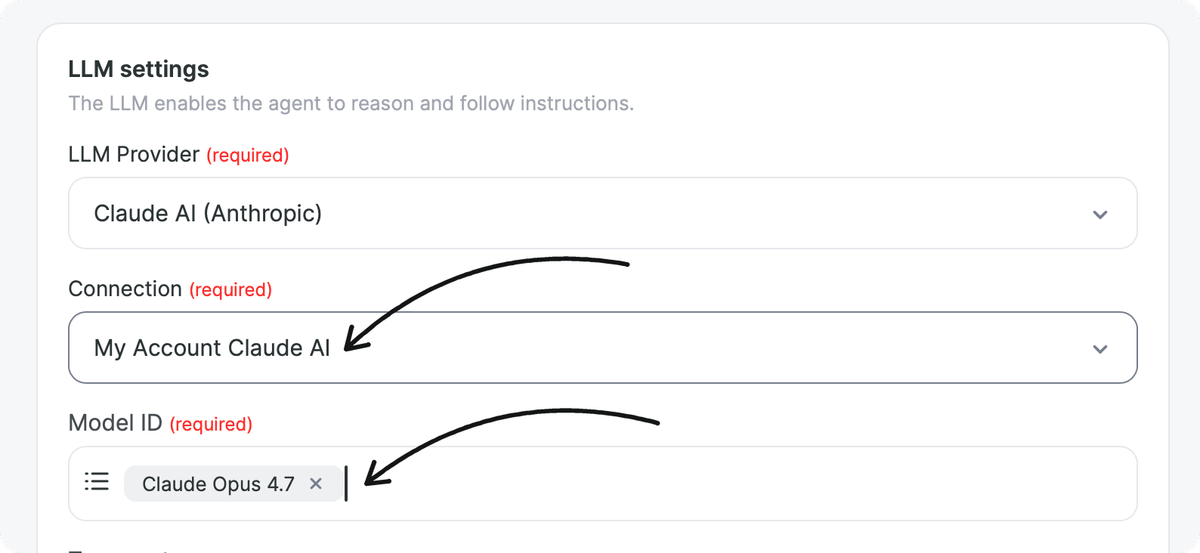
Other LLM settings are optional.
You can change the provider or model at any time in the LLM settings block.
Step 4. Connect tools
In the AI Agent Tools block, click Add AI Agent tool. Here you choose actions from connected apps that the agent can call depending on the situation. Albato offers around 5,000 actions that can be used as tools.
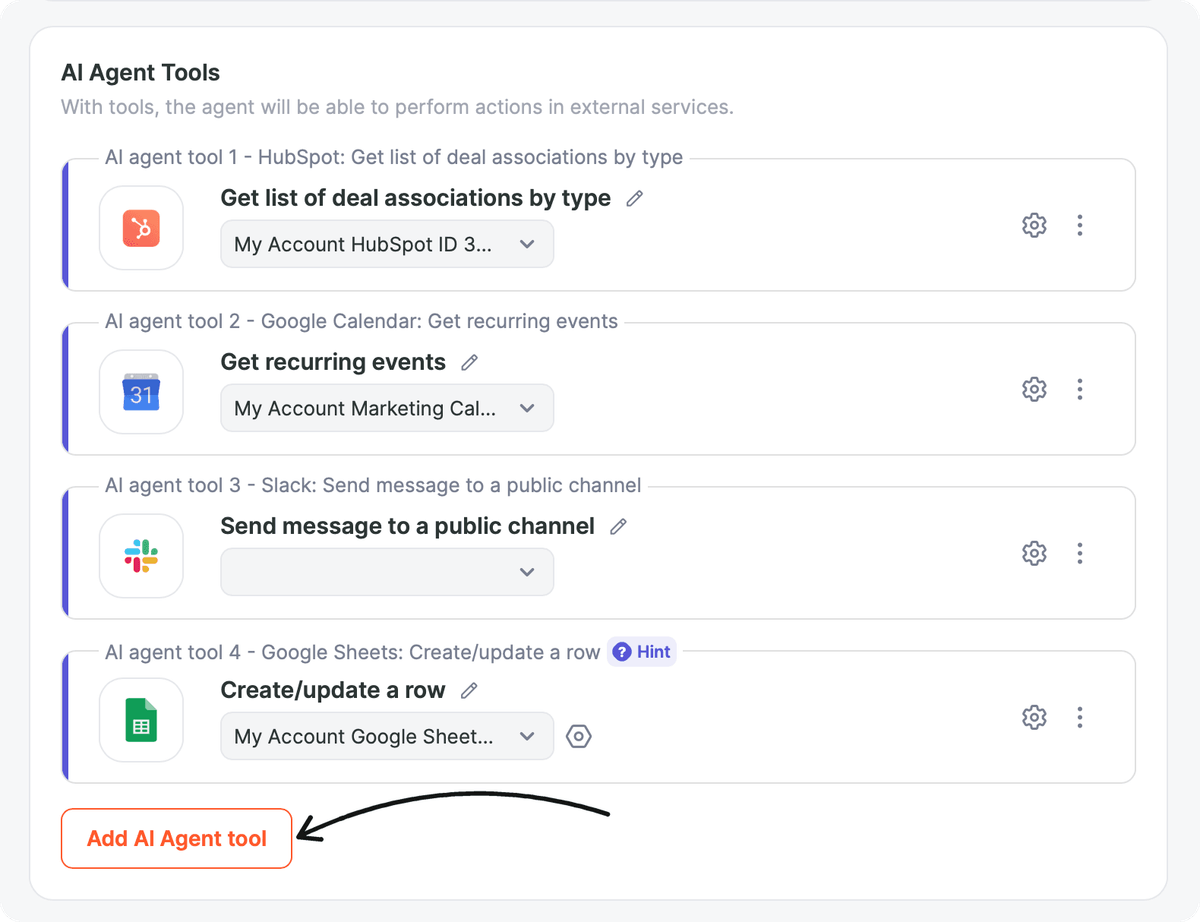
Add the tools for the actions you described in the agent instructions in the previous step.
For each tool, specify:
- app;
- the action the agent can perform;
- the app account: an existing connection or a new one.

After clicking Continue, the field mapping window opens.
At the top of the window, there is the Let agent fill all required fields setting. When it is OFF, you fill in the fields yourself, as in a regular action.
Each field has a sparkles button on the right. When you hover over it, the Auto-filled by AI agent tooltip appears. Click this button to let the agent fill in that field, for example an optional one.
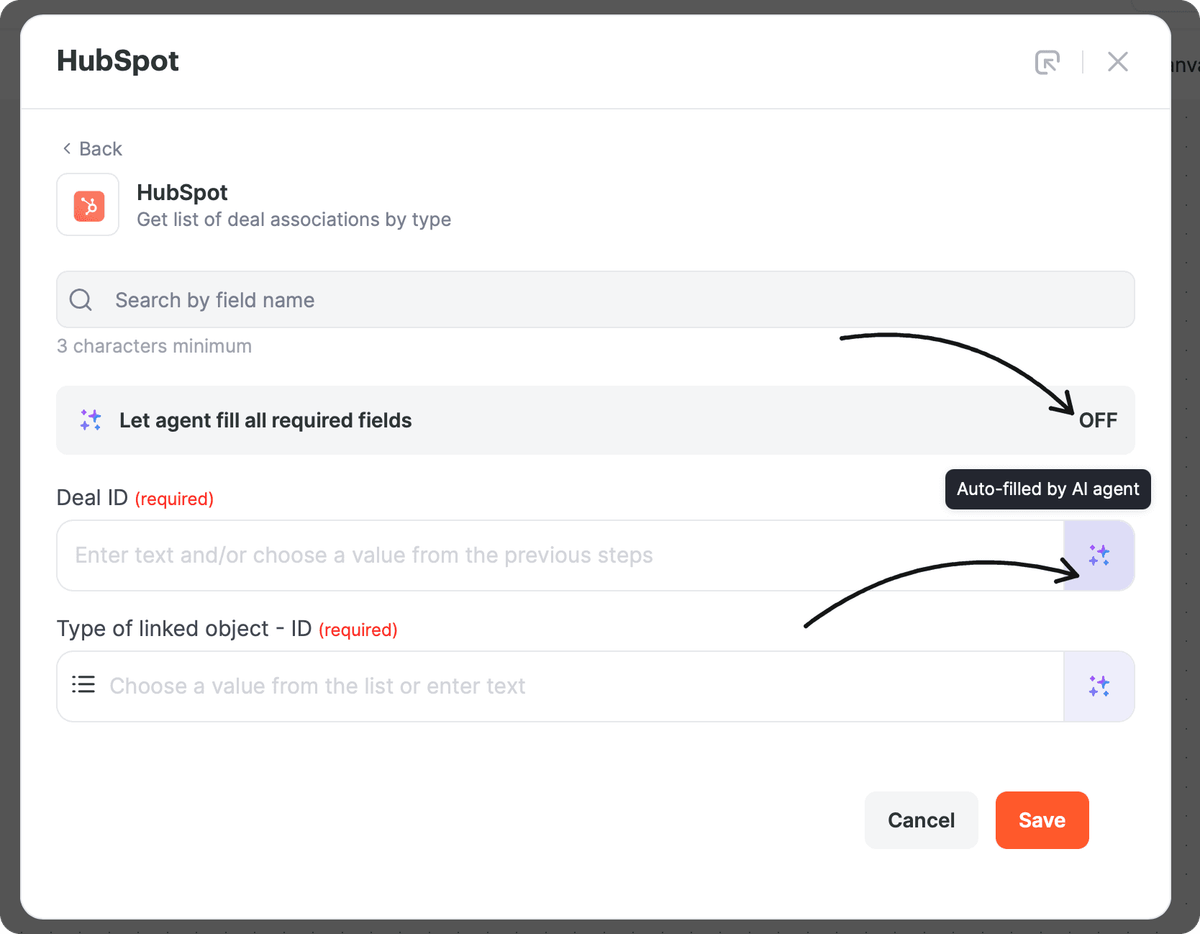
When the setting is ON, the agent determines what values to place in the required fields of the action. These fields are marked Auto-filled by agent.
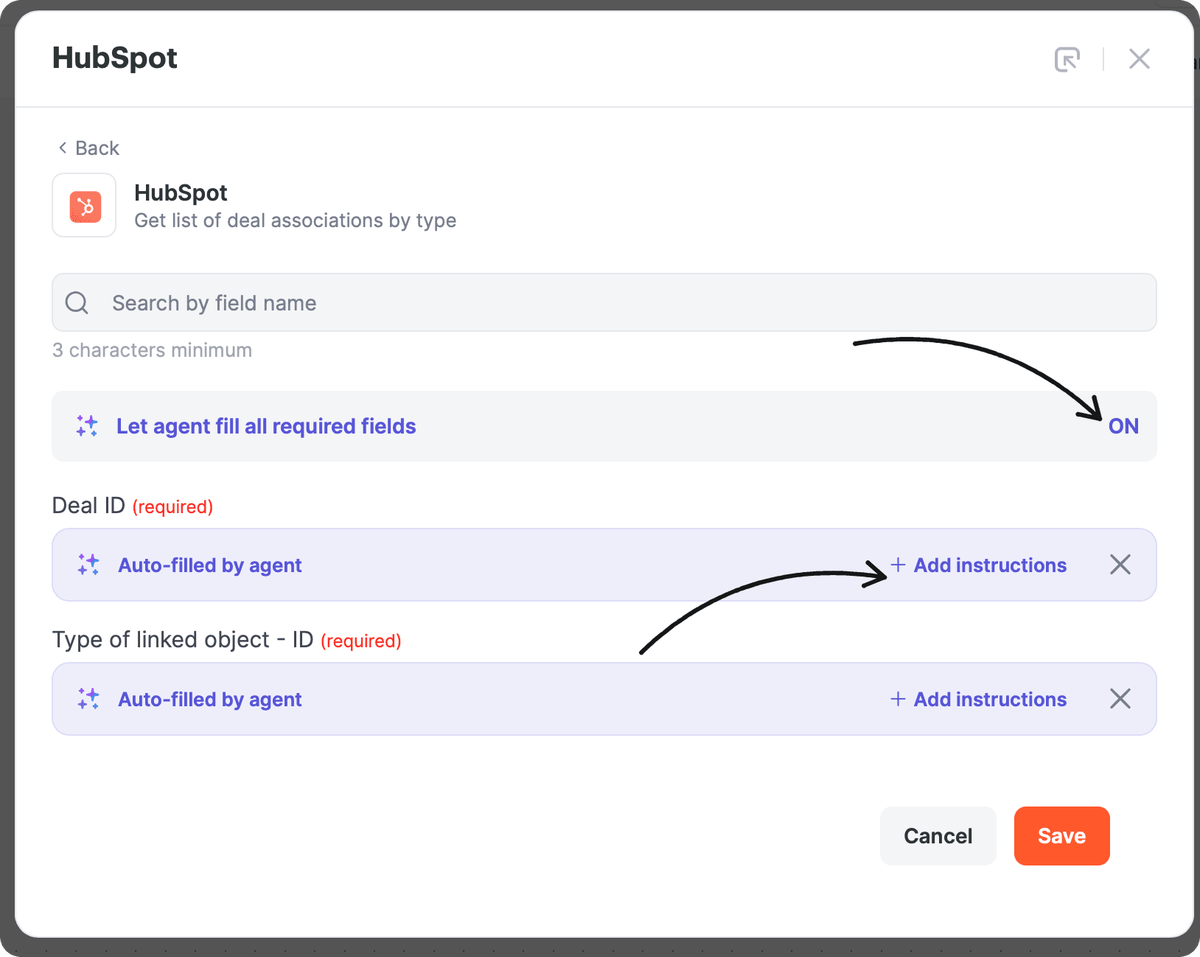
By default, the agent decides what value to place in a field based on the prompt and instructions. If needed, you can add a separate rule for a specific field. To do this, click + Add instructions in the field row and describe the value to pass in the field that appears.
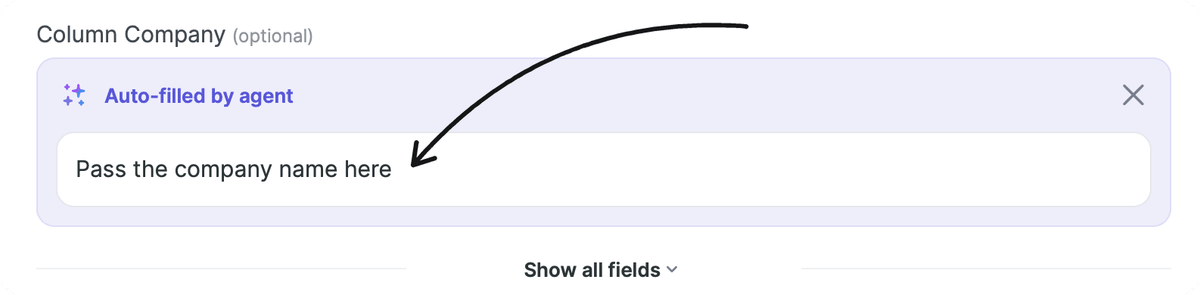
For example, for the Column Company field: Pass the company name here.
You can combine approaches: let AI Agent fill some fields automatically while configuring others manually with fixed or dynamic values.
Step 5. Configure agent memory (optional)
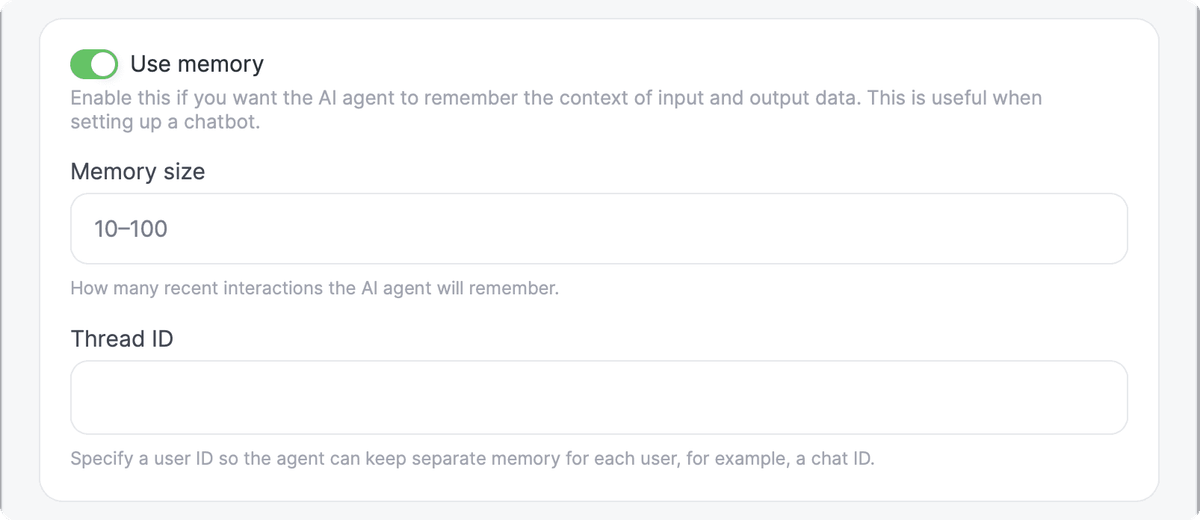
By default, the agent does not remember anything between runs: each run starts from scratch.
-
Memory size: the number of recent interactions the agent takes into account, from 1 to 100. One interaction equals one input plus one output. For example, if the agent receives the message Hello! during an automation run and replies with Hello! How are you?, that counts as one interaction.
-
Thread ID: separates memory between different users or conversations. For a Telegram chatbot, pass the chat ID so each user has their own context.
Pricing
Each AI Agent run costs 3 transactions, regardless of how many tools are called.
Additionally:
- Albato AI: 1 transaction per every 2,000 tokens (input and output combined).
- Any other LLM: no additional token charges.
The number of tool calls does not affect the cost.
Example 1. Albato AI
AI Agent with Albato AI, 5 tools, 4,500 tokens used:
- 3 transactions for the agent run
- 3 transactions for tokens (4,500 -> 3 packages of 2,000)
Total: 6 transactions
Example 2. Any other LLM
AI Agent with an external LLM, 5 tools, 4,500 tokens used:
- 3 transactions for the agent run
Total: 3 transactions
Conclusion
AI Agent lets you build more flexible automations without long chains of conditions and branching. Describe the task, add instructions, connect the tools, and the agent will analyze incoming data to choose the right action within the rules you set.
AI Agent does not replace the automation itself. It simplifies its logic. The same automation can handle different scenarios: validate data, qualify leads, send notifications, create records in CRMs, or support chatbot scenarios.
FAQ
Can the agent accept a large array of objects as input, for example through string sections?
Yes, it can. However, it is important to keep token usage in mind: large data sets increase token consumption. For that reason, it is best to pass only the fields and objects the agent actually needs to make a decision.
Can the AI Agent handle CRM scenarios where it first checks whether a customer already exists, and then either creates a new one or links the order to the existing customer?
Yes, it can. To do this, you need to add the relevant CRM actions as tools, for example actions for finding and creating a contact. Then, in the instructions, you can tell the agent to check whether the customer already exists before creating a new contact. If the customer is found, the agent uses the existing record. If not, it creates a new one.
Can the AI Agent work with a custom HTTP request, or only with ready-made actions from connected services?
The AI Agent can work not only with ready-made actions from connected services, but also with custom HTTP requests. You can add such a request as a separate tool, and the agent will be able to use it when performing the task.
Can the AI Agent process and pass media files from attachments?
Not yet. Support for media files is planned for future updates.
Can I connect a knowledge base to the AI Agent?
This is not available yet, but it is planned for future updates. In the future, the agent will be able to use a connected knowledge base as an additional source of context.
How is the AI Agent different from regular AI actions in automations?
Regular AI actions (for example, ChatGPT) usually work as a single step: they receive input data and return a result, such as text. The AI Agent works more broadly: it acts like a smart router. It analyzes the input data, follows the instructions, and, when needed, decides which tool to use and what action to take next. It can also use memory and take context from previous runs into account.
If you have any questions about setup, contact our support team in the chat on the platform.
Did this answer your question?