

Track Intercom Chat Ratings in Google Sheets and Slack
IN THIS ARTICLE
If your team uses Intercom for support, customer success, sales, or finance conversations, customer ratings can help you understand where the service experience is working and where it needs attention.
In this article, we’ll build an Albato automation that saves every Intercom chat rating to Google Sheets and sends a Slack notification only when the rating is negative.
This workflow helps your team keep a structured rating history, track service KPIs, and react faster when a customer leaves a low score.
Connect the apps
The first step, before creating the automation, is to connect the applications that will be used.
Go to the Apps tab and click Connect App.
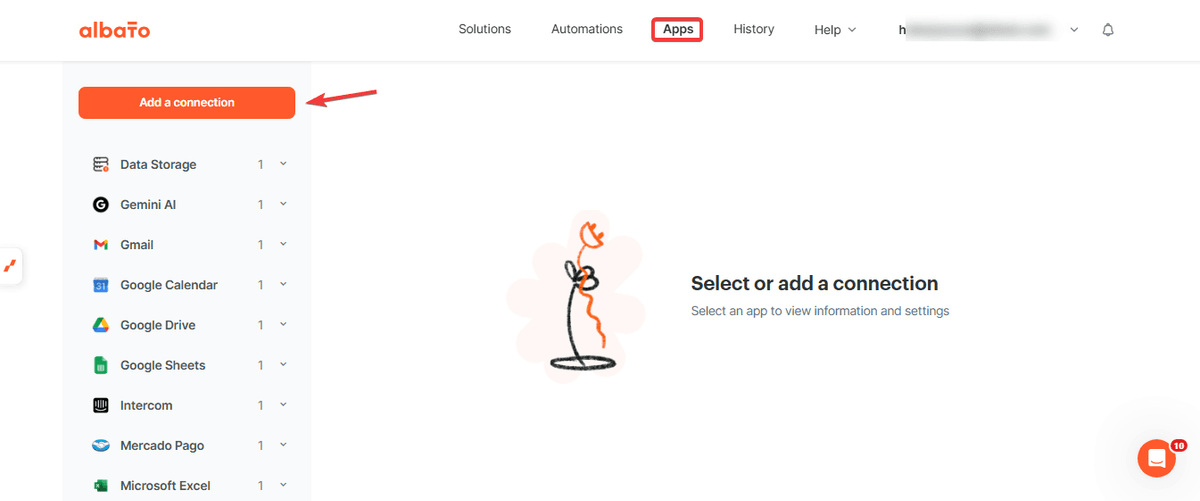
First, search for the Intercom application. Follow the instructions displayed on the screen until you see the success message.
Repeat the same process for Google Sheets.
Before you continue
If you need help with Google Sheets fields or common setup questions, see the Google Sheets guide.
Finally, define which application you would like to use to receive notifications when negative ratings are received. You can choose Slack, Telegram, email, among others.
In this article, we will use Slack as an example.
Once all apps are connected, you can create the automation.
If you want to save closed conversation metrics instead of ratings, see our related guide on tracking closed Intercom conversation metrics in Google Sheets.
Create the automation
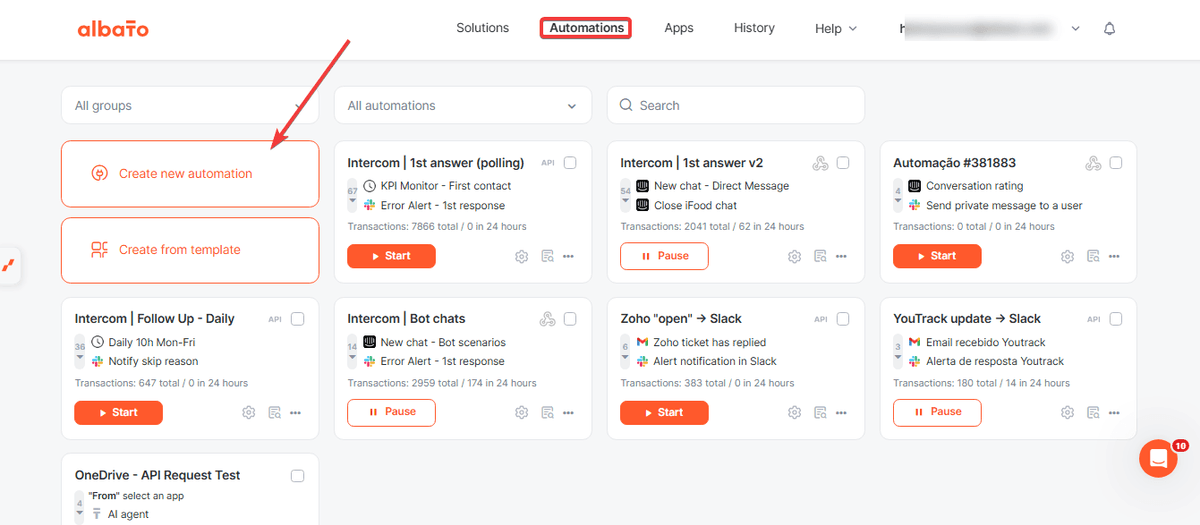
Go to the Automations tab and click Add New Automation.
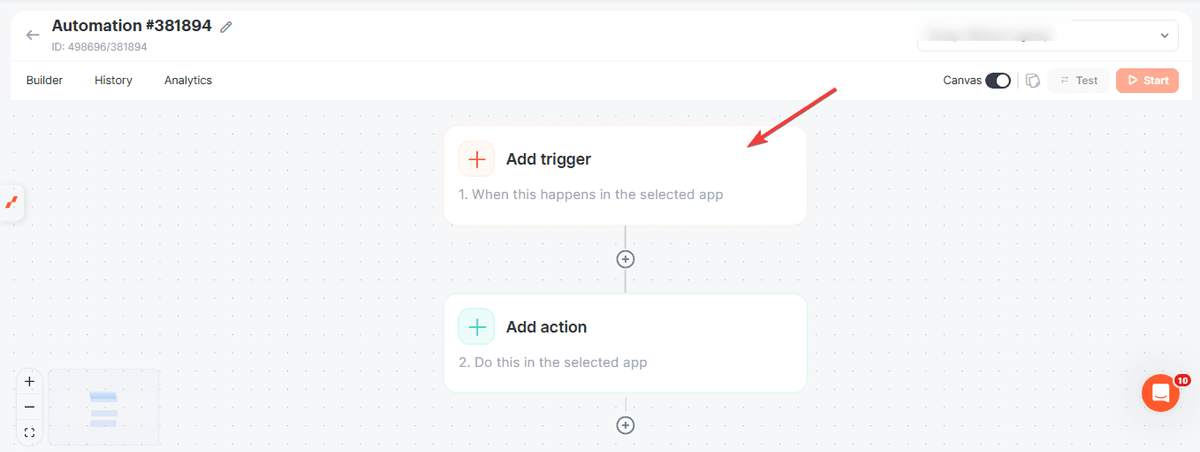
Next, in the first step, click to add the trigger.
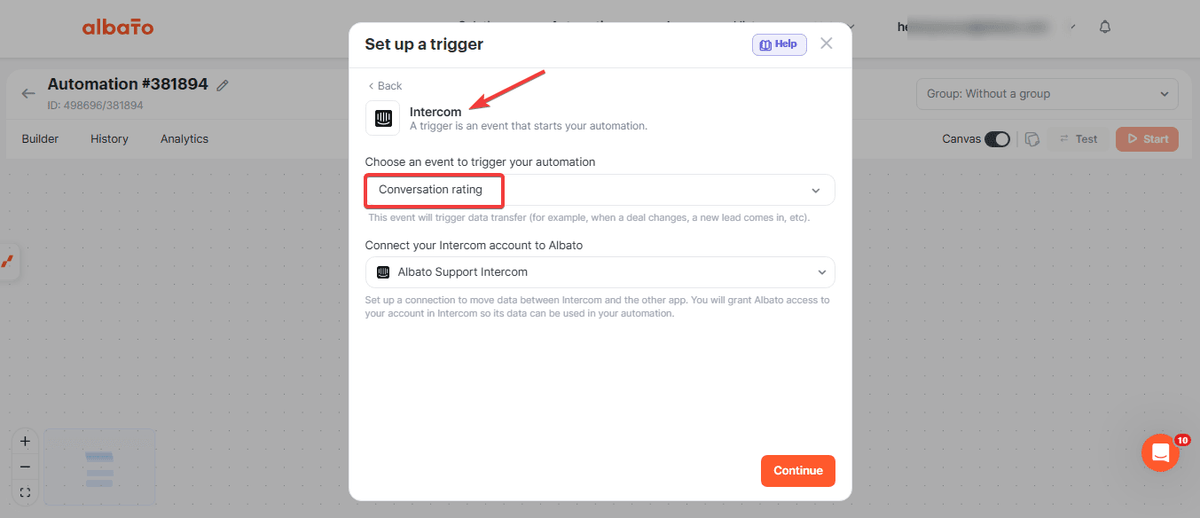
Select the Intercom application and the Conversation Rating event.
Then, click to add the second step.
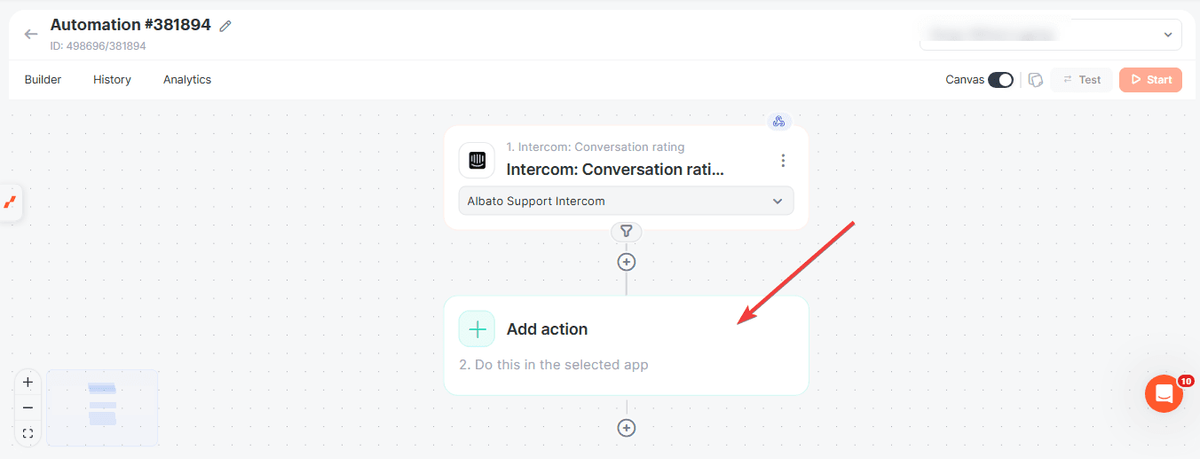
Now, select the Google Sheets application and the Create Spreadsheet Row action. In the related fields, also choose the desired spreadsheet and worksheet.
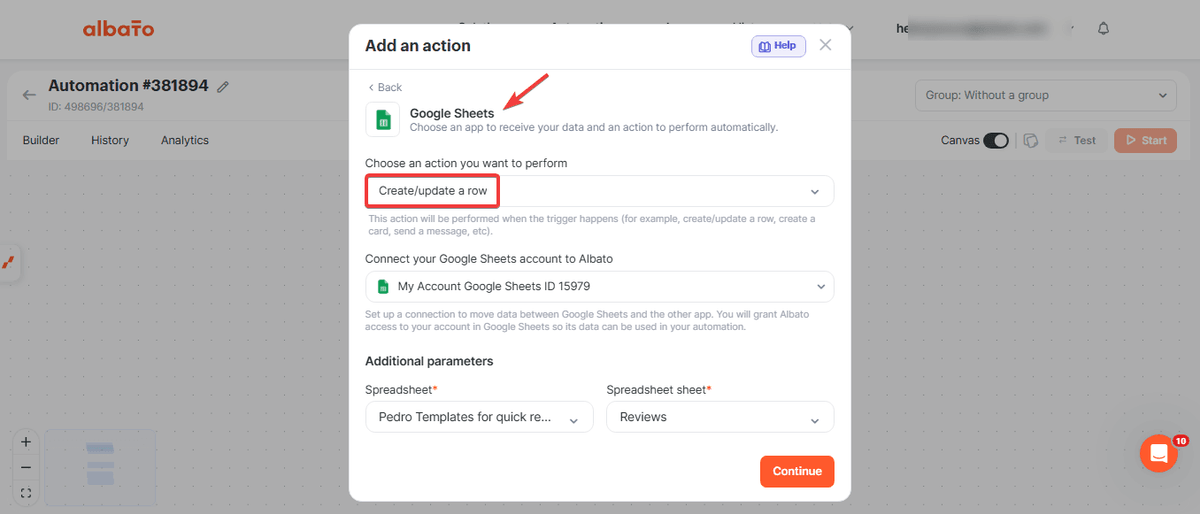
Important. In this example, we created a blank spreadsheet in advance, with one column for each value we want to store: Contact Name, Contact Email, Conversation URL, Rating Message, and Rating Received.
Right after that, you will see the spreadsheet columns available for mapping. Map the fields by selecting which value you want to save in each column. For example.
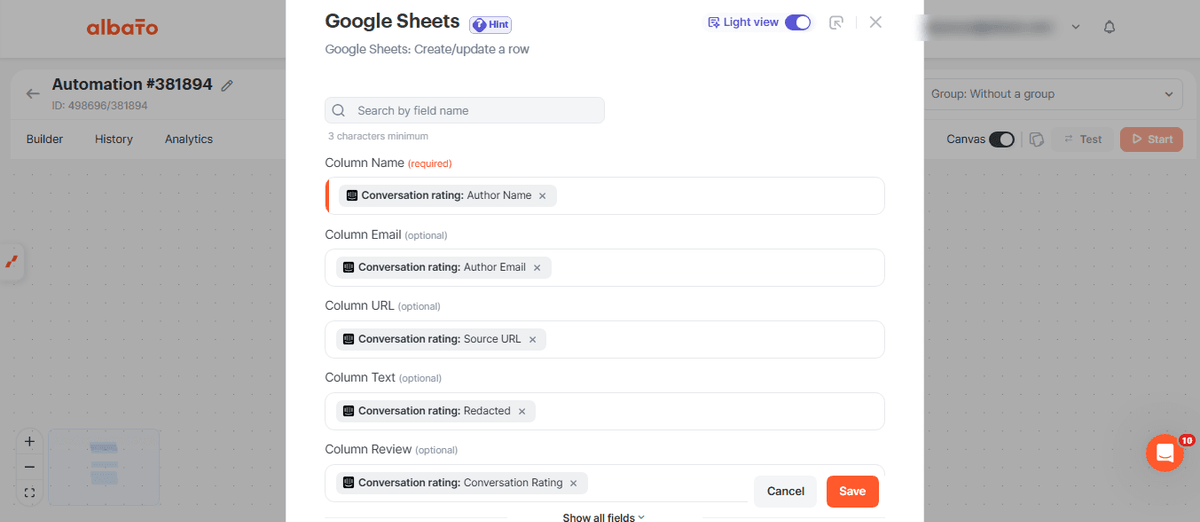
Once finished, click Save and then select the option to add another step.
Filter negative ratings
How this tool helps
The Execute automation on condition tool works like a gate inside the automation. If the condition is met, the next step runs. If it is not met, the automation stops before sending the Slack notification.
In this workflow, all ratings are still saved to Google Sheets. The condition only controls whether Albato should continue to the Slack alert step.
You can learn more in the Execute Automation on Condition guide. If you need to filter data at the trigger level, see the Incoming Data Filter guide.
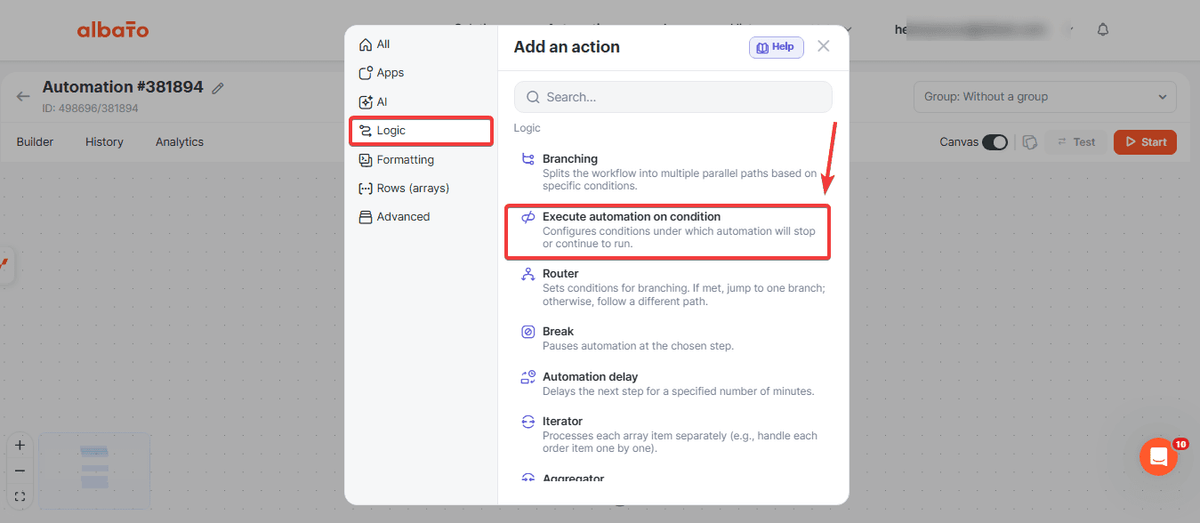
To add the tool, click here.
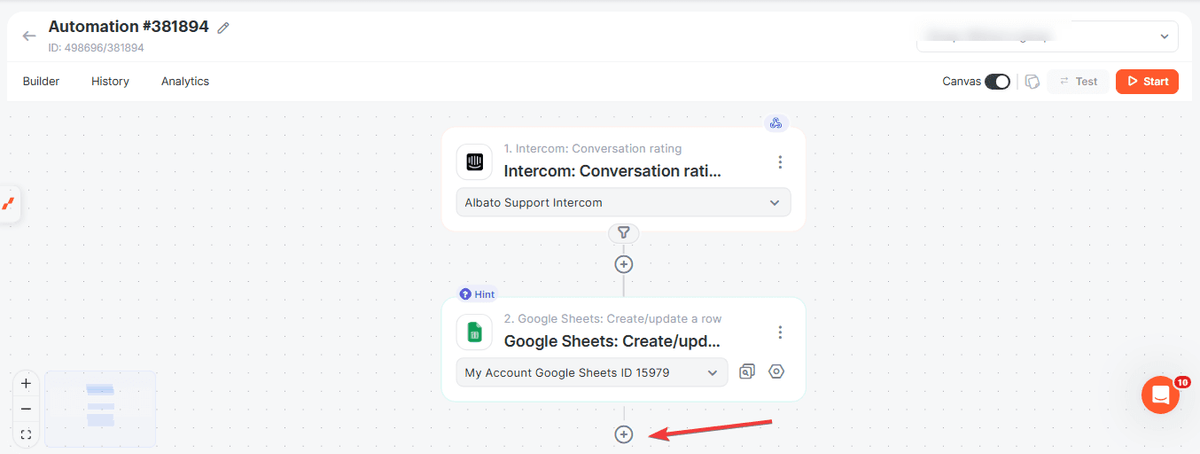
Then select Execute automation on condition in the Logic menu.
Next, configure the condition.
In the left field, select the parameter that contains the received rating. In the center field, select Contains. In the right field, enter Bad.
The configuration should look similar to this.
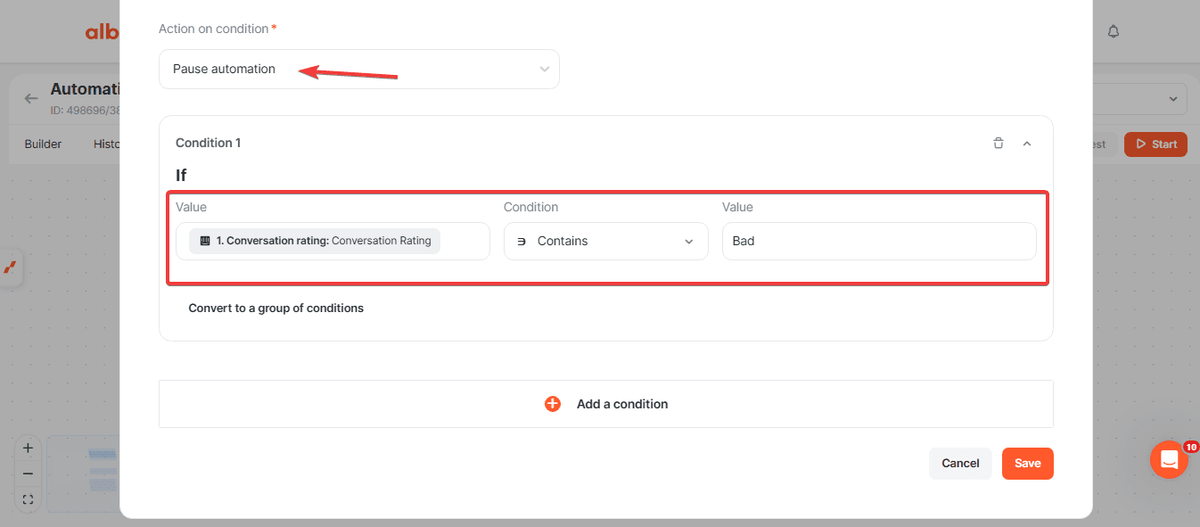
Important. This example uses an Intercom CSAT scale with these options: Bad, Neutral, Ok, Great, and Amazing. If your Intercom workspace uses a different scale, enter the value that matches your negative rating. Capitalization and spaces must match the value received from Intercom.
Now configure the final step of the automation. Click to add a new action and select the Slack option Send private message to User.
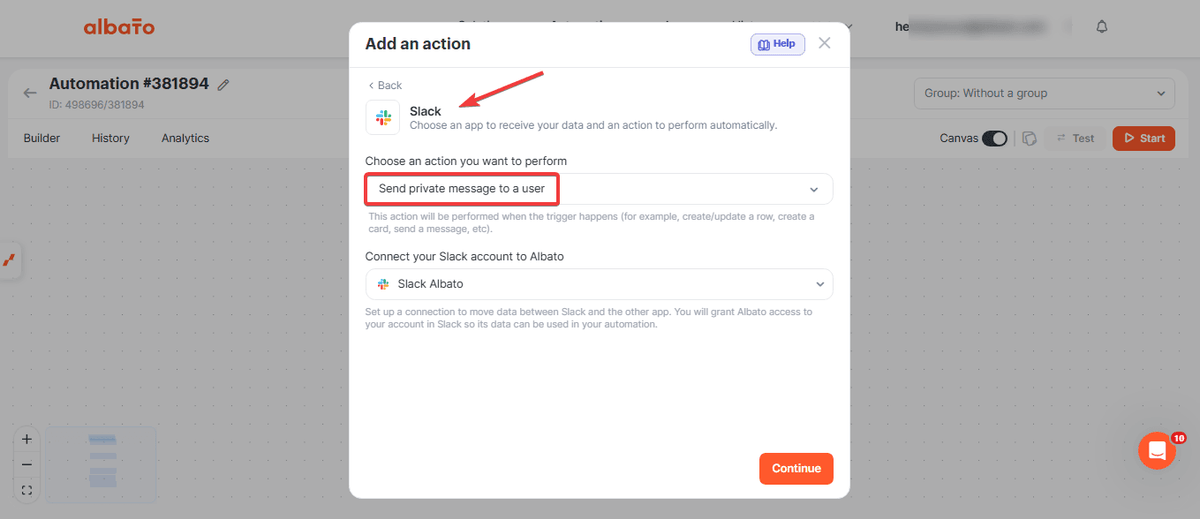
If you prefer, it is also possible to send the message to a Slack channel.
Next, define which user should receive the notification and create the message template in the message field. You can combine fixed text (typed manually) with dynamic values from the automation.
Here is an example template.
New Negative Rating Received | Follow-up Required

Conversation URL.
Customer Name.
Date and Time of Rating.
CSAT.
Message Received.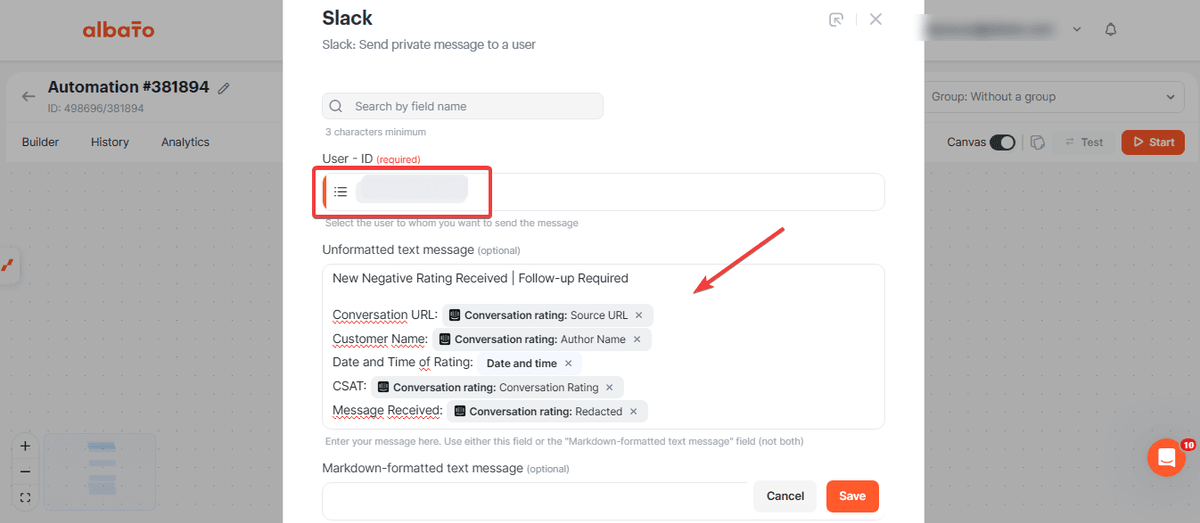
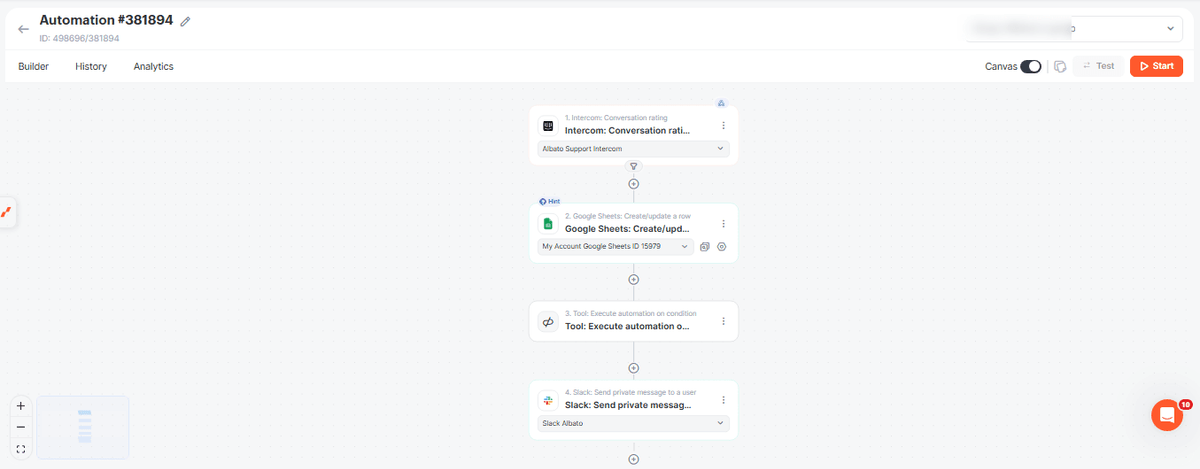
After configuring this step, your workflow will be ready to use and will have the following structure.
Workflow structure
- Intercom (Conversation Rating)
- Google Sheets (Create Spreadsheet Row)
- Filter (Only Negative Ratings)
- Slack (Send Notification)
Now you can review all Intercom ratings in Google Sheets and receive Slack alerts when a negative rating comes in. If you have any questions, contact our support team through the chat in your Albato account.
Did this answer your question?