

Rows Union
IN THIS ARTICLE
The Rows Union tool combines two row arrays into one dataset when both arrays describe the same items. Use it when one step returns a list of items and another step returns extra data for those same items, and the next step needs all fields together.
When to Use Rows Union
Use Rows Union when:
- Two automation steps return Rows instead of a single value.
- Each row set contains different data about the same items.
- Both row sets have a shared field, such as SKU, Product ID, Email, or Code.
- The next step needs one combined row set.
Note: Rows Union does not create or search for data. It matches two existing row arrays by a shared field and combines matching rows.
For example, a WooCommerce order can return product names and quantities, while a product search in another app can return product IDs or stock data. Rows Union can match both row sets by product name or SKU, then pass one combined dataset to the next action.
Example: Create a Bitrix24 Deal from WooCommerce and HubSpot Data
This example takes product rows from WooCommerce, finds product details in HubSpot, combines both row sets with Rows Union, and creates a deal in Bitrix24.
- Create a new automation. Choose WooCommerce as the trigger app and select the Order created event.
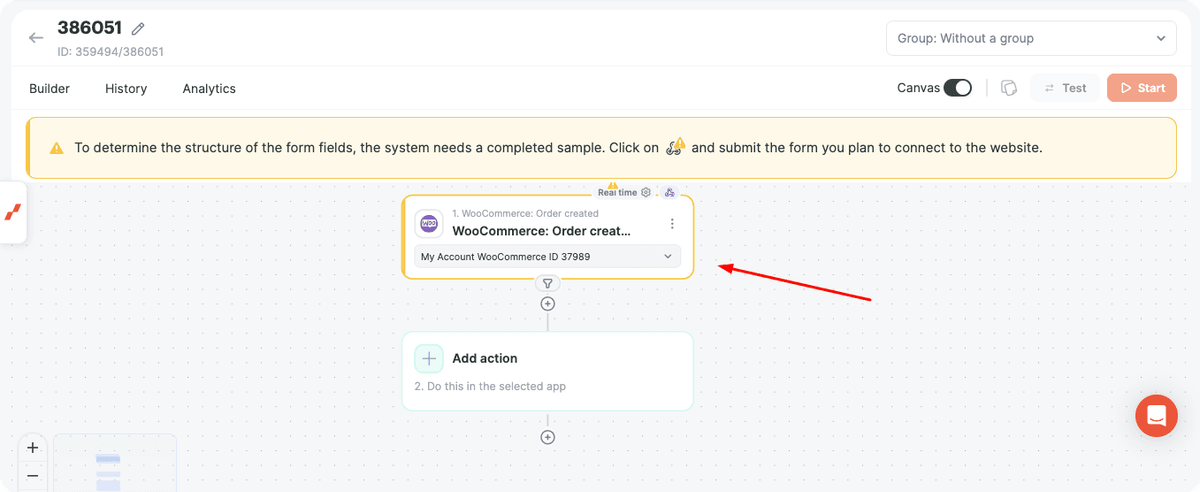
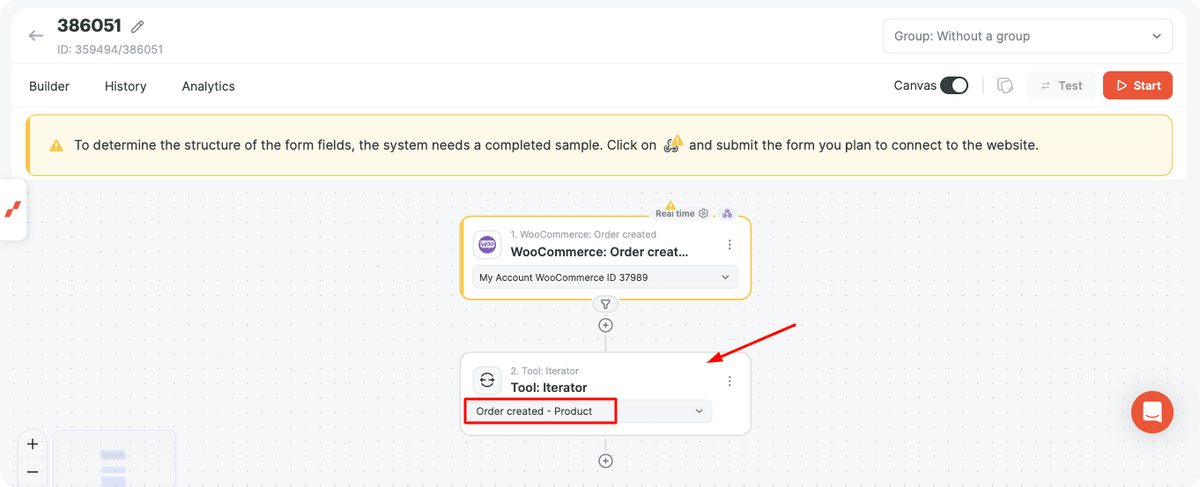
- WooCommerce returns a Rows field with the products included in the order. Because an order can contain several products, add the Iterator tool and configure it to process Rows Product from the trigger.
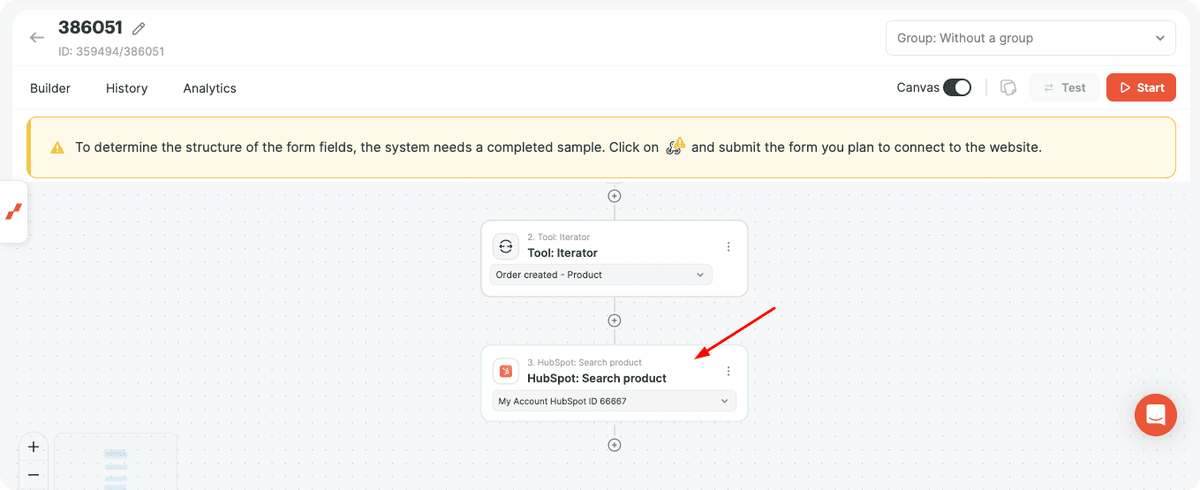
- Add the HubSpot: Search product action.
- Use the product Name from WooCommerce as the search value.
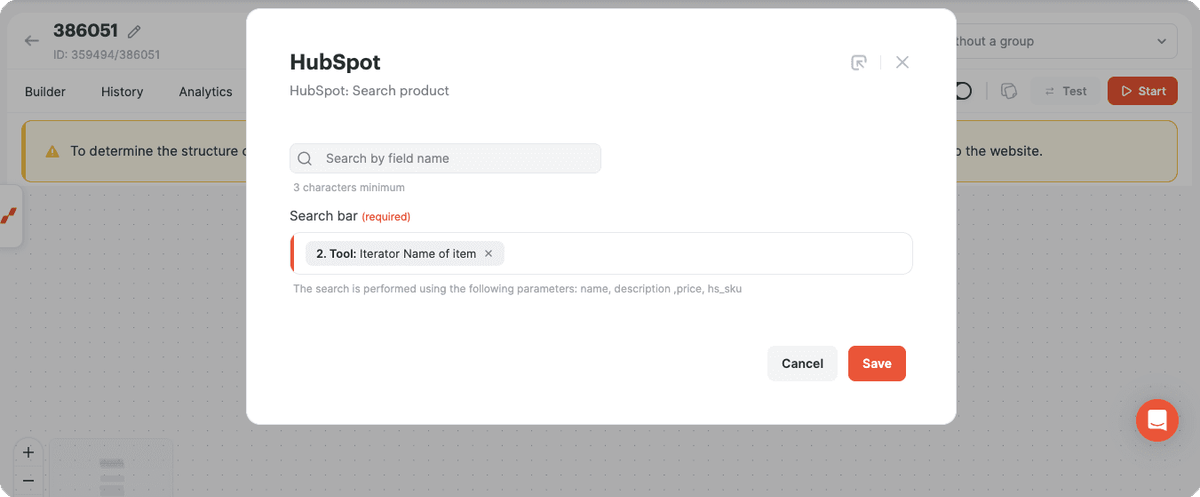
HubSpot returns product details such as Product ID, Product Name, Product Category, Stock Availability, and Product Price.
- Add the Aggregator tool after the HubSpot action.
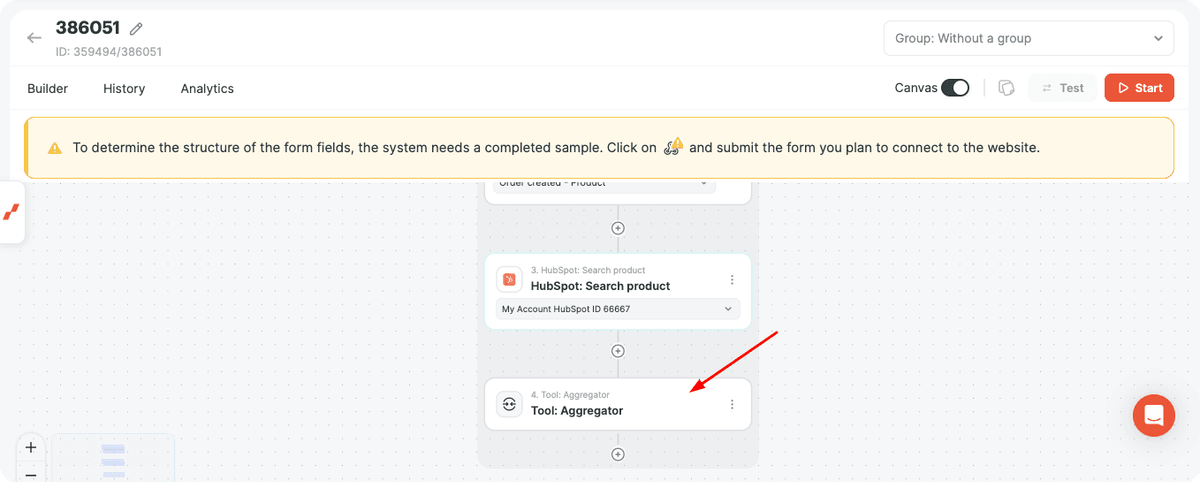
The Aggregator collects individual search results and converts them back into one Rows array. Add the fields you want to use later in the automation.
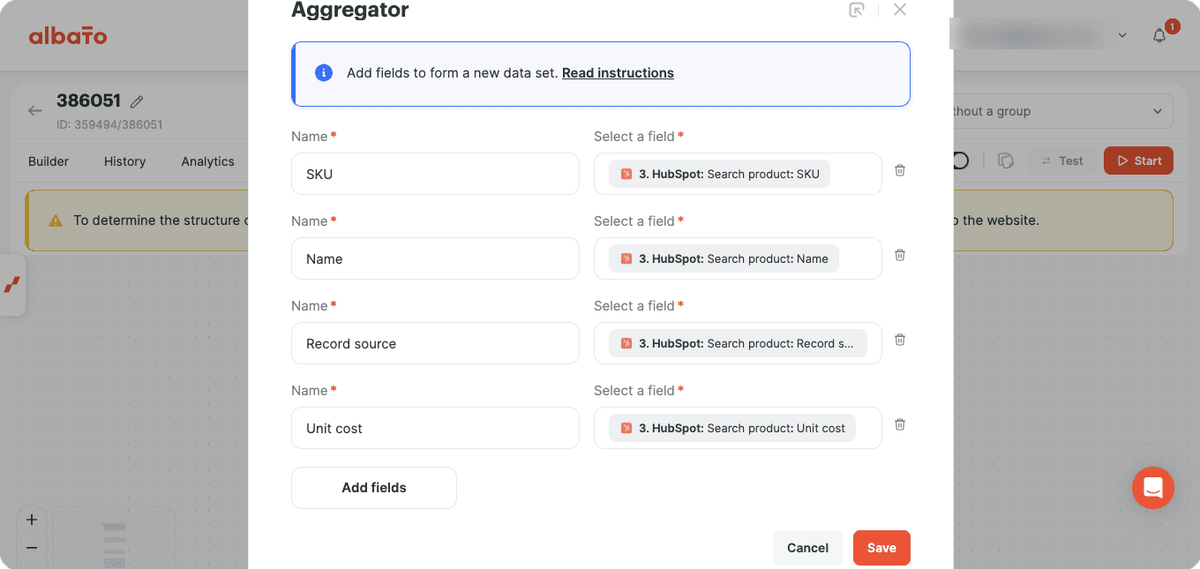
This array will become the second dataset for Rows Union.
- Add the Rows Union tool.
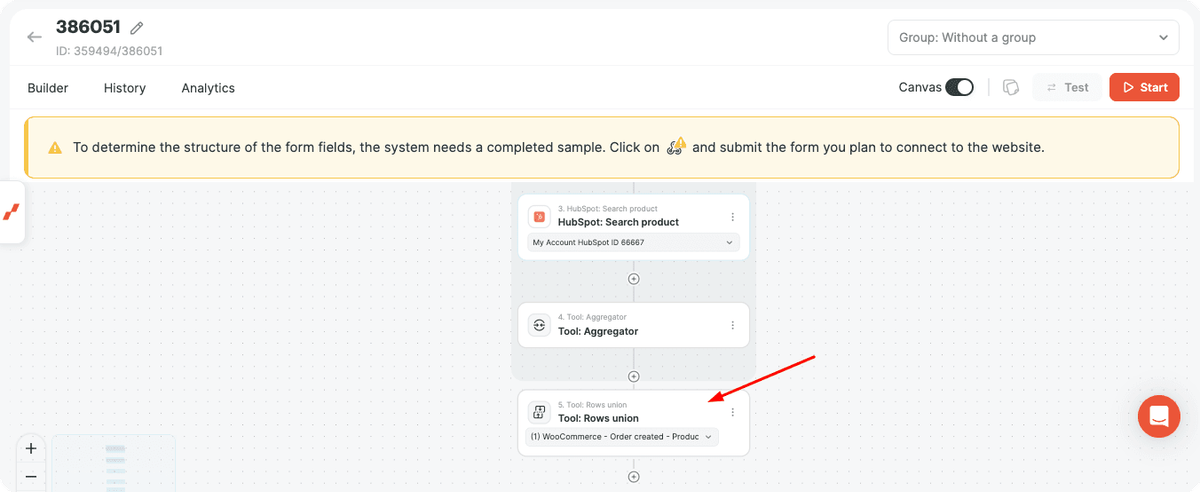
- In Rows Union, select the first and second row sources:
- First Rows Source: WooCommerce Product Row.
- Second Rows Source: Aggregator Result with HubSpot product data.
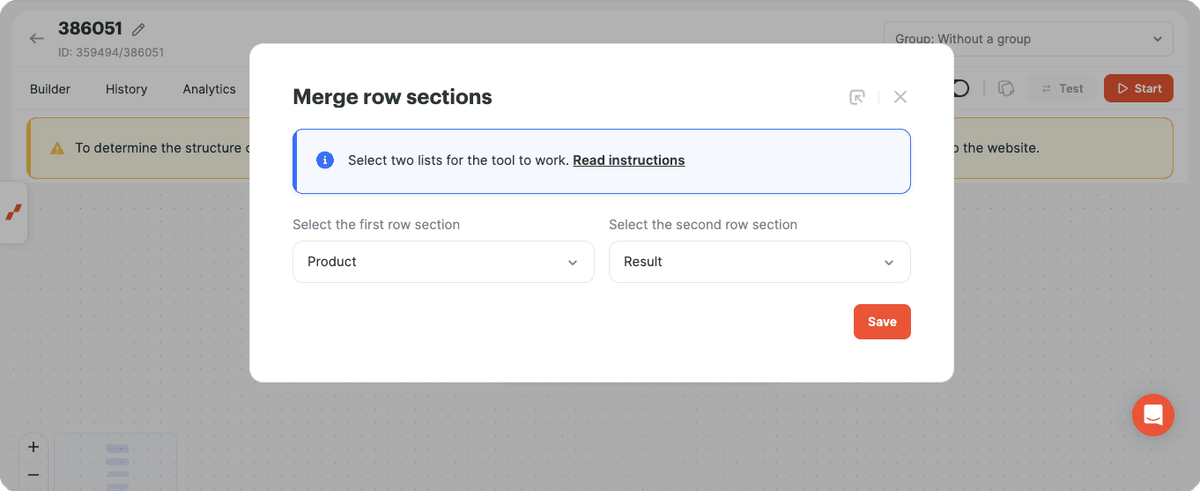
- Configure the matching condition. In this example, both WooCommerce and HubSpot contain the same product name, so use WooCommerce Name = Result Name.
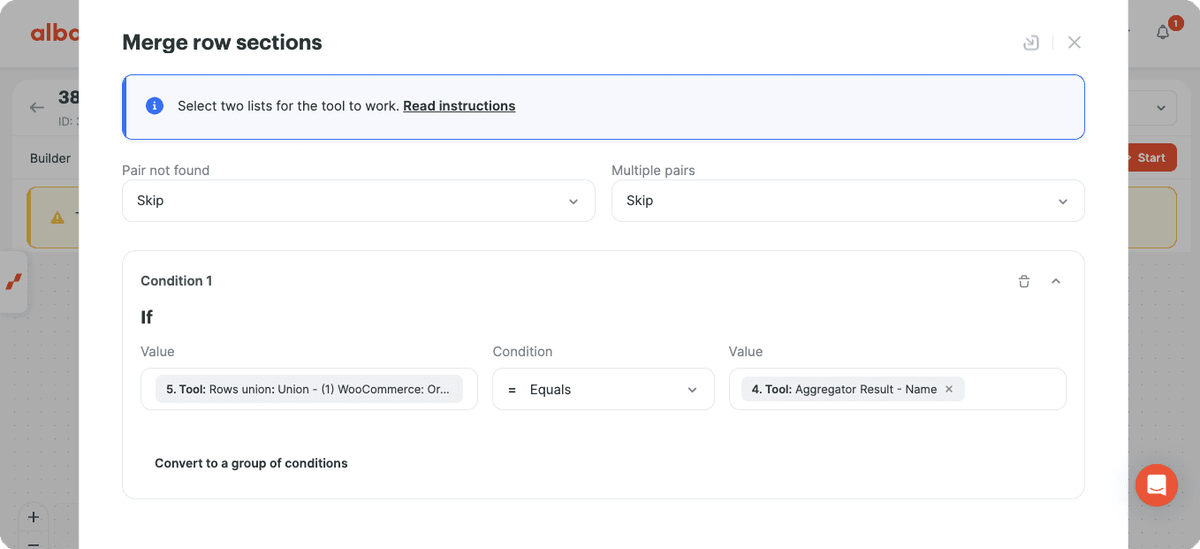
When the tool runs, it compares both arrays and merges matching rows. Instead of two separate datasets, the next action receives one combined row set.
Note: Rows Union does not search for products. It only matches two existing arrays by a shared value.
- Add the Bitrix24: Create deal action.
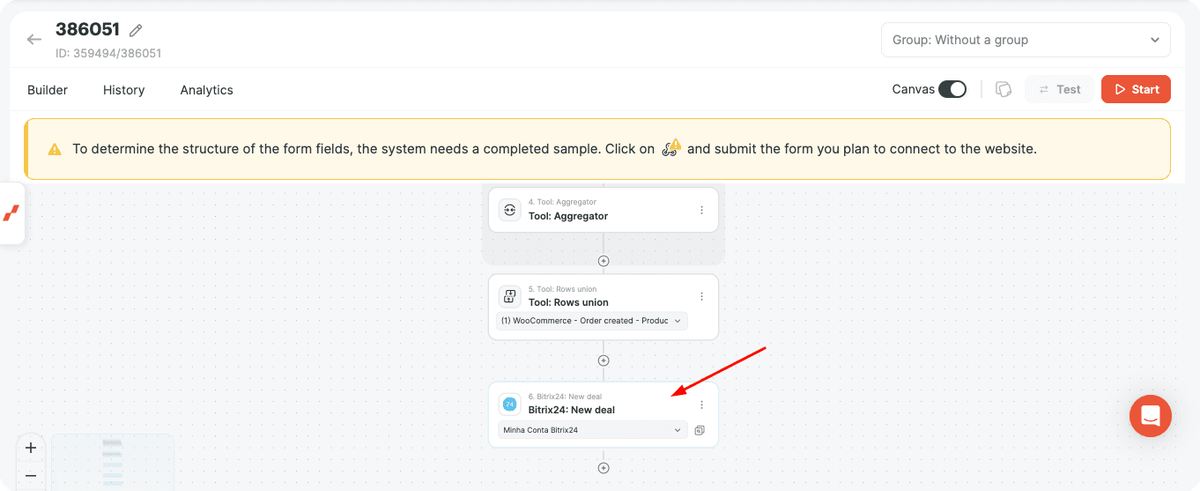
- Map fields from the combined row set. Because the rows were merged, you can use data from both WooCommerce and HubSpot in the same action.
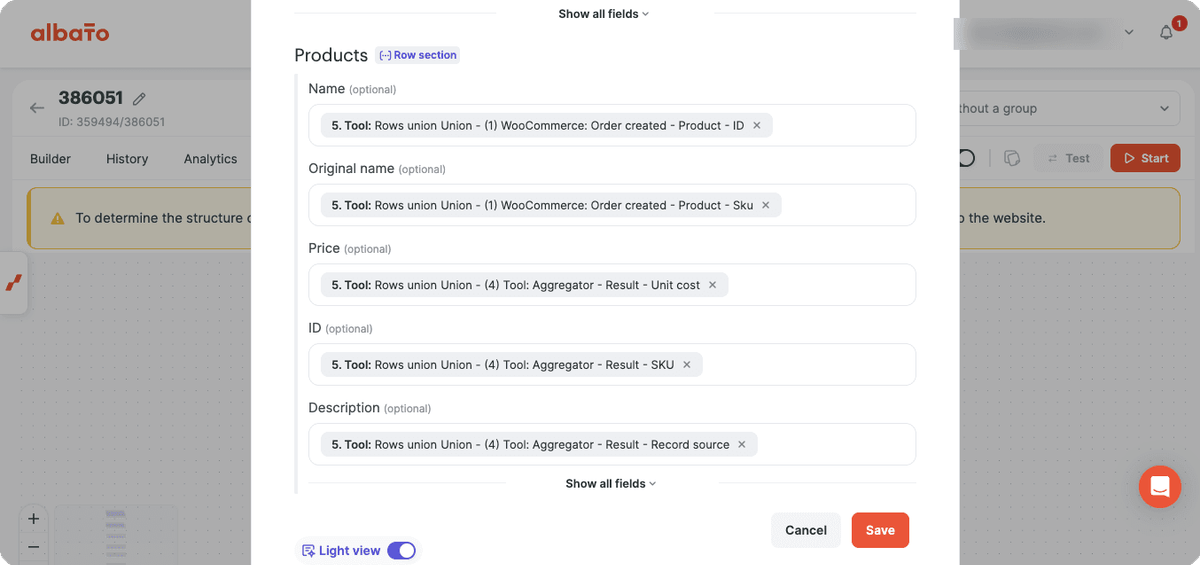
- Activate the automation.
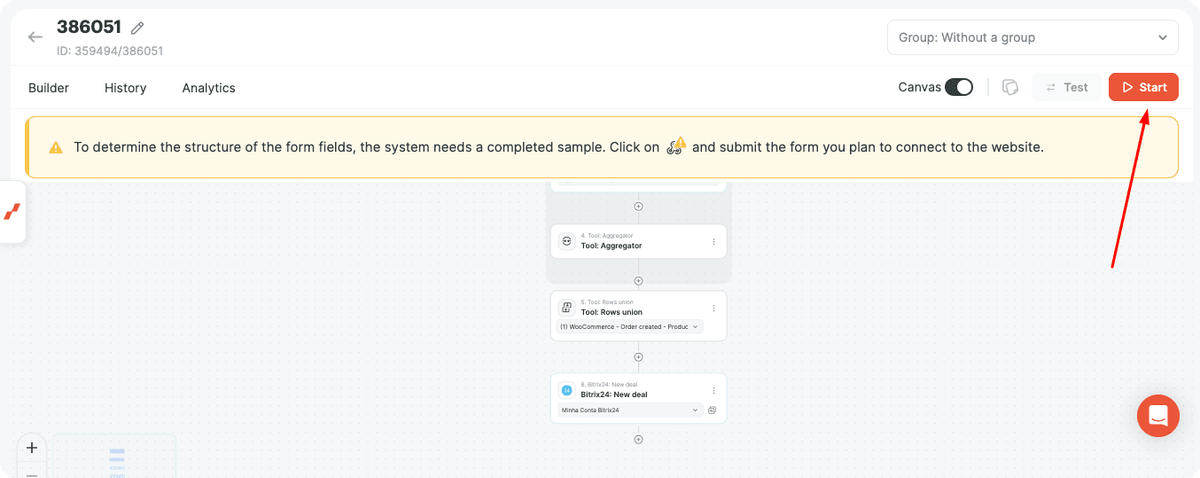
Now the automation can enrich order data from WooCommerce with product details from HubSpot before creating the deal in Bitrix24.
Use Rows Union whenever two steps return related Rows and the next step needs one complete dataset. You can match rows by values such as Product ID, SKU, Product Code, Email Address, Contact ID, or Customer Code.
For help, contact the support team through the chat.
Did this answer your question?