

Mathematical Operation Tool
IN THIS ARTICLE
Use the Mathematical Operation tool to calculate a value from numerical fields before sending the result to another app. For example, subtract a discount from an order value or calculate a sales commission.
When to Use the Tool
- Convert a currency amount, for example from dollars to euros before sending it to a CRM.
- Add, subtract, multiply, or divide values from two or more fields and send the result to one field. For example, add product weight and box weight to calculate gross weight.
- Add VAT to an amount or perform other calculations.
In the first example, a purchase updates the order value and discount value in a HubSpot deal. The automation subtracts the discount and sends the resulting total to Google Sheets for sales records.
Example 1: Calculate an Order Total After a Discount
- In Automation Builder, add HubSpot in the first step of the workflow. Select the Deal updated trigger and connect your app account.

- Add Google Sheets in the second step. Select the Create/update a row action and connect your app account. Specify the spreadsheet and the tab where your sales records are stored.

- Map the fields to fill in the spreadsheet according to HubSpot data. Leave the Total amount field blank.

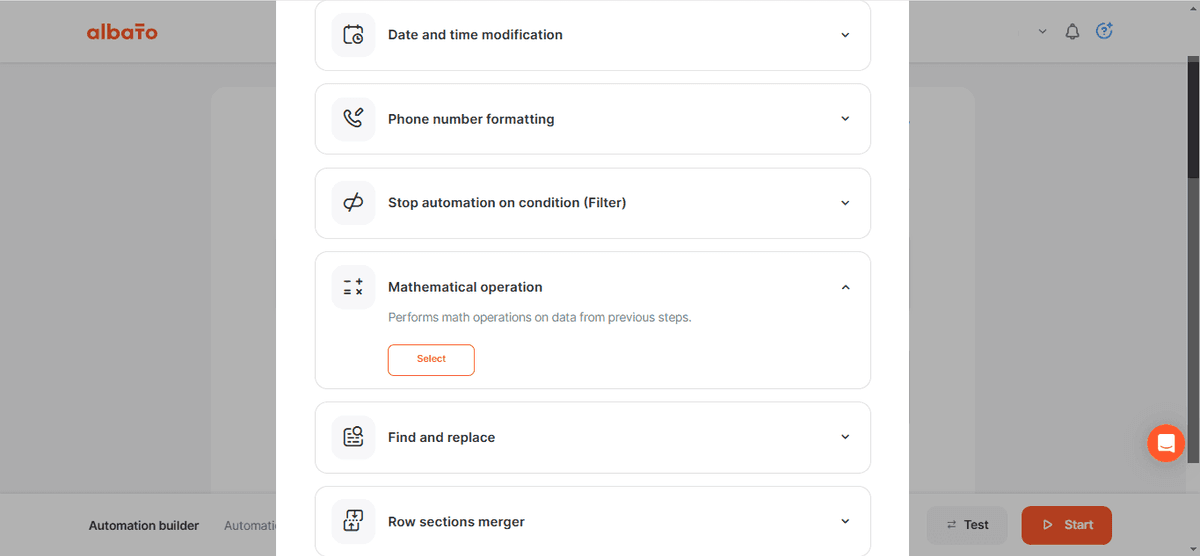
- Click on the + icon between the steps and select the Tool option. Then, find the Mathematical Operation tool and click the Select button.
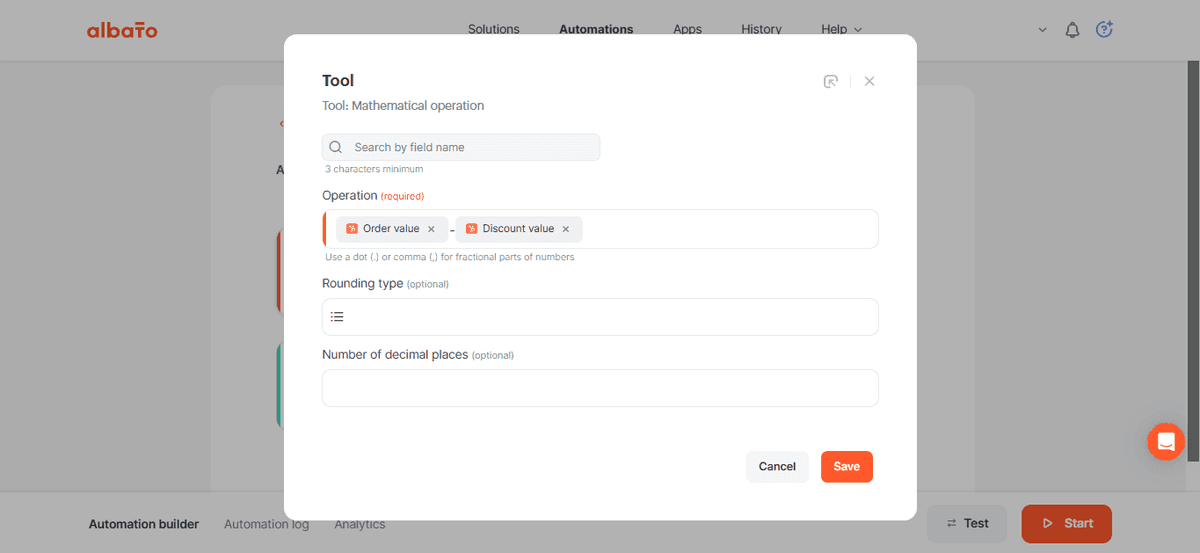
- In the Operation field, describe the required mathematical operation. You can also select the rounding type for fractional results and the number of decimal places.
Use the following values from HubSpot:
Order value - Discount value
- Click the gear icon in the Google Sheets step to do the final setup. Then, select the Total value field and define the Result parameter in the drop-down list linked to the Mathematical operation tool.
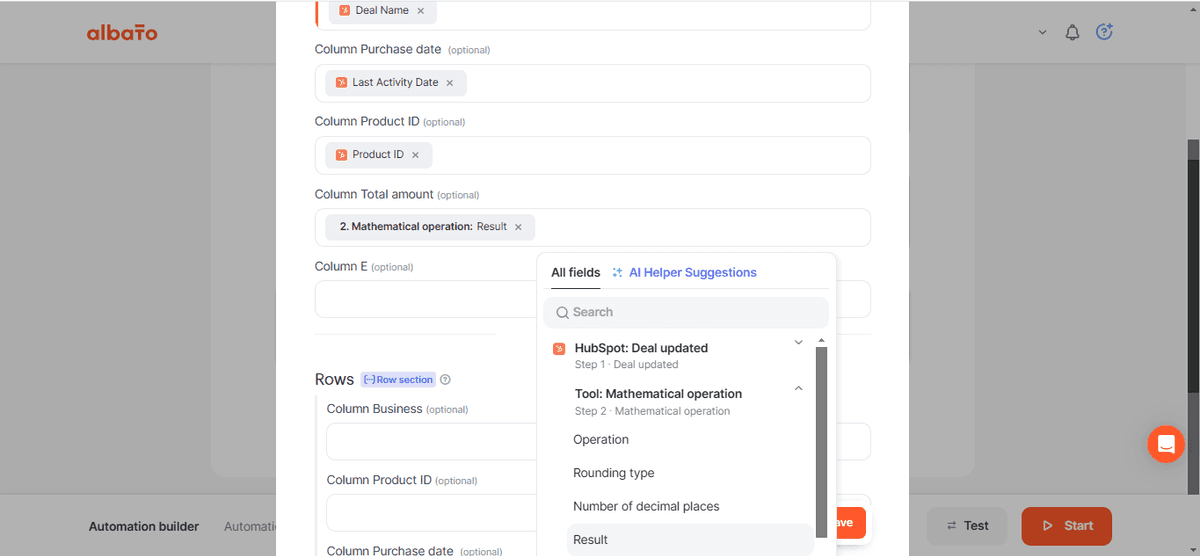
The tool returns the calculation result. If Order value is 5000 and Discount value is 100, then the math operation result 4900 will be sent to Google Sheets.
The next example calculates a sales commission.
Example 2: Calculate Sales Commission for Hotmart Purchases
Hotmart users can sell digital products and courses through affiliates, external salespeople, or their community.
Calculating the commission helps you understand how much is deducted from the sale amount.
Use the Mathematical Operation tool to calculate the commission and save the result in a CRM, spreadsheet, or another app.
This example uses Hotmart and saves the result in Notion. The same calculation can be used with other apps.
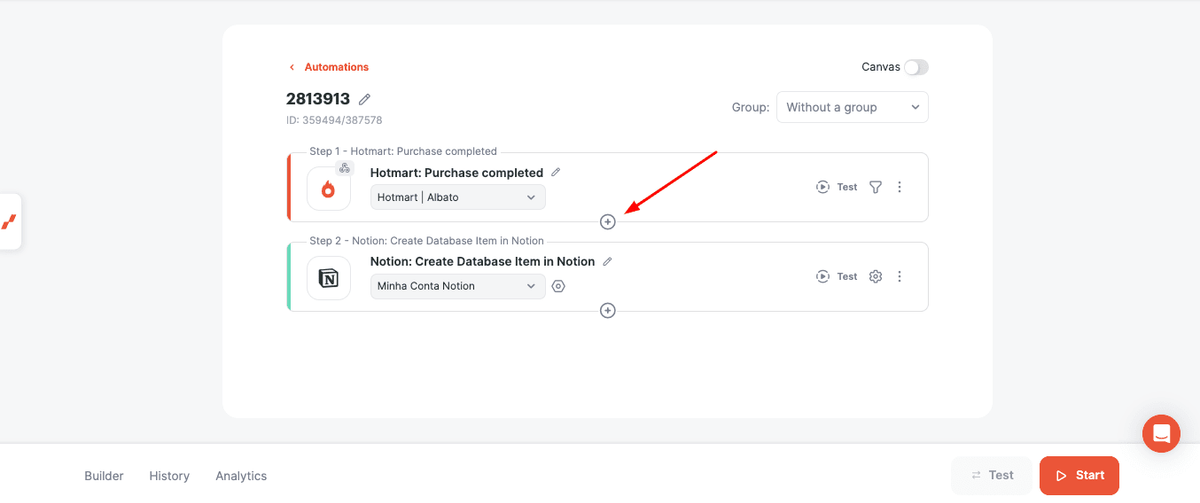
- Start with the automation shown below.
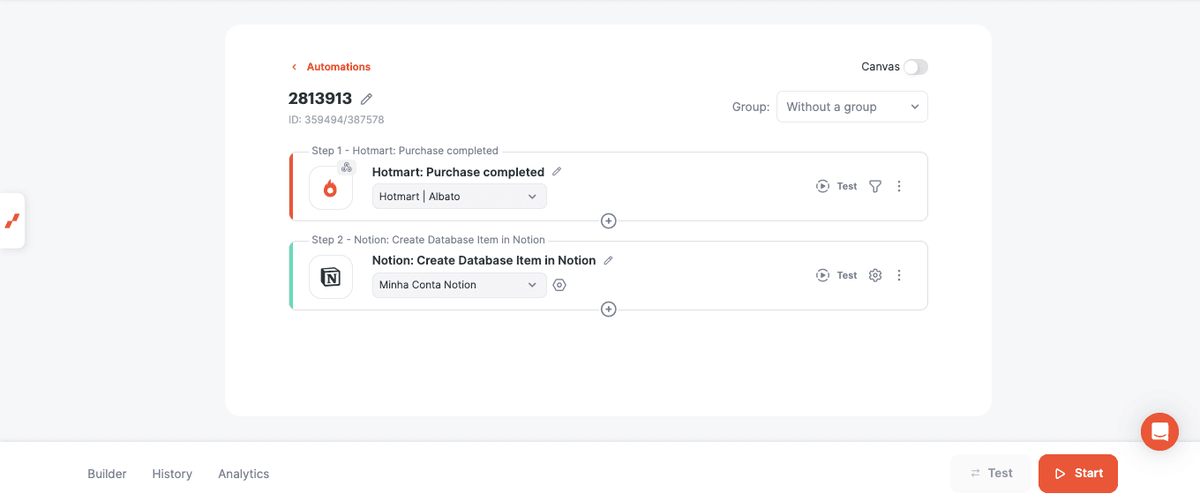
In this example, every time a purchase is completed on Hotmart, a new item is created in a Notion database.
- To add the Mathematical Operation tool, click between the two steps:
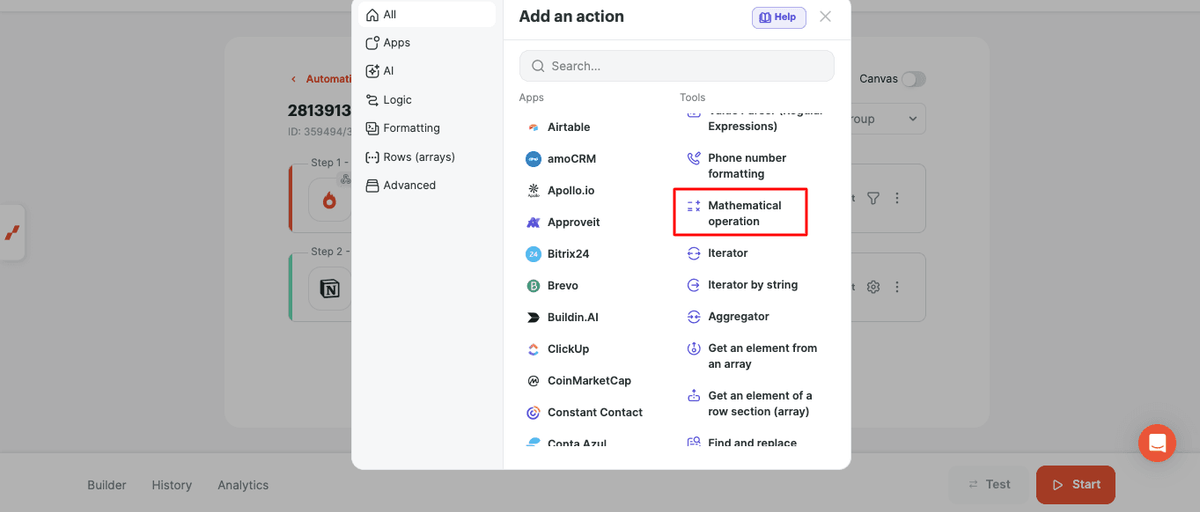
- Then, select Mathematical Operation:
- Configure the operation. This example uses a commission of 10%.
Select Purchase Full Price value from the dropdown list and add * 0.10.
The configuration is shown below.

- In the next step, select the operation result in the field where you want to save it.

You can calculate different commission percentages by changing the formula used.
Other uses include calculating the remaining product quantity after a sale and conversion rate changes in a website traffic report.
- Activate the automation after completing the configuration.
Did this answer your question?