

Jump to Another Action Tool
IN THIS ARTICLE
When an automation finds an existing contact, it may need to skip the step that creates a new one and continue to the next relevant action.
The Jump to Another Action tool directs the automation to a selected action, skipping the steps in between.
The following example shows how to use the tool when creating deals and linking them to contacts.
Example: Find or Create a Contact Before Creating a Deal
In this example, the automation creates a deal in Pipedrive for each new order received in Ecwid. Before creating the deal, it checks whether a contact (person) for the customer already exists in Pipedrive.
The contact search in Pipedrive can be performed using different values, such as a phone number or an email address. However, there may be scenarios where the Ecwid buyer does not provide one of these two values.
Configure the search and routing steps below to link the deal to an existing contact or create a contact when the search returns no result.
- First, add the Ecwid New Order trigger to your automation.
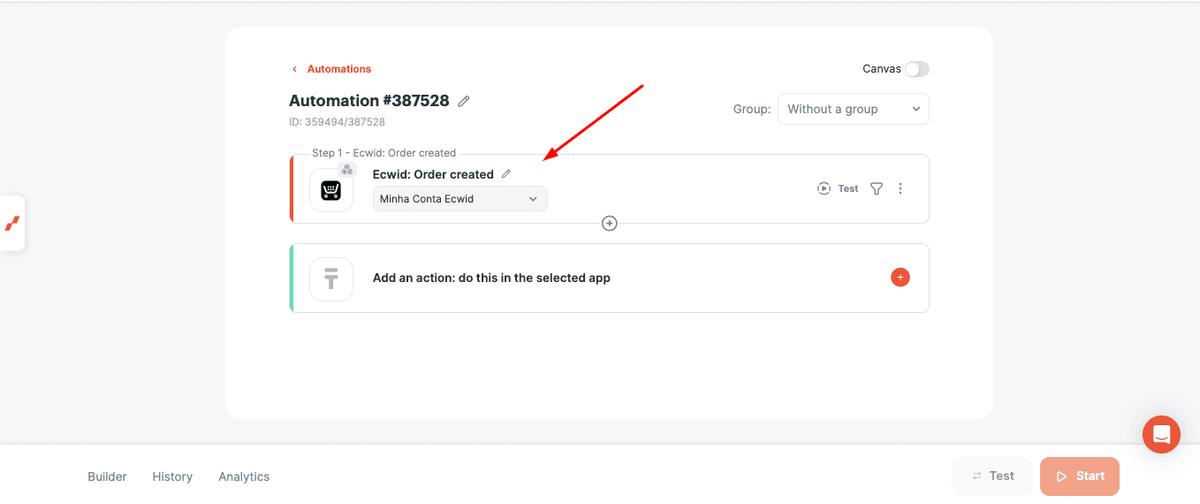
This example uses Ecwid to send data to Pipedrive. The same logic can be applied to other apps with similar search and creation steps.
- Add the steps first, then configure their fields.
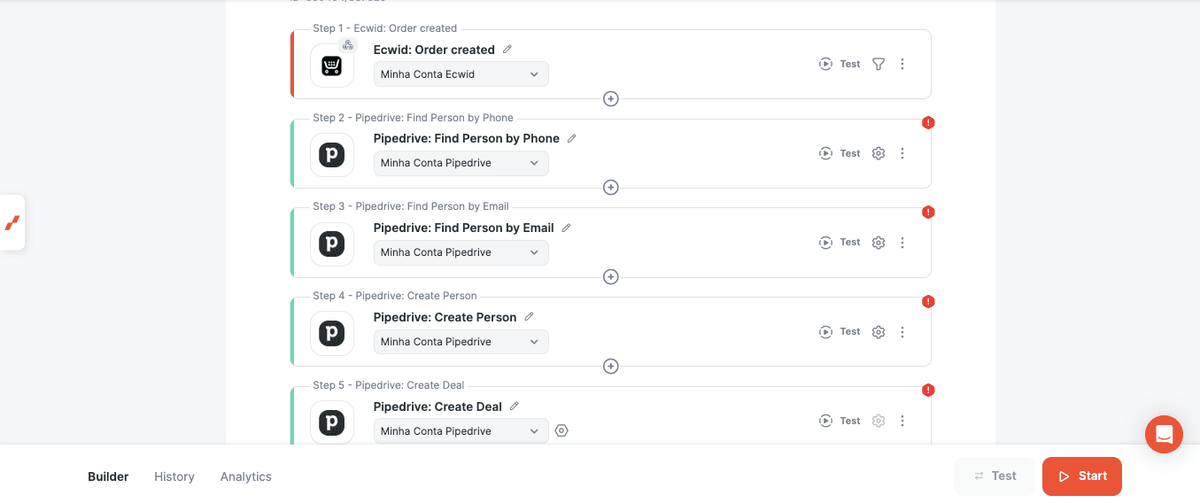
Add the Find Person by Phone, Find Person by Email, Create Person, and Create Deal steps in this order.
The initial automation structure is shown below.
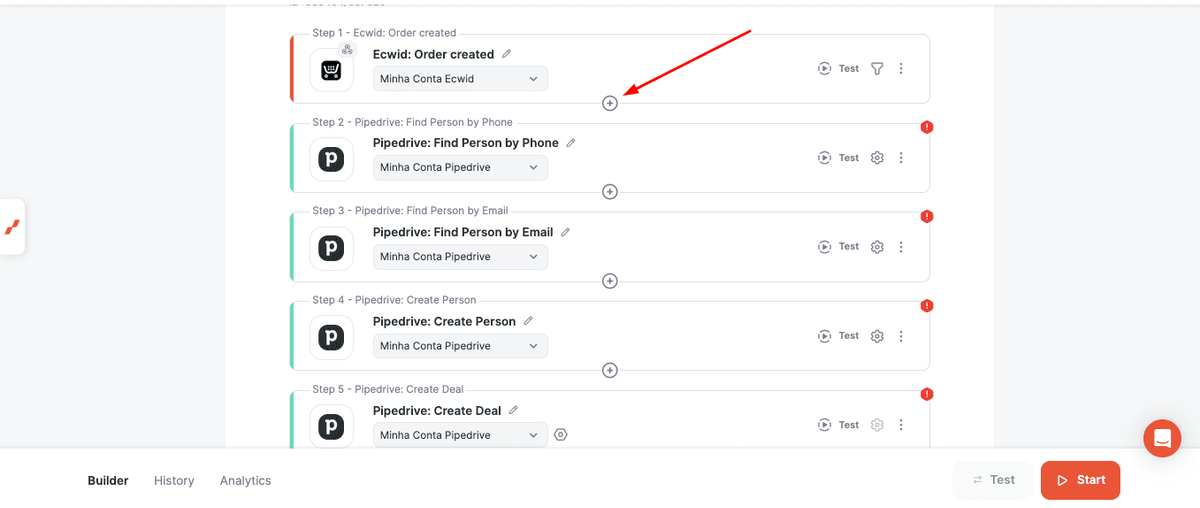
- Next, add the Router steps.
Click the button shown below to add a tool.
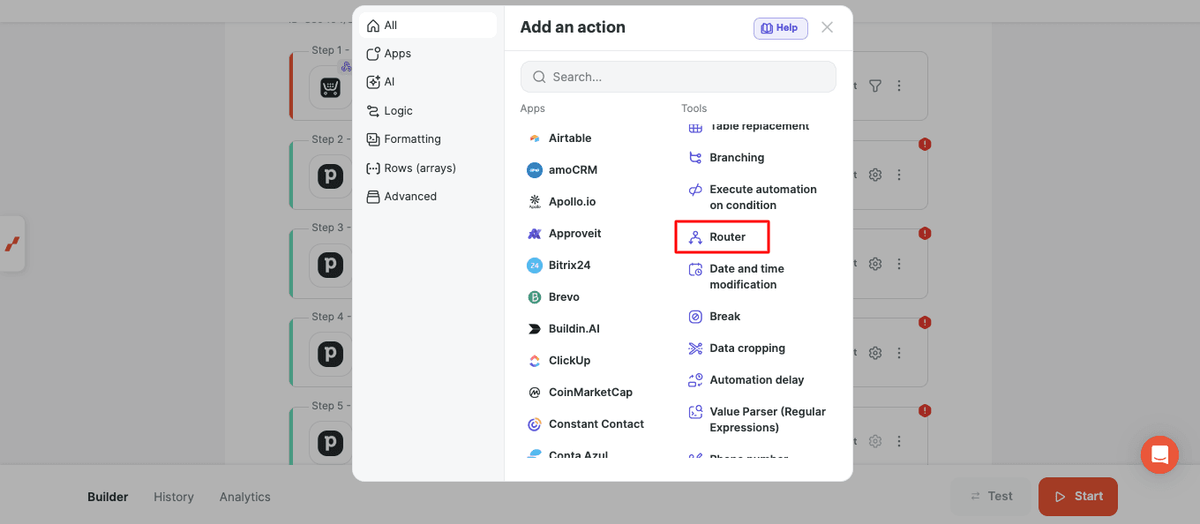
Select Router.
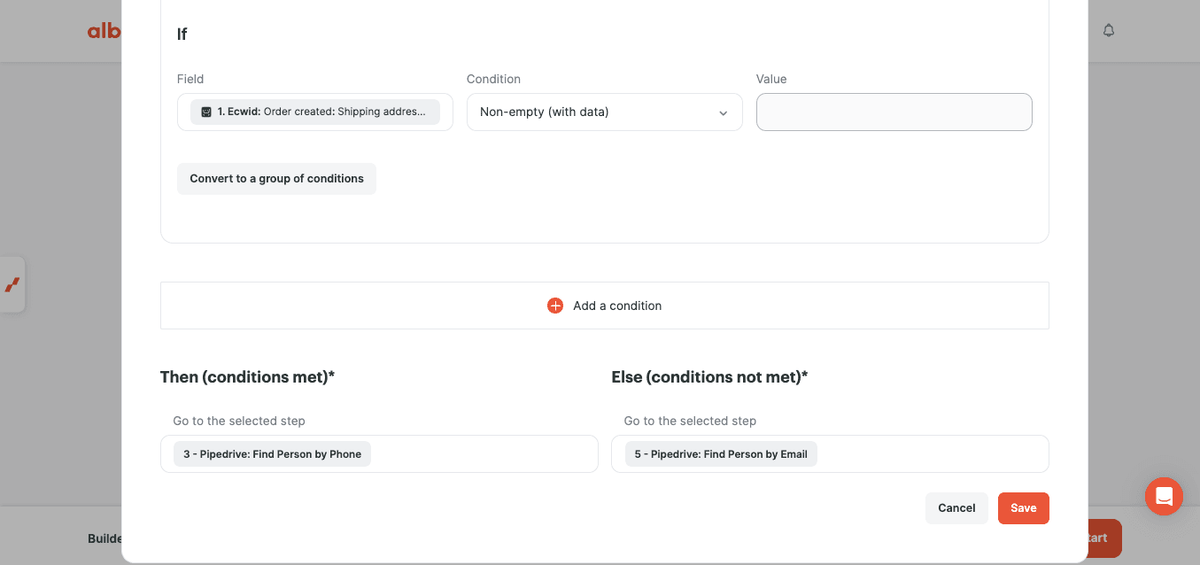
- Configure the Router so that, if the phone field is filled in, the flow goes to the step that searches for the contact by phone.
Otherwise, it should go to the step that searches for the contact by email.
The routing configuration is shown below.
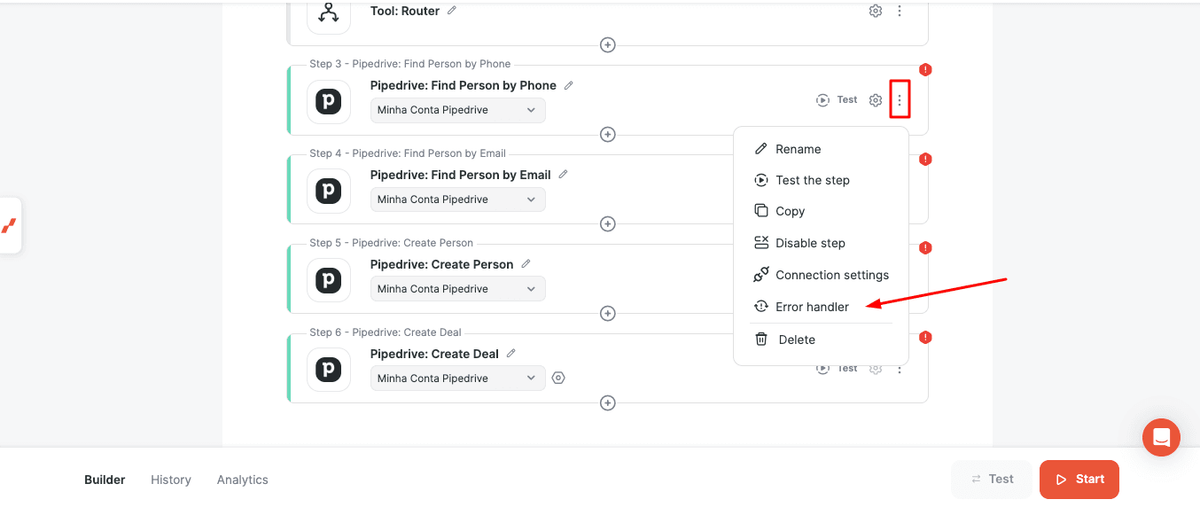
- Configure an error handler for each search step to handle cases where no matching contact is found in Pipedrive.
Open the error handler settings as shown below.
Configure it so that, if an error occurs, the automation jumps to the Create Person step.
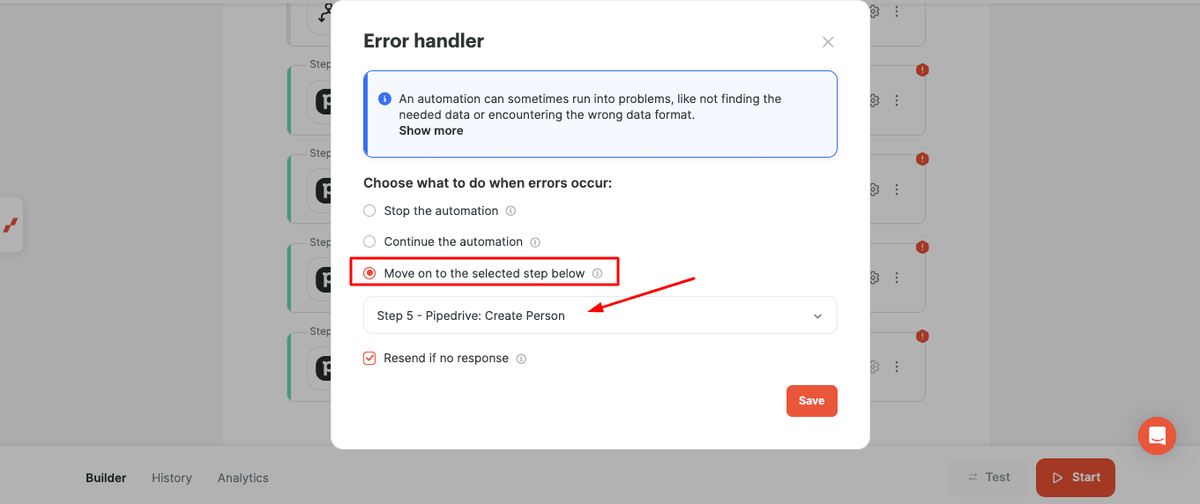
Apply the same error handler settings to the action that searches for a person by email.
The automation now routes the contact search by phone or email and proceeds to Create Person if the search returns an error.
- Next, add the Jump to Another Action steps.
When a search finds a contact, these steps direct the automation to Create Deal.
Add a Jump to Another Action step after each contact search, as shown below.
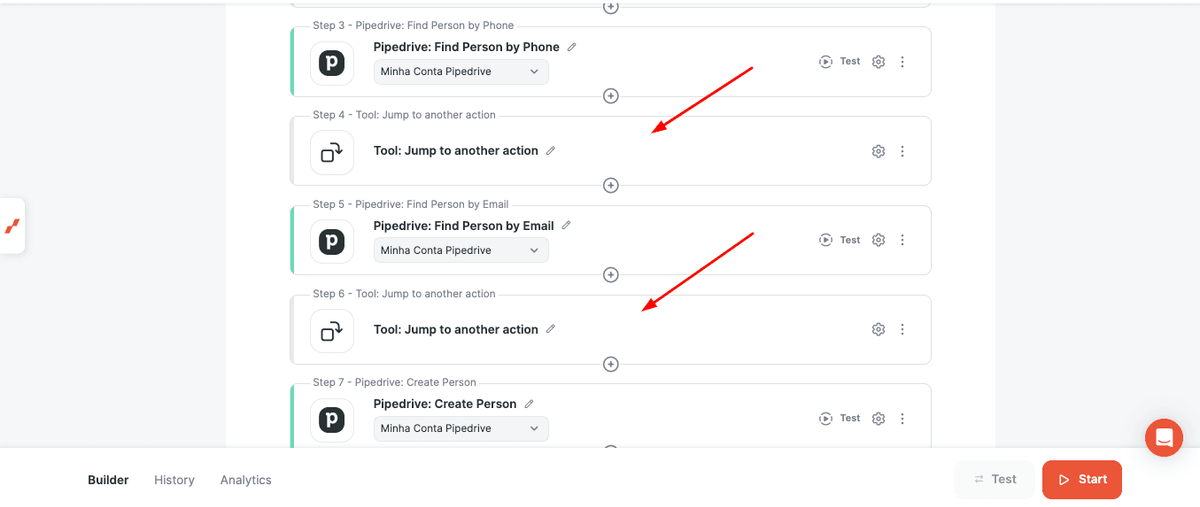
- Configure both steps to direct the automation to Create Deal.
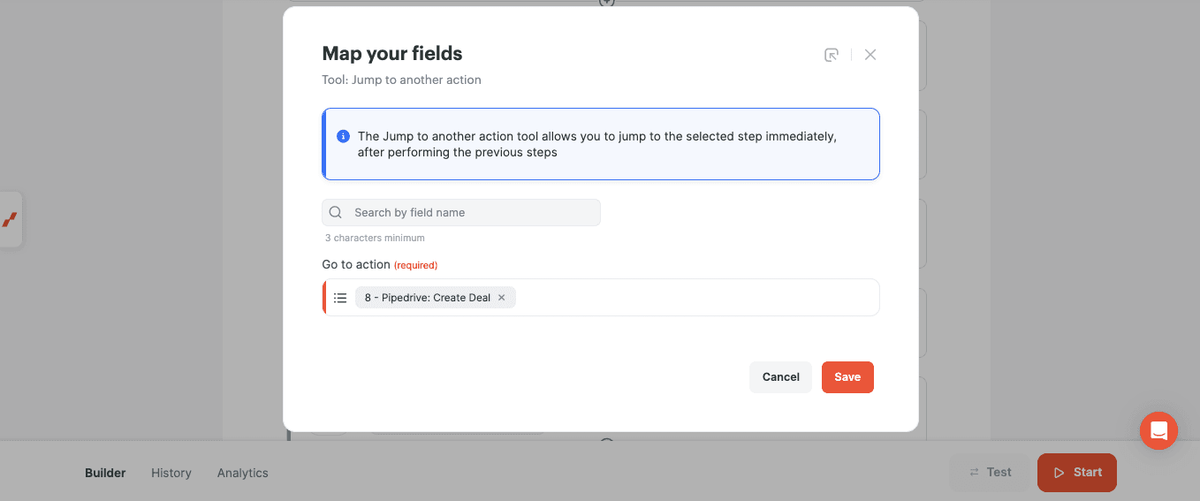
Configure the fields in each step.
- In the contact search by phone, use the phone field as the search value.
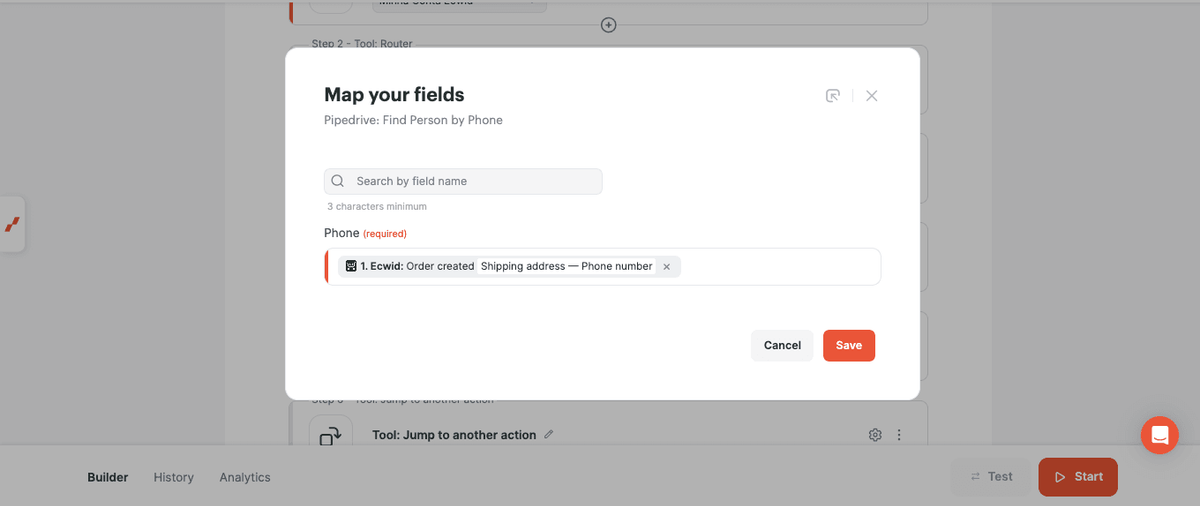
- In the contact search by email, use the email field as the search value.
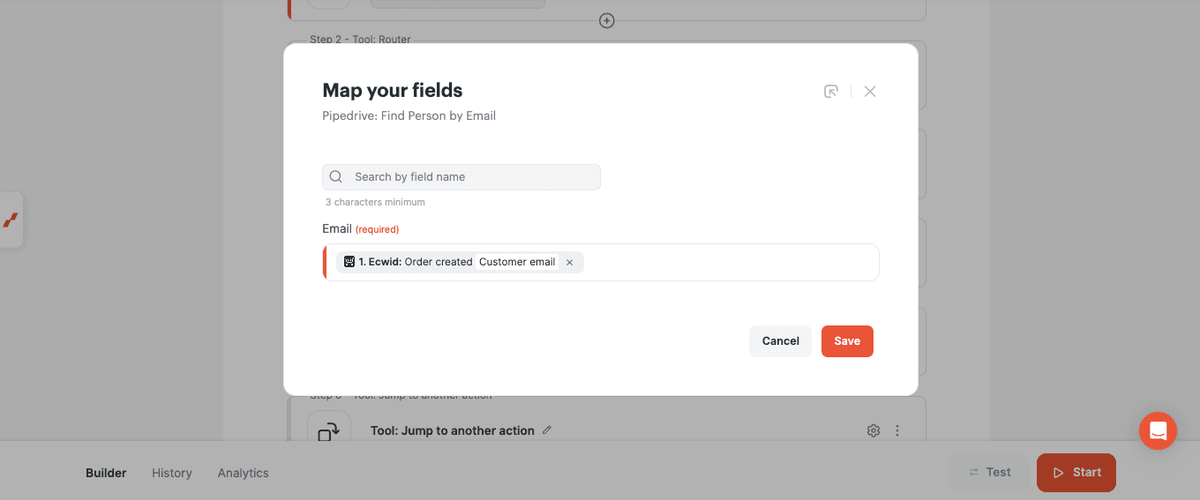
- In Create Person, map the relevant contact data from the trigger to the corresponding fields.
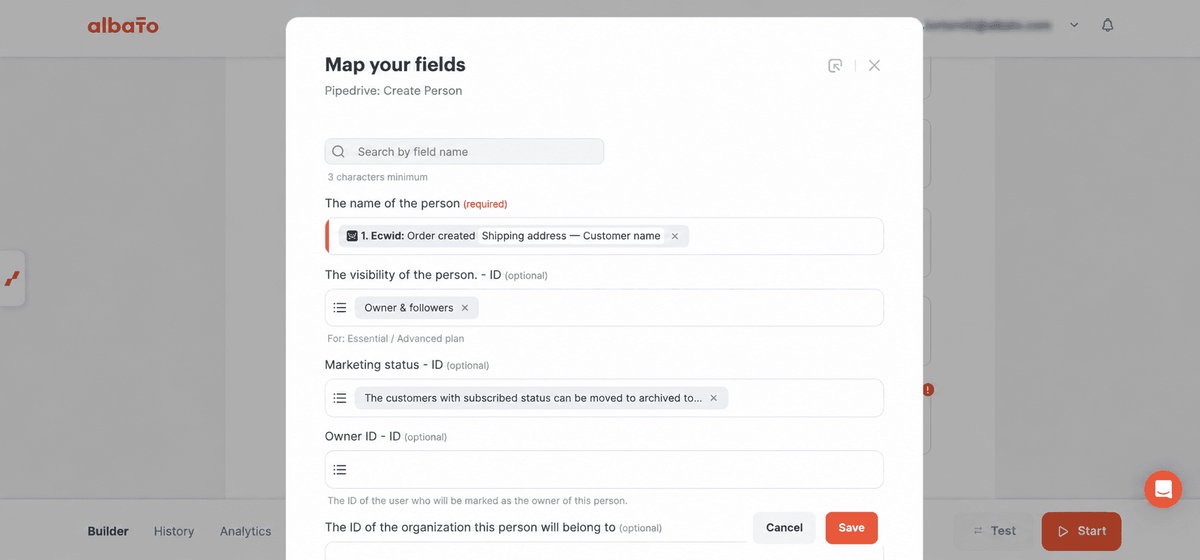
- In Create Deal, map the fields needed for the deal. In Person ID, add all three possible contact IDs: the ID returned by the phone search, the ID returned by the email search, and the ID returned by Create Person.
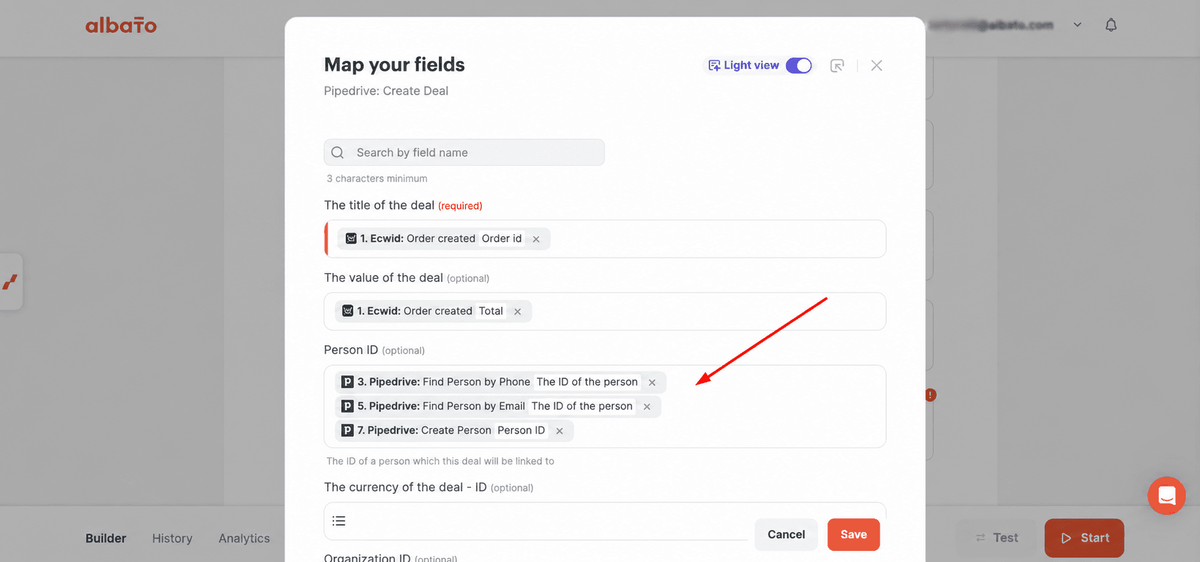
In this configuration, only one of the three ID fields contains a value during each execution. That value is sent to Person ID.
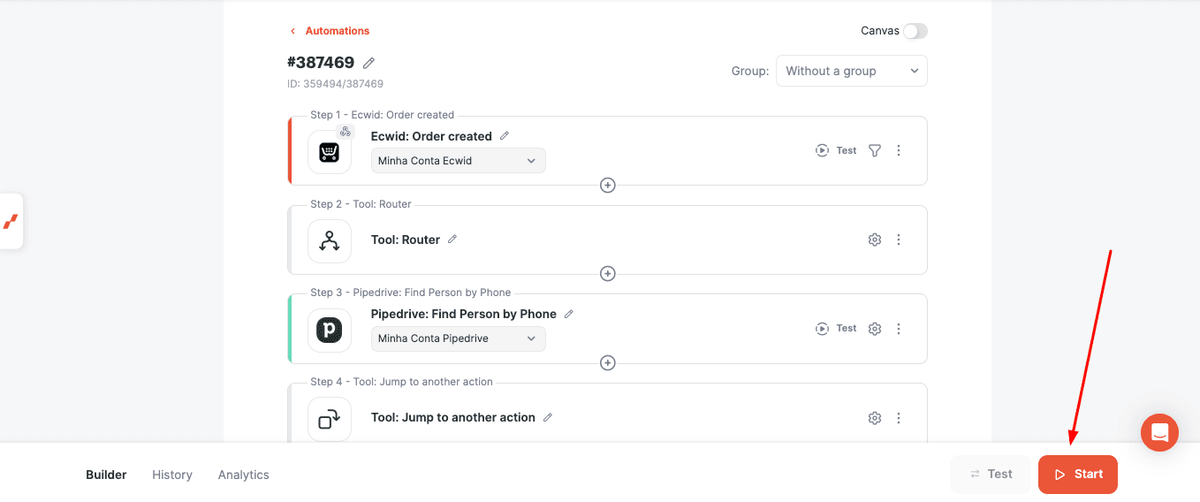
- Activate the automation after completing the configuration. It will use the configured search and routing steps to create a deal and link it to an existing or newly created contact.
Did this answer your question?