

How to Set Up Automation Start Schedule in Albato
IN THIS ARTICLE
Start Schedule is a feature in Albato that lets you choose when and how often an API automation should run.
You can use this feature for API automations configured for real-time transmission or regular data migration.
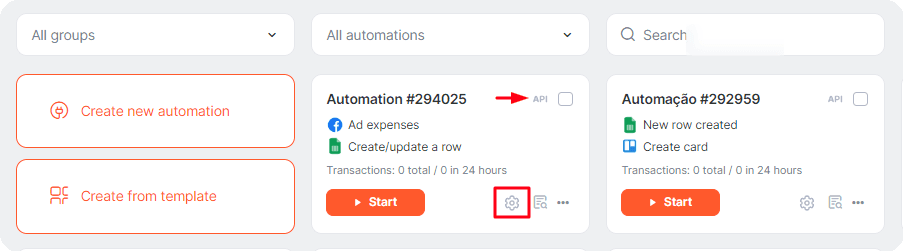
- To set up a schedule, open the Automations section and click the gear icon on the automation card.
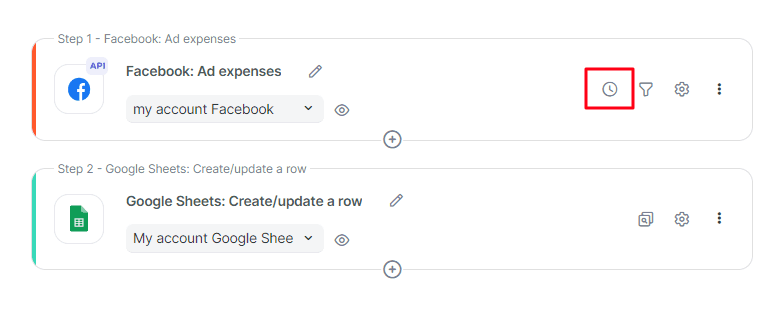
- When the Automation builder opens, click the clock icon.
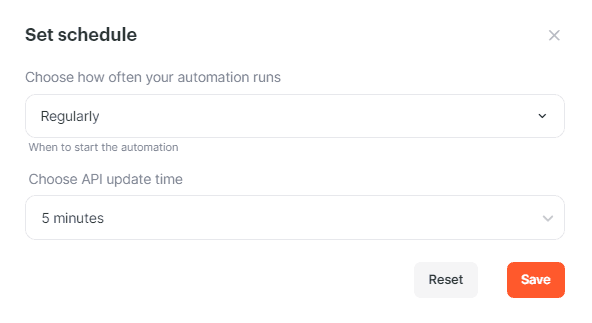
Real-Time
This is the Schedule tab interface for scenarios with real-time execution.
Regularly
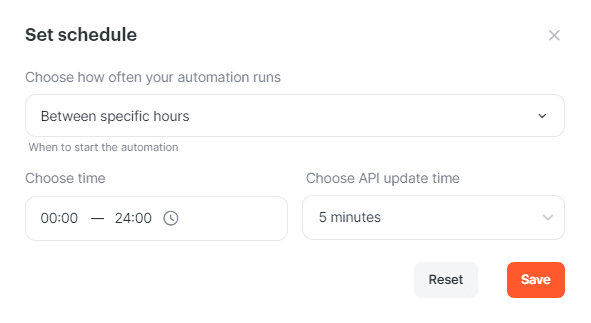
Between specific hours
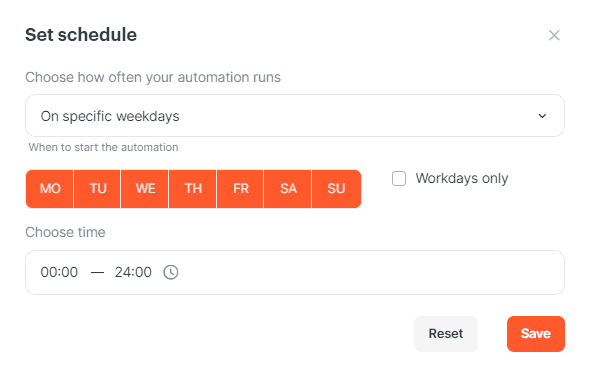
On specific weekdays
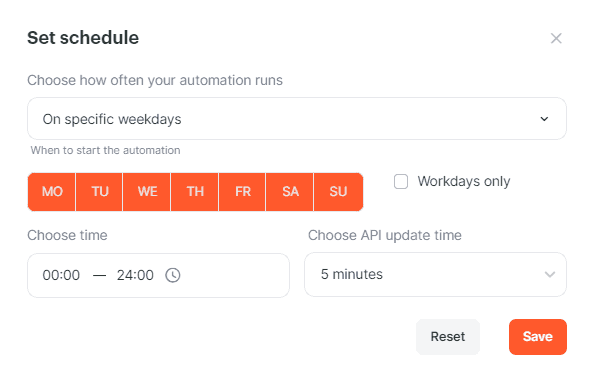
On specific days of the month
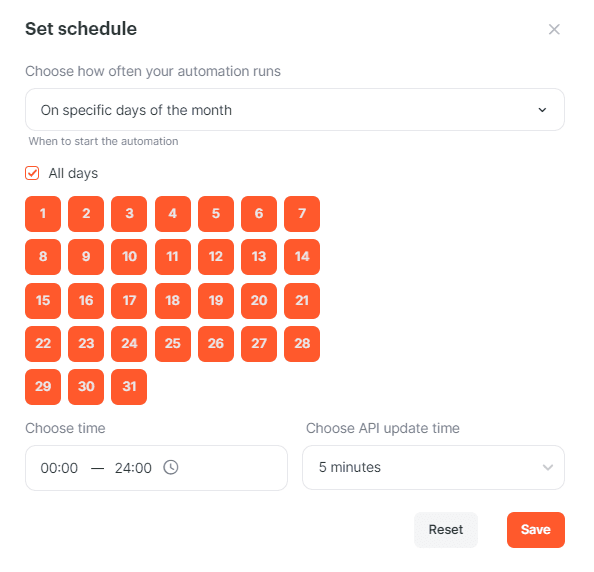
Custom schedule
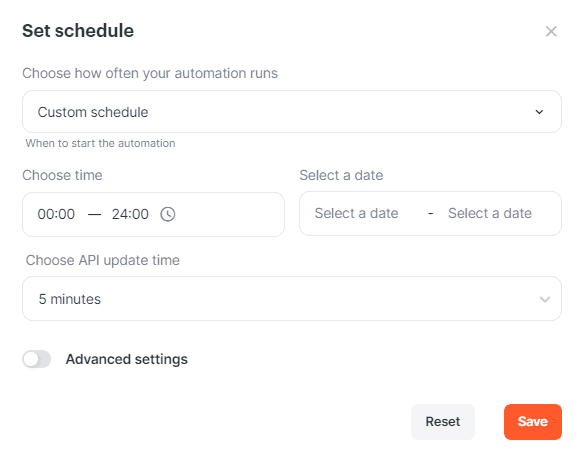
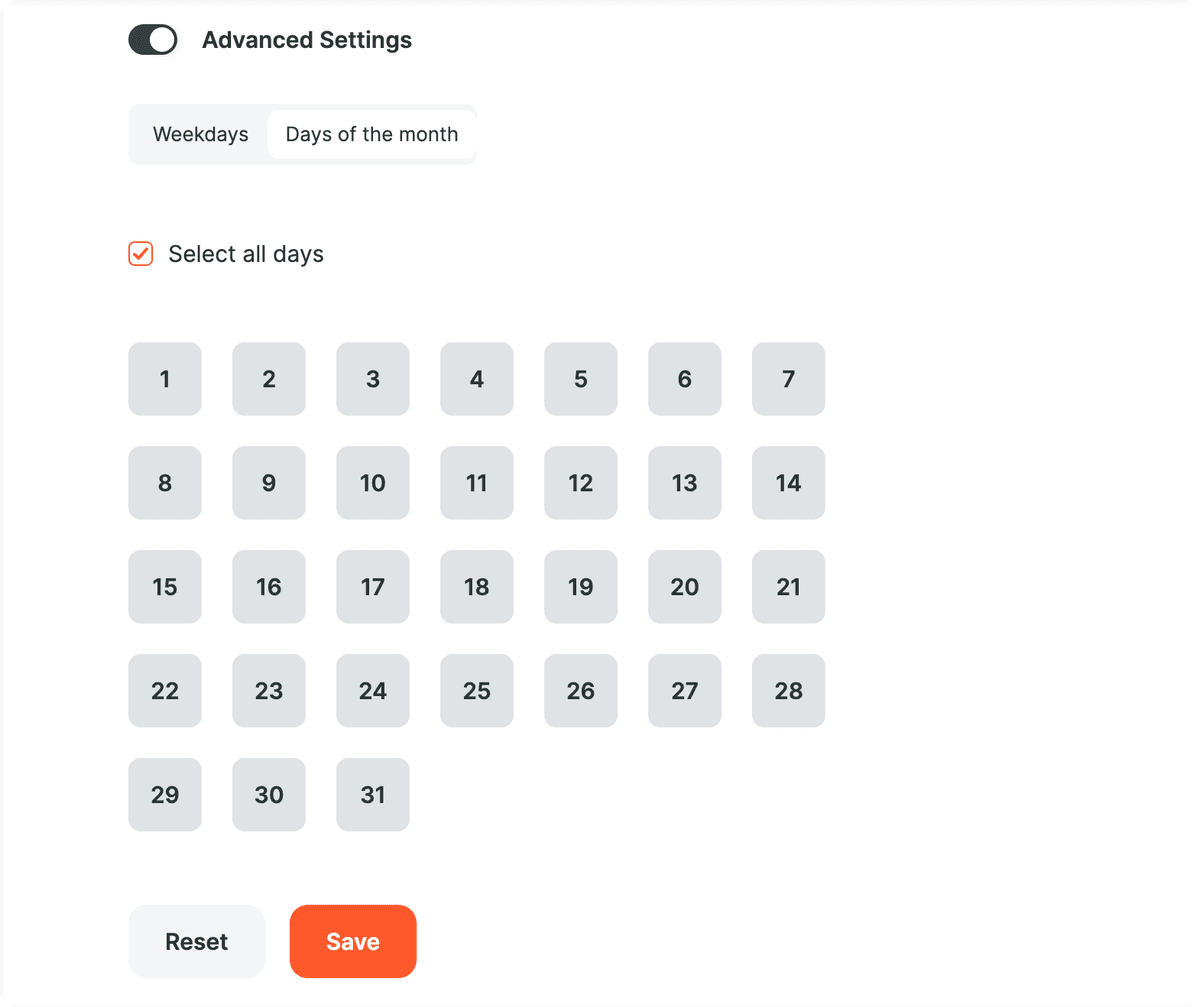
In the customizable option, you can also use the Advanced Settings to specify days of the week...
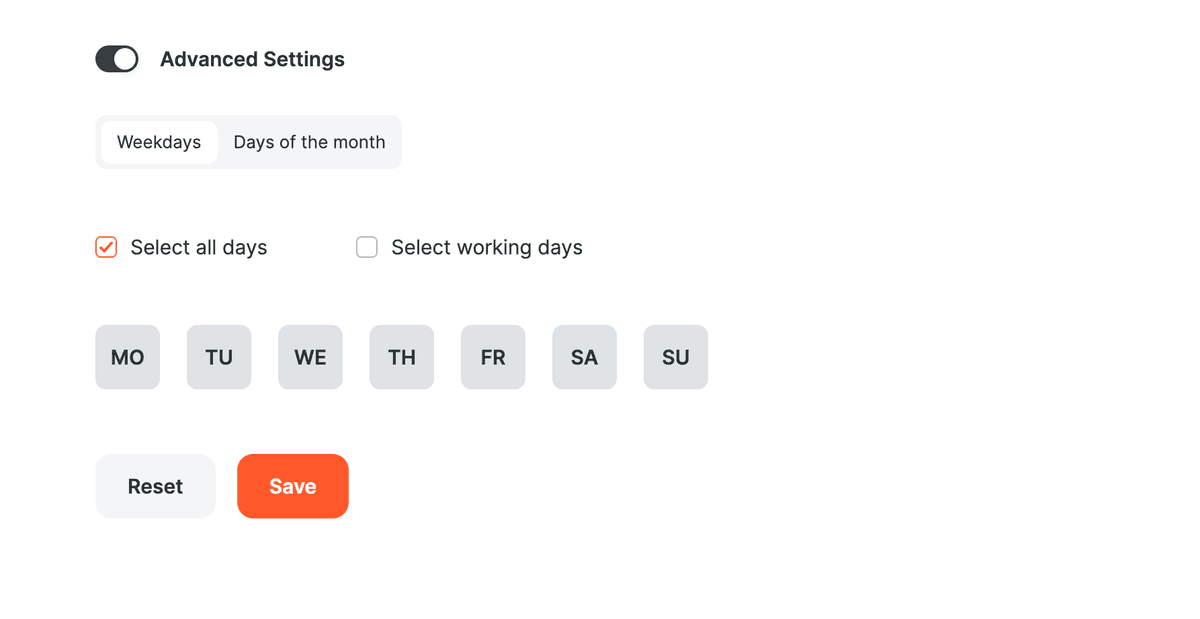
... or month to start the automation.
A common task is to schedule an automation once a day, for example, to download advertising expenses. In this case, the settings should look like this.
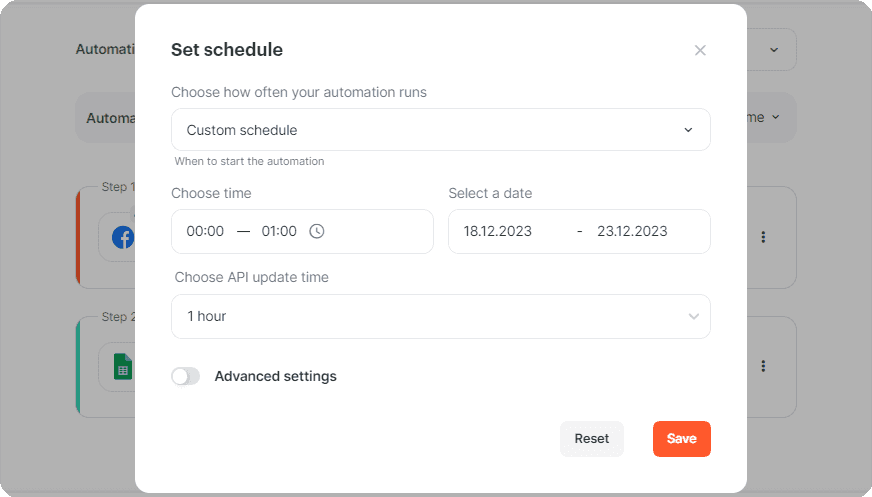
We schedule the automation to start once in an hour (60 minutes) and specify the time range from 00:00 to 01:00. The rest of the time, the automation will be stopped.
Regular Data Migration
The scheduling of automations configured to perform regular data migration looks like this.
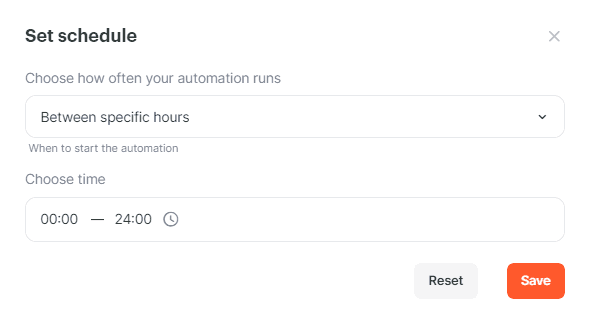
Between specific hours
On specific weekdays
On specific days of the month
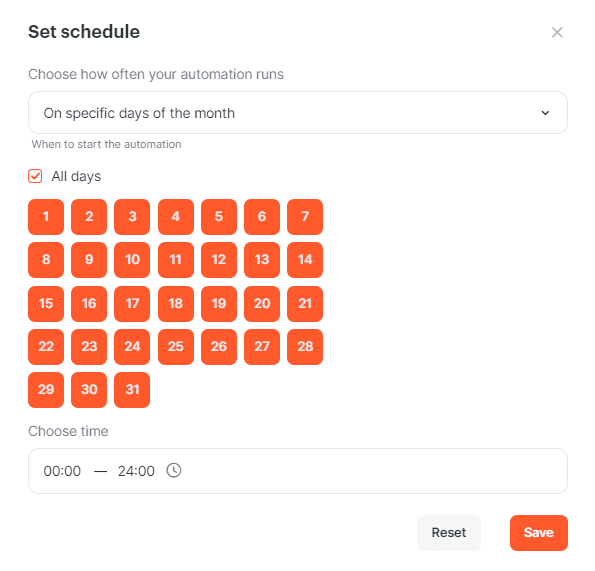
One example is scheduling data transfer for a past period, such as 5 days, to download advertising expenses. In this case, the settings should look like this.
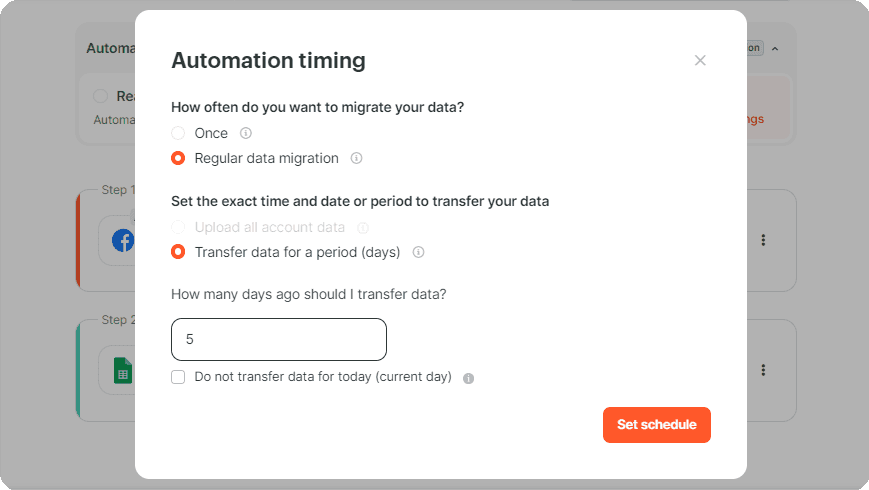
We schedule the automation to run in a specific time range, from 00:00 to 01:00. The rest of the time, the automation will be stopped.
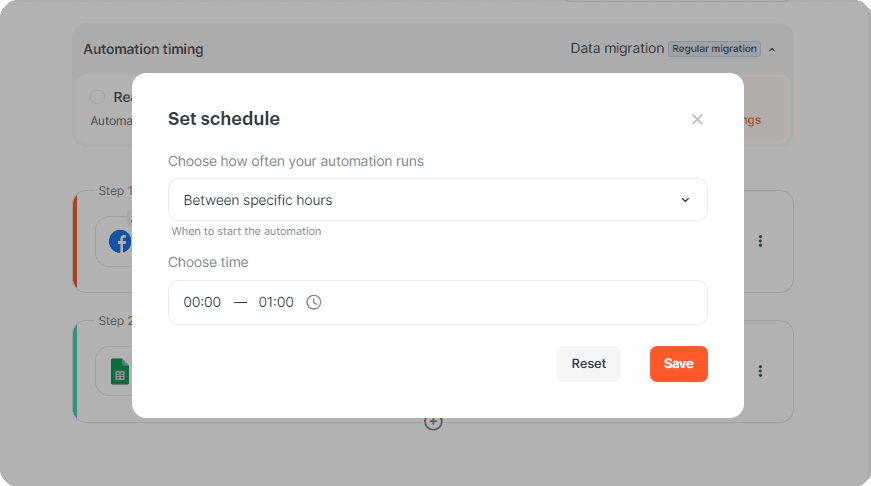
Below are two examples of how you can use this schedule.
How to create a weekly verification for new data added to a spreadsheet
Imagine a scenario where you need to monitor new data added to your spreadsheet.
This data can be new contacts, product sales information, project progress, or any other information that is added, for example, to Google Sheets.
Using the scheduled verification feature, we can create a flow that will run, for example, once a week, to collect all the data from the previous week, and then send the information to another desired app.
See below how to create this type of flow.
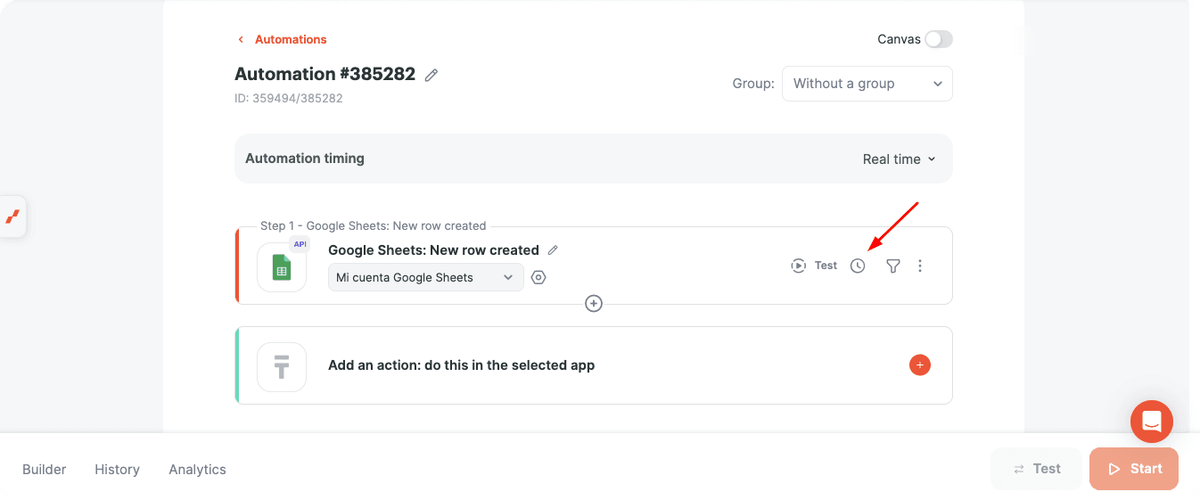
First, add the trigger you need. In this case, use Google Sheets: New Row.
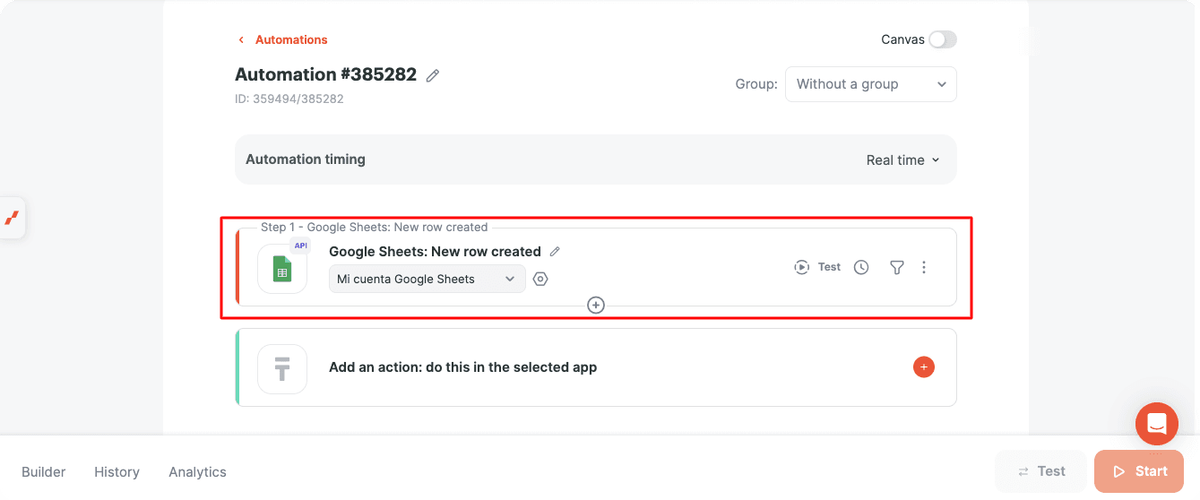
Then, click here to schedule the execution.
Change to Specific Days of the Week and leave only the desired day on which the automation will run. For example, in this case, we will set it to every Friday.
For the time, you can determine the exact desired schedule. For example, if you leave it between 00:00 and 24:00, the automation will run according to the request frequency within this interval.
If you want it to run only once, you can configure it, for example, for a 24-hour interval.
It would look like this.
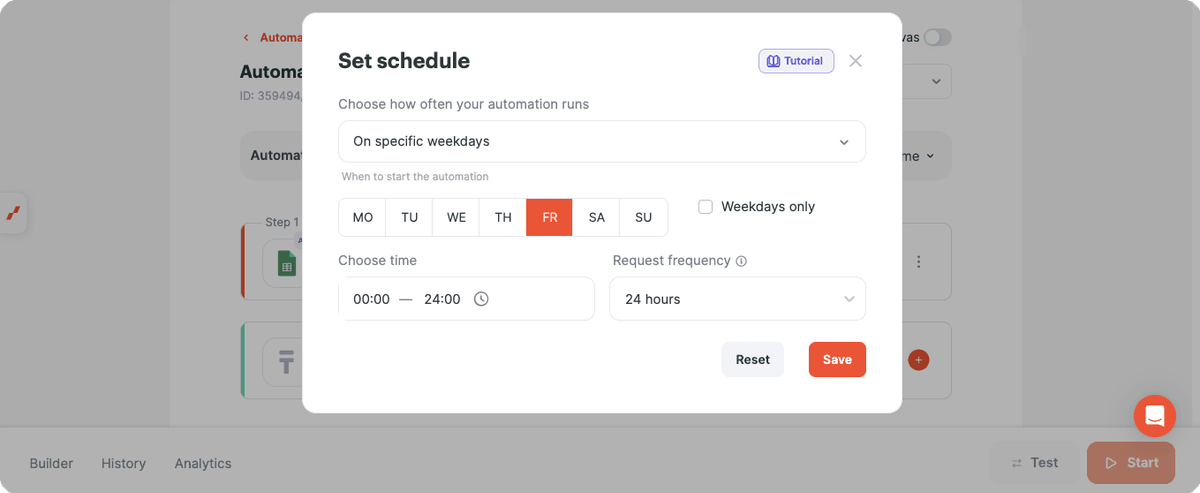
Attention: You can configure the interval in the way that works best for you. Let's suppose you want it to run only during business hours. You can change it to between 8 AM and 6 PM and configure, within this time interval, a verification every 8 hours, or in shorter intervals, as you prefer.
Feel free to explore all possibilities and adjust the schedule and the automation start according to your preferences.
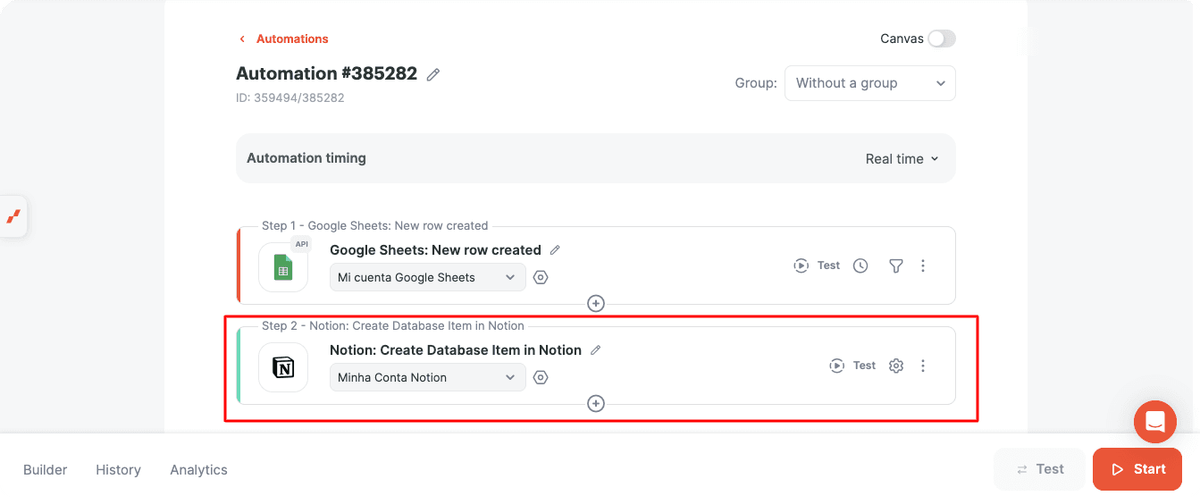
Next, add the app step where you want to send the information about the newly added rows.
In our example, let's imagine that we are creating records in Notion for new sales registered in the spreadsheet.
To do this, add the Notion: Create Database Item step.
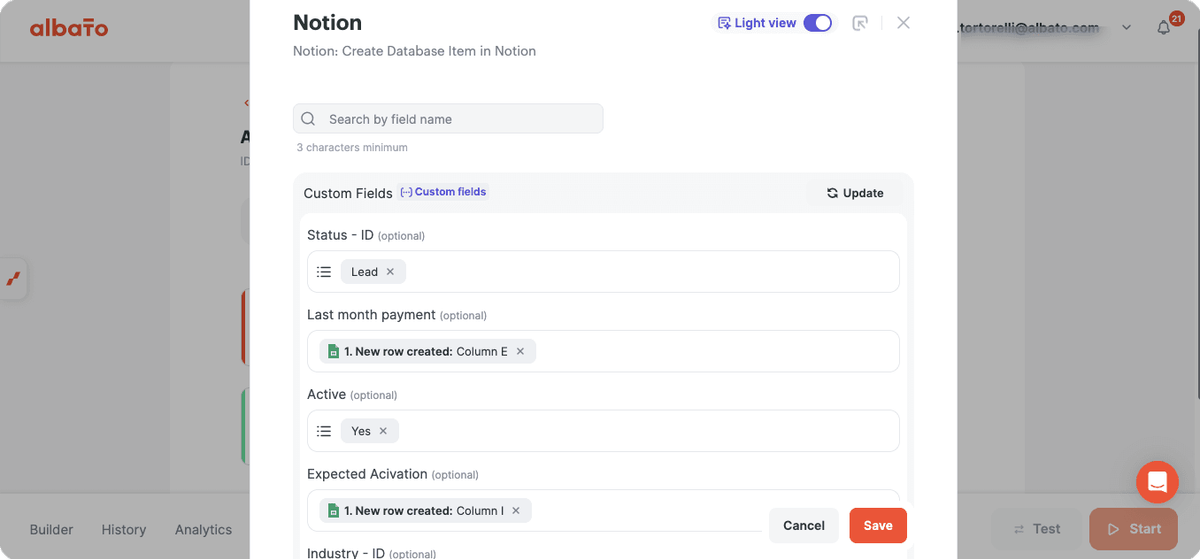
Then, map this step as desired, placing the values coming from Google Sheets into the desired fields in Notion.
After finishing the automation and activating it, you will already have a flow configured to synchronize data from Google Sheets to Notion once a week, at the desired time.
All data collected during this interval will be sent individually to Notion as soon as the automation runs.
Updating ecommerce product sales records monthly
Another interesting example would be applying the same logic from the previous example, but this time collecting all product data that was sold during the month in a specific ecommerce store and saving the information in a spreadsheet.
To do this, simply select the desired trigger. As an example, we will use the New Order trigger from Mercado Libre, but you can choose others depending on where you have your online store, such as Shopify, NuvemShop, Mercado Libre, among others.
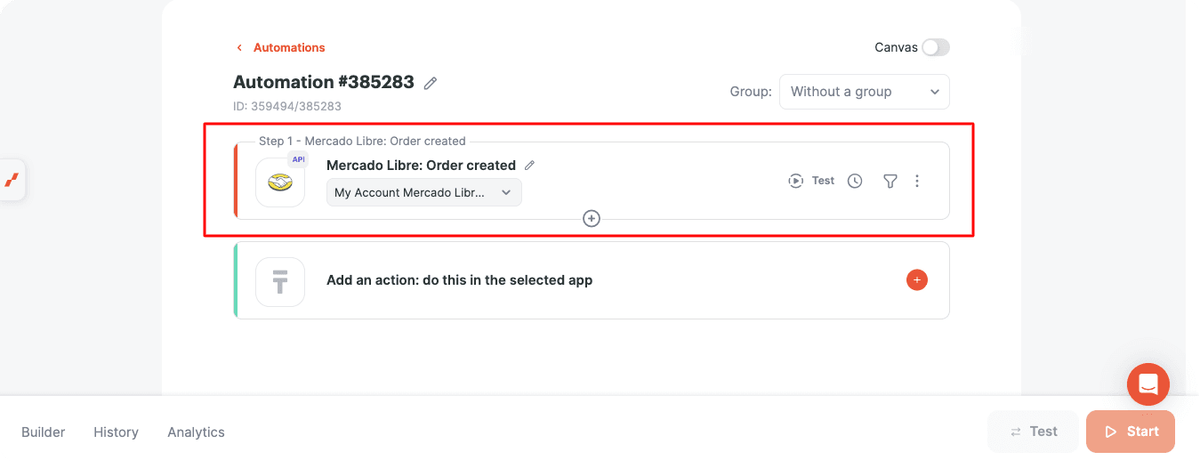
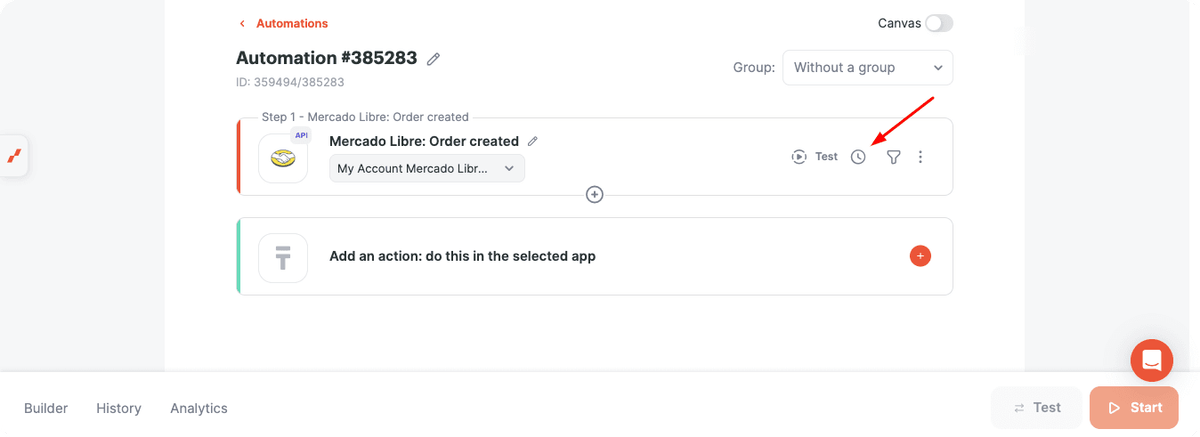
Then, adjust the trigger schedule by clicking here.
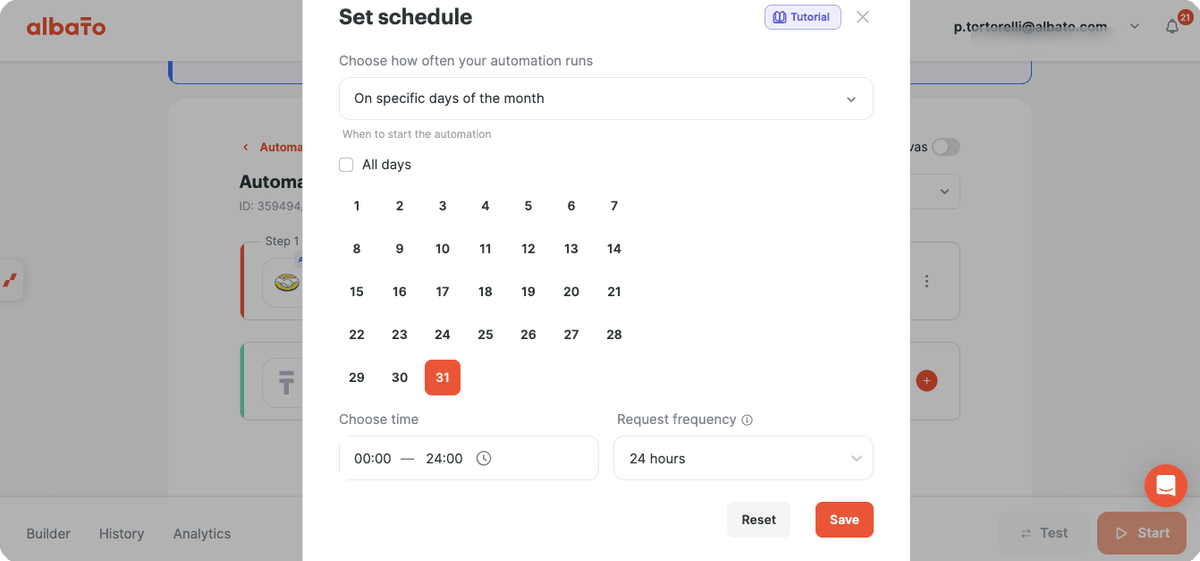
Set it to run only once per month and select the last day of the month.
Now add a Google Sheets: Create Row step.
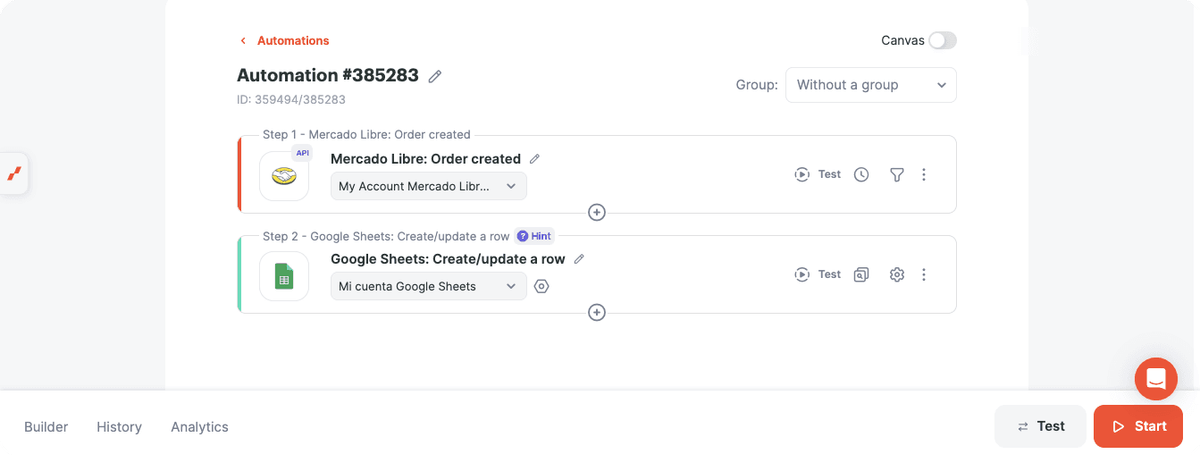
And map the fields with the data coming from your ecommerce store into the desired columns.
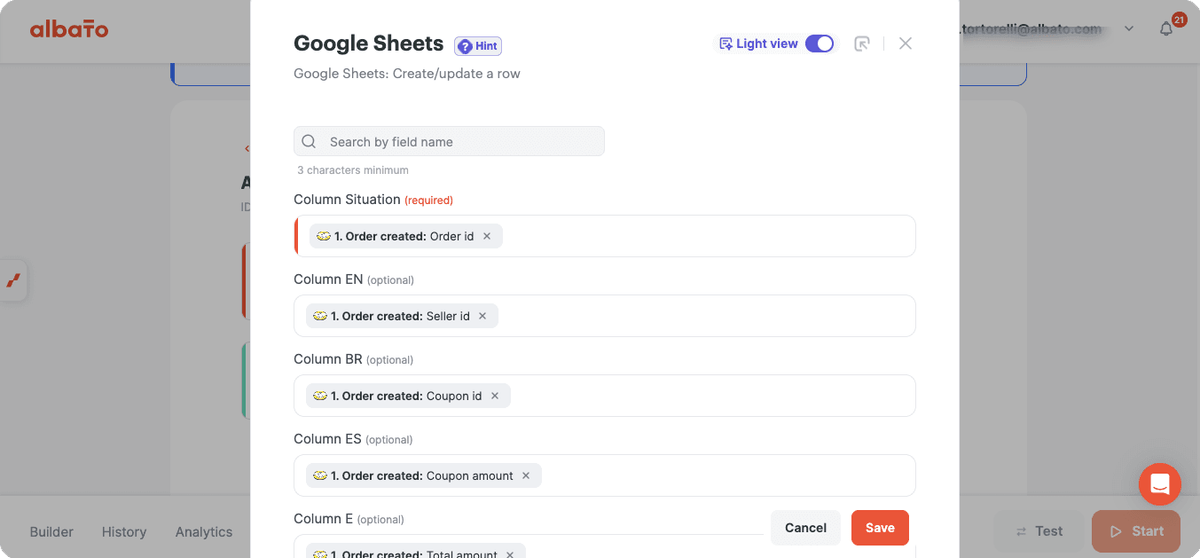
After you activate the automation, the flow is ready to use.
You can use Start Schedule whenever an API automation should run only during a selected time window, on selected days, or once during a recurring period. If you have any questions, reach out to the support team via the chat.
Related Articles
Did this answer your question?