

How to Generate Images with ChatGPT and Share WordPress Posts on Instagram
IN THIS ARTICLE
If your team publishes blog posts in WordPress and shares them on Instagram, you can automate the routine work around each new post.
Learn how to create an automation in Albato where every time a new post is published in WordPress, ChatGPT automatically generates a promotional image and a caption, and everything is shared directly to your Instagram account.
Follow the steps below to build this workflow.
Connecting the Apps
Go to the Apps section in Albato and click Add a connection.
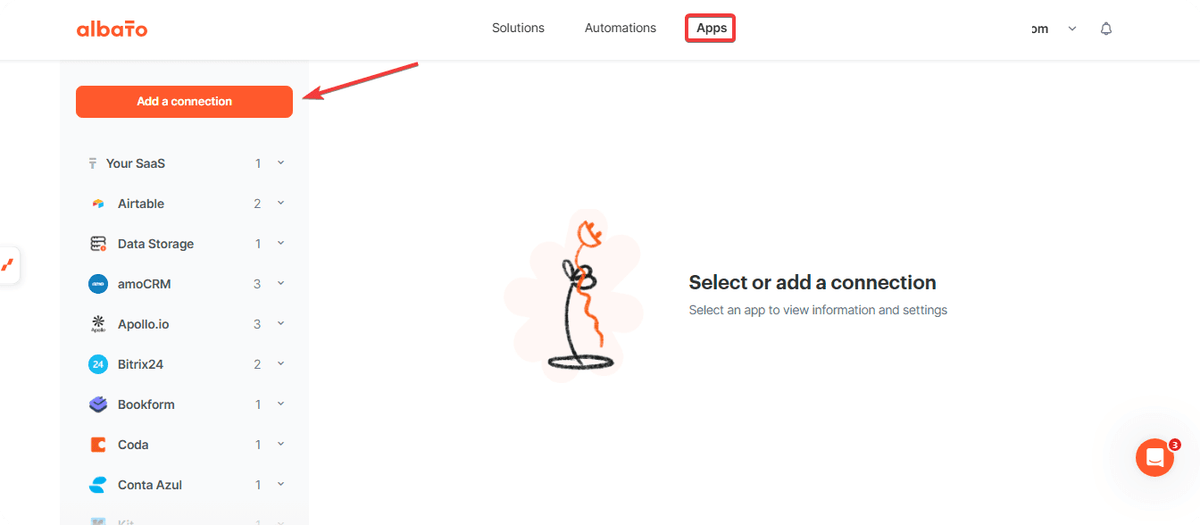
Next, search for the applications that will be used in this automation.
- WordPress
- Instagram for Business
- ChatGPT (OpenAI)
Connect each application individually until the message Connection created successfully is displayed.
If you have any questions during the connection process, visit our Help Center to find detailed tutorials for each specific integration.
Creating the Automation
Go to the Automations section in Albato and click Create New Automation.
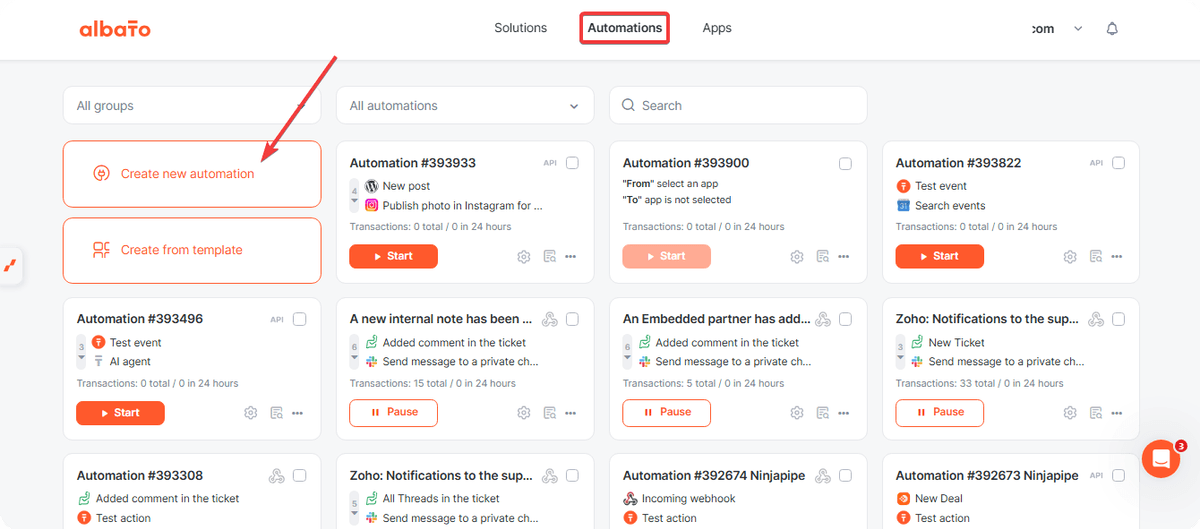
In the first step, click Add trigger.
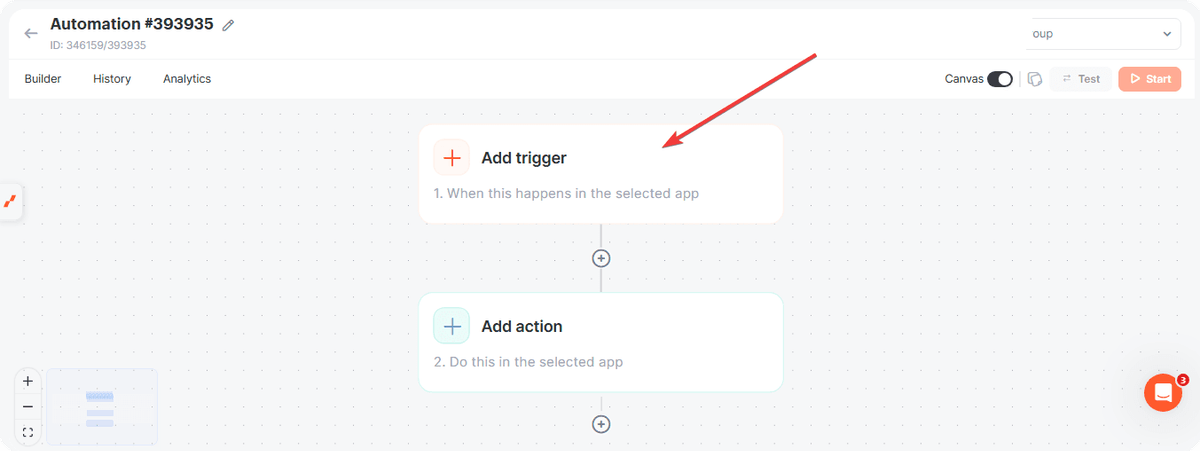
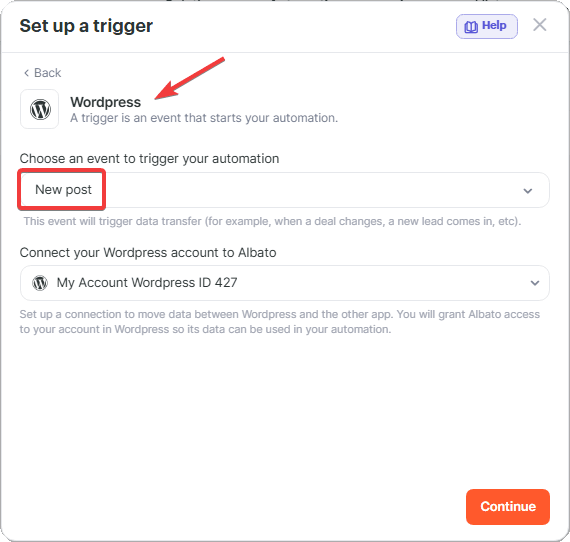
Select the New post trigger from WordPress.
Next, add two ChatGPT actions.
- The first action generates the image.
- The second action generates the post caption.
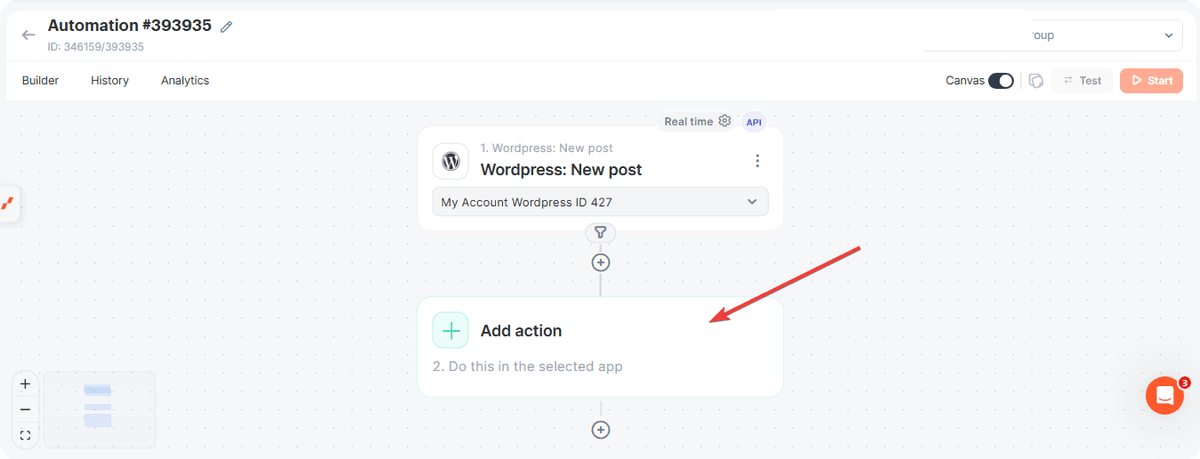
First, click Add action.
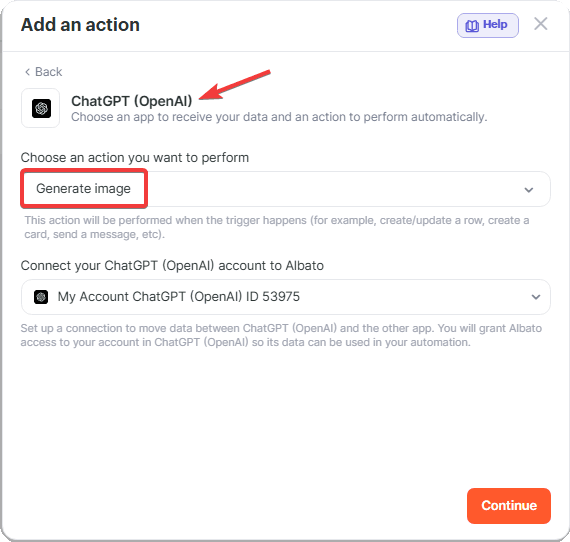
Then select the Generate image action from ChatGPT (OpenAI).
Configuring the Image Prompt
In the prompt field, enter a detailed prompt using the content of your article selected from the available variables.
Example prompt.
Create an image to promote a blog article on Instagram. The image should represent the main idea of the content, be visually appealing, and comply with Instagram's policies. Follow Instagram image best practices by avoiding excessive text, making the image inviting, and ensuring it matches the website's visual identity.
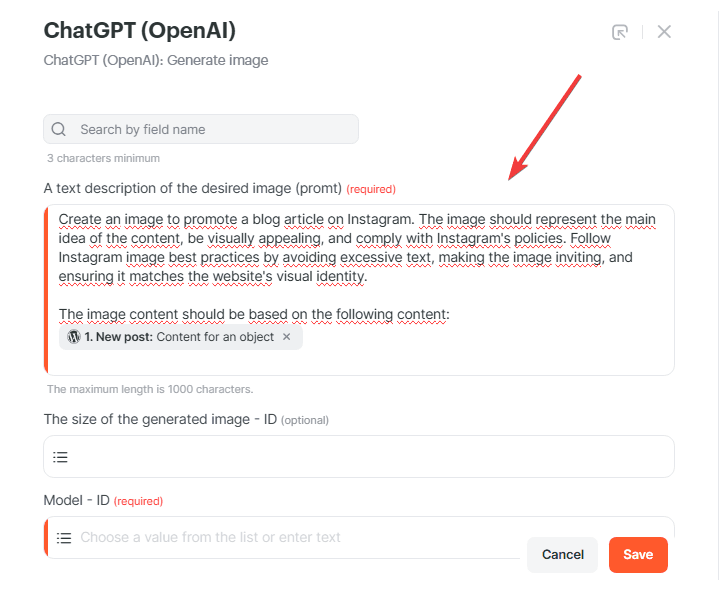
As you can see in the example above, we specified several important requirements.
- Follow Instagram's content policies.
- Apply Instagram post best practices.
- Use minimal text.
- Create a clear visual for the post.
You can make the prompt even more detailed to achieve more specific results.
- Image type.
- Visual style.
- Colors.
- Brand identity.
- Elements that should or should not appear.
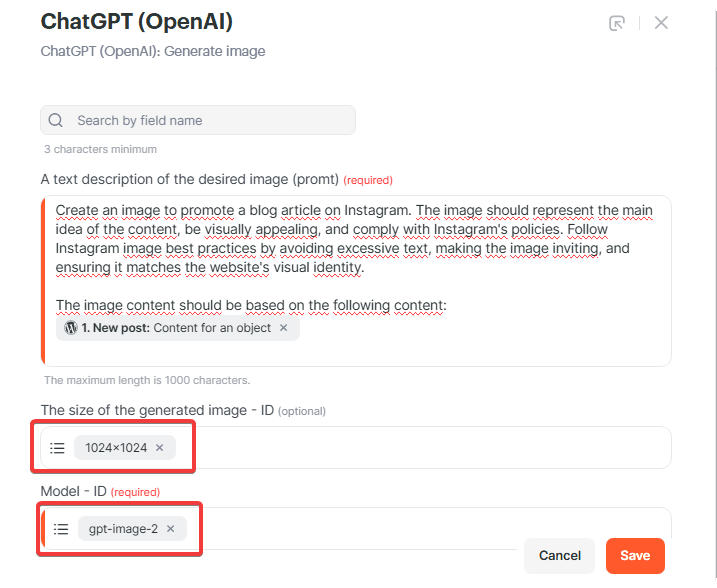
Next, configure the fields.
- Format: 1024 x 1024
- Model: GPT Image 2 or GPT Image Pro
Click Save and add a new action called Create Chat Completion.
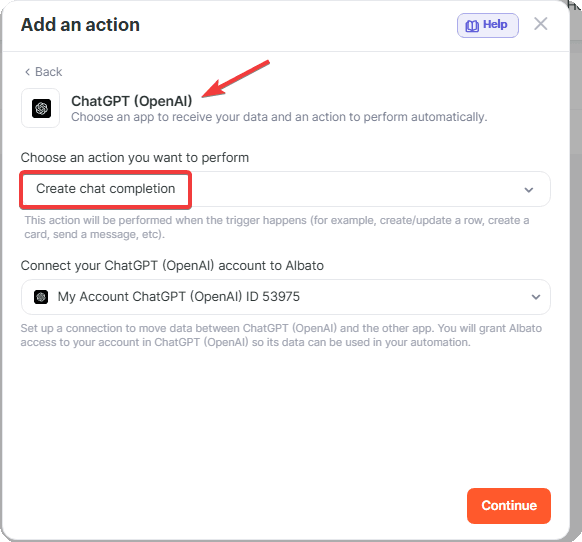
In this step, set the Model ID field to GPT-5.
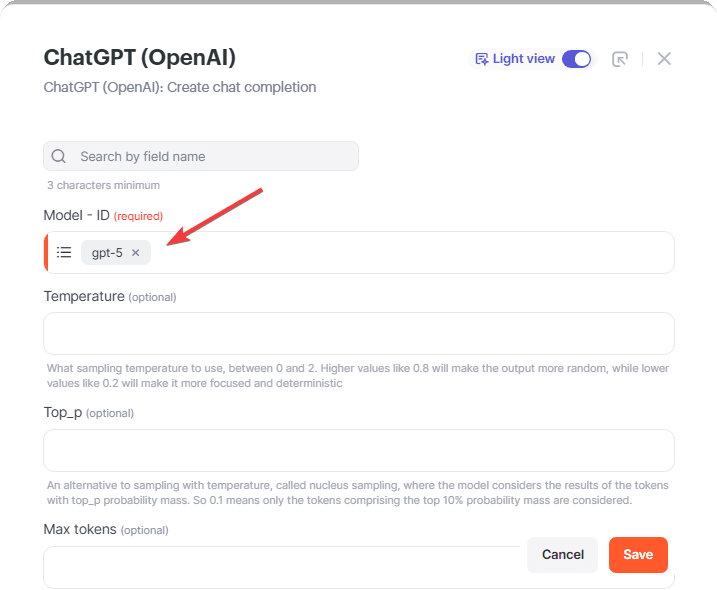
Then set the Role field to user.
In the Message field, use a short prompt.
Create a caption for an Instagram photo that is simple, concise, and reflects the main idea of the content.
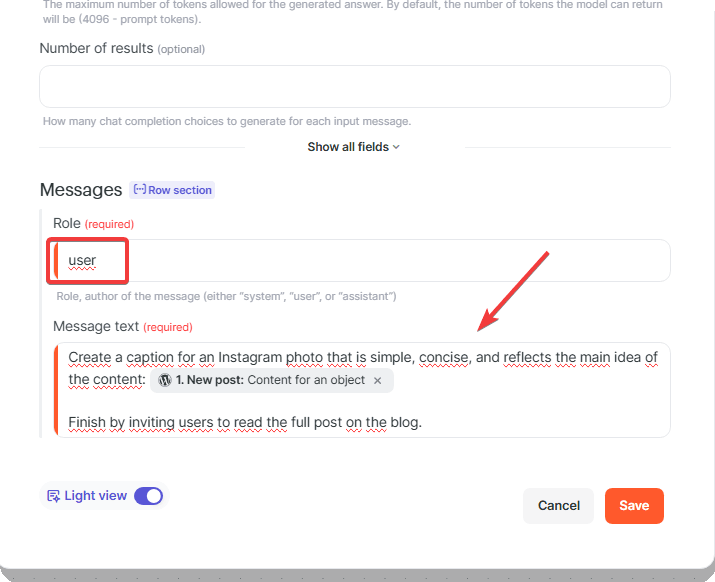
You can also customize this prompt to better reflect your company's tone of voice, frequently used brand terminology, and desired communication style.
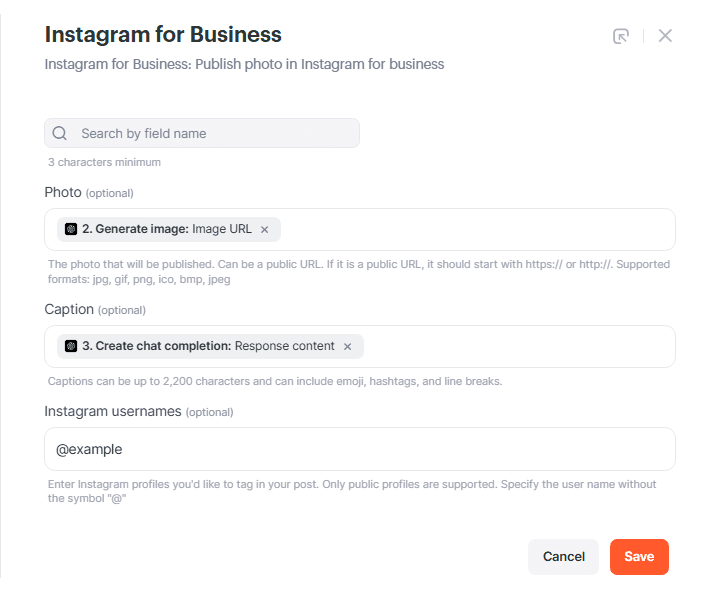
Finally, add one more step using Instagram for Business to publish the image.
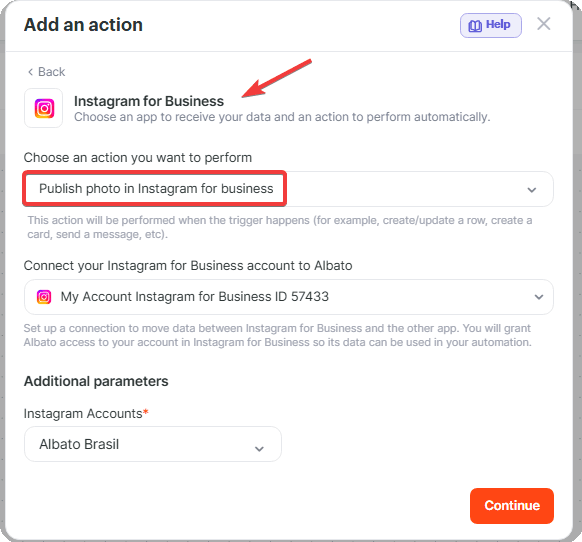
In the Photo field, use the Image URL parameter generated in the image creation step.
In the Caption field, select the caption value generated by the previous Create Chat Completion step.
Optionally, you can also tag profiles using @mentions in the post.
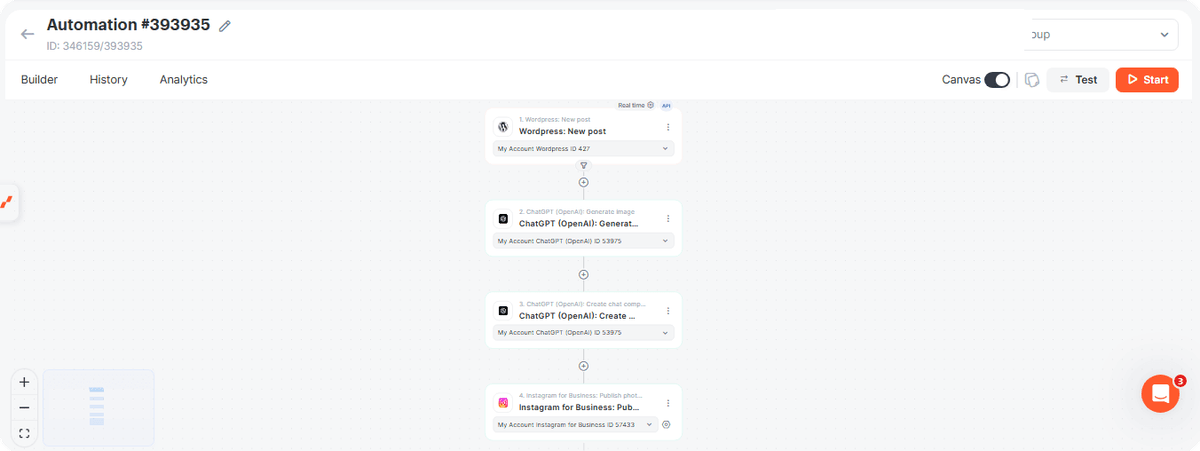
At the end, your automation should look similar to the example shown below.
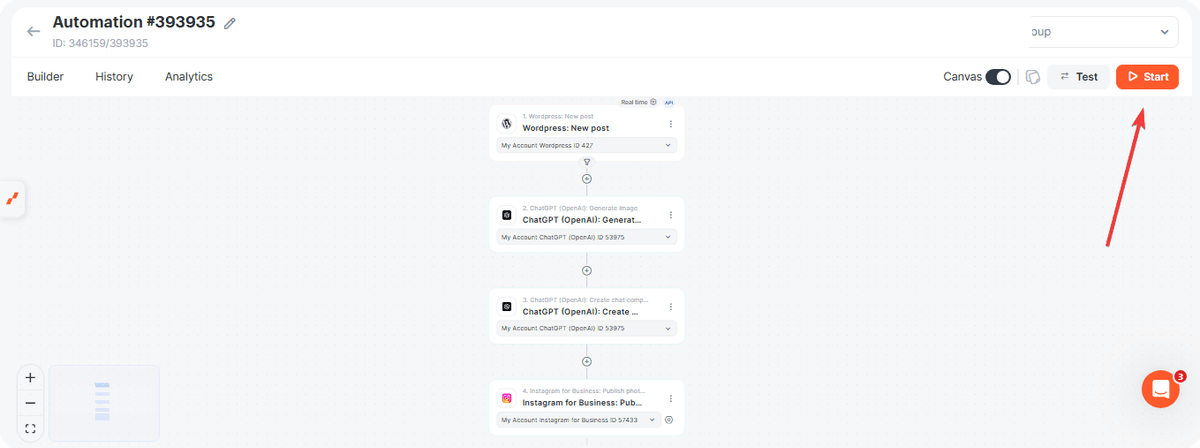
Now activate the automation.
Whenever a new article is published in WordPress, Albato will use ChatGPT to automatically generate an image and caption, then publish everything directly to Instagram. This helps you keep content promotion consistent, save time, and increase the reach of your blog posts.
Did this answer your question?