

How to Connect Mailjet to Albato
IN THIS ARTICLE
Mailjet is a platform for designing and sending email marketing campaigns, newsletters, and automated emails. Connect Mailjet to Albato to use it in automations with other apps, including AI tools such as ChatGPT or Grok. Follow the steps below to complete the setup.
Available Triggers
Triggers are events that start an automation. All triggers run in real time, meaning data is transferred as soon as the event occurs.
- Sent event
- Open event
- Click event
- Bounce event
- Blocked event
- Spam event
- Unsub event
Available Actions
Actions are steps performed after a trigger. They allow you to send data to other applications and systems.
- Subscribe/Unsubscribe Contact to contact list
- Update Contact Properties
- Send Email
- Create contact
- Custom API request
How to Connect Mailjet to Albato
- Log in to your Albato account.

- Go to the Apps tab and click Add a connection.

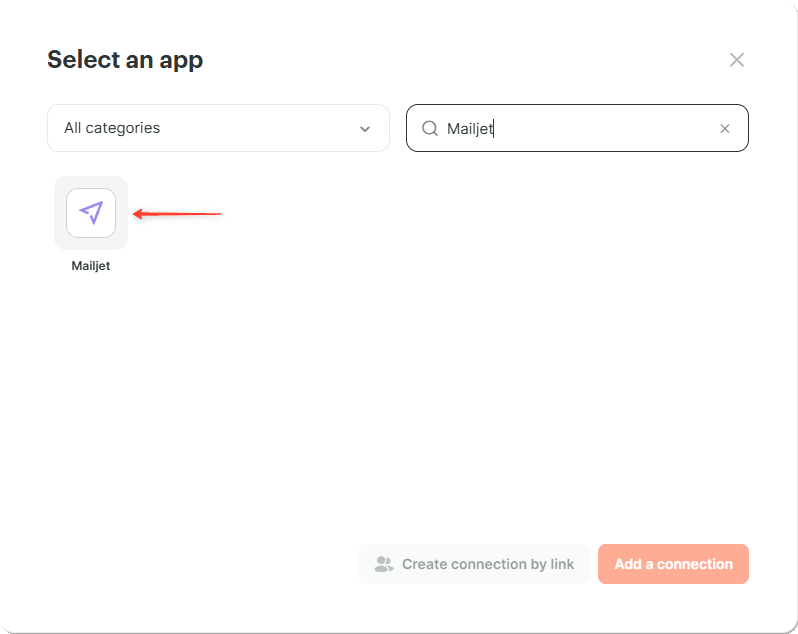
- In the pop-up window, search for Mailjet, click the app icon, and click Add a connection.
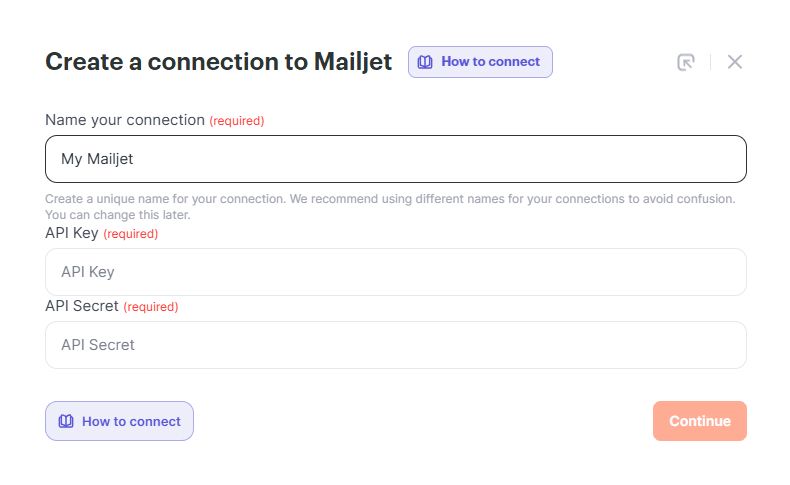
- In the connection settings window, enter a connection name. Albato will ask for API Key and API Secret.
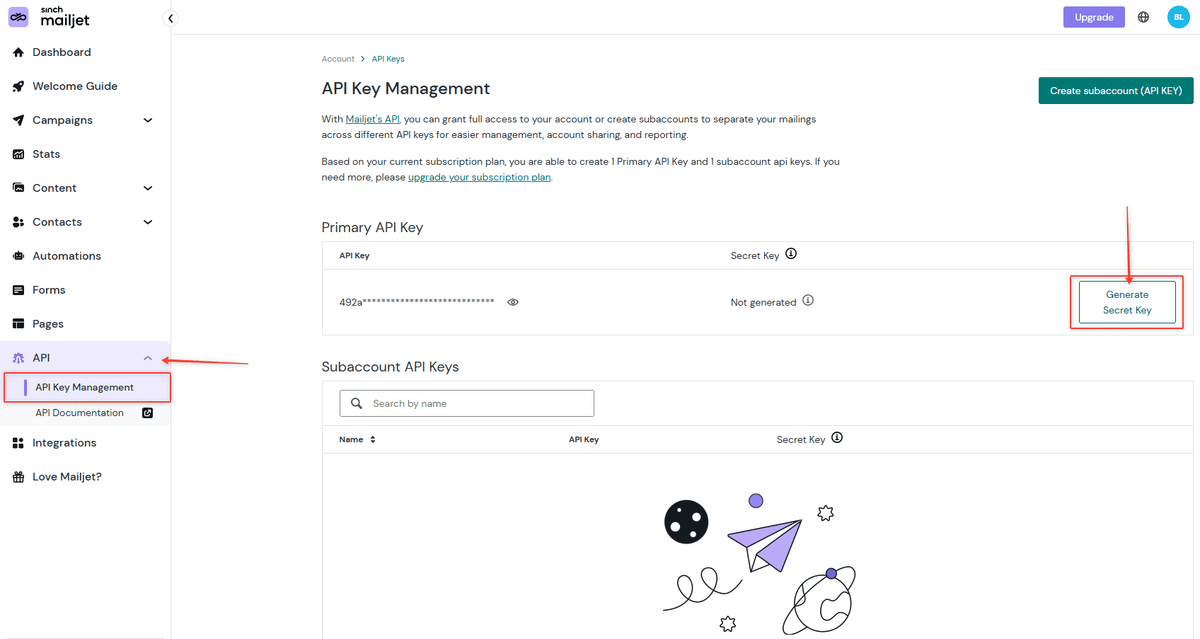
- To get the API Key and API Secret, open your Mailjet account and go to API → API Key Management. Click Generate Secret Key next to the automatically generated API Key.
- A pop-up window will show your keys. Do not close this window until you create the connection.
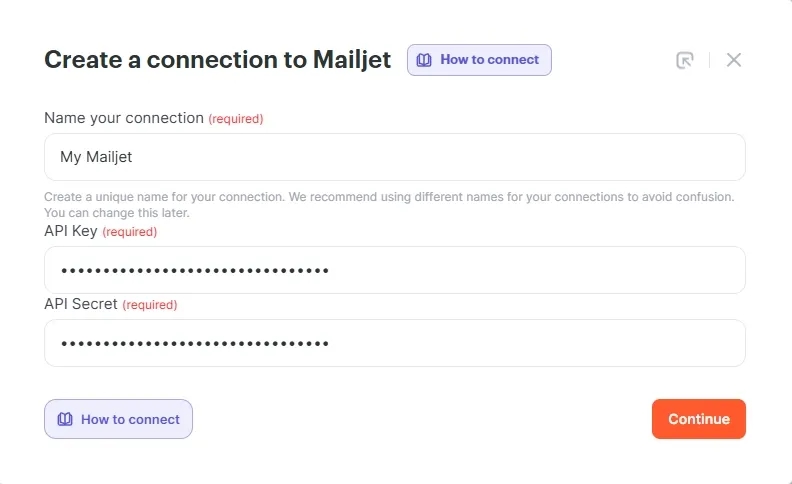
- Copy the keys one by one, paste them into the Albato connection settings window, and click Continue.
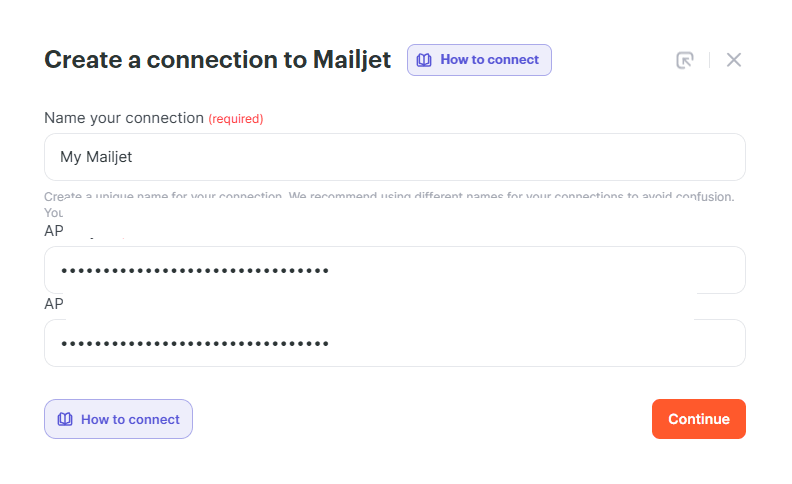
The connection is ready.
If You Need to Reset the Secret Key
If you closed the Secret Key window before copying it, reset the key in Mailjet.
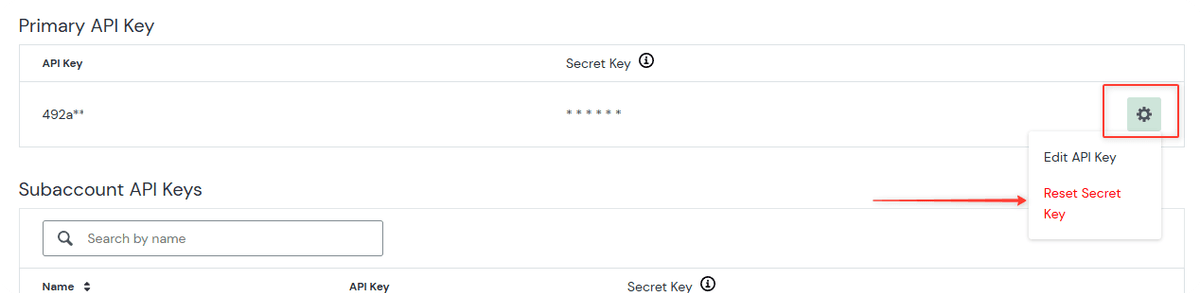
- Go to the key management menu, click the gear icon next to your API key, and select Reset Secret Key.
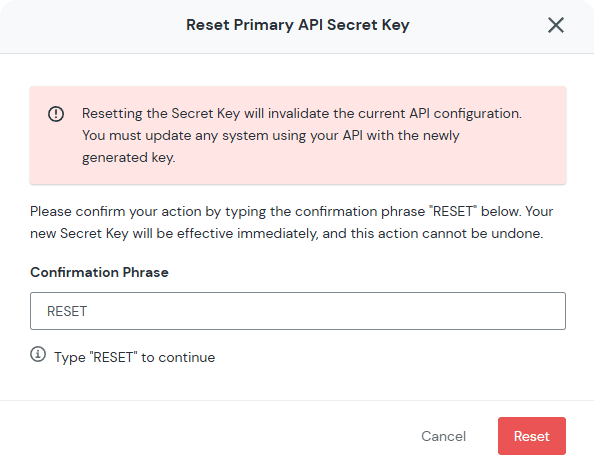
- In the pop-up window, enter RESET and click Reset. Copy the new keys and paste them into the Albato connection settings window.
Now you can use Mailjet in your Albato automations to send emails, update contacts, and react to email events. If you have any questions, contact our support team in your Albato account chat.
Did this answer your question?