

How to Connect Attio to Albato
IN THIS ARTICLE
Attio is a CRM workspace for managing contacts, companies, lists, tasks, and notes.
Connect Attio with Albato to integrate it with 1,000+ apps, including AI tools like ChatGPT or Grok, and automate workflows. Follow the steps below to complete the setup.
Step-by-step instructions
- Log in to your Albato account.

- Go to the Apps section and click Add a connection.

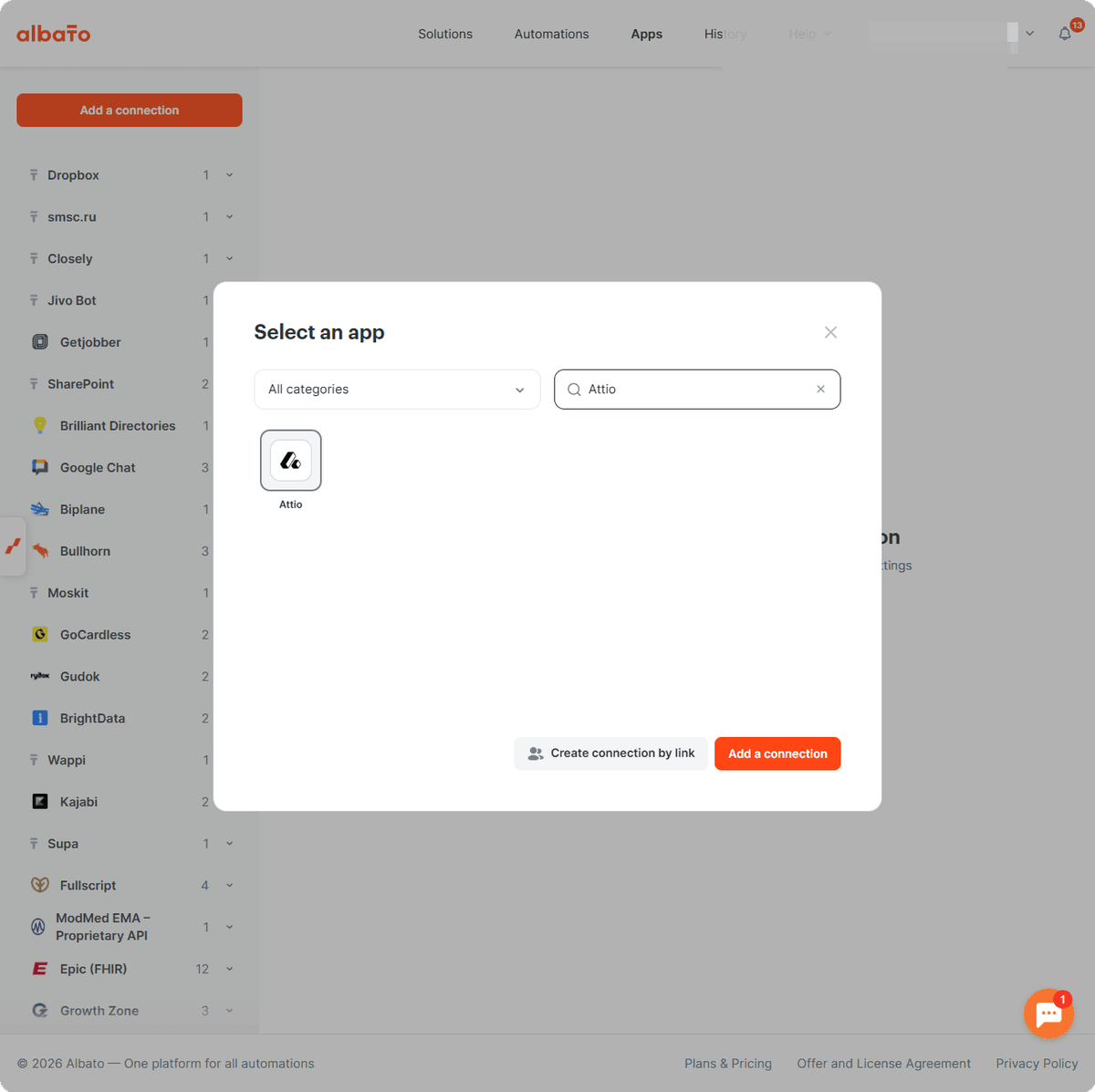
- Type Attio in the search field, select it from the results, and click Add a connection.
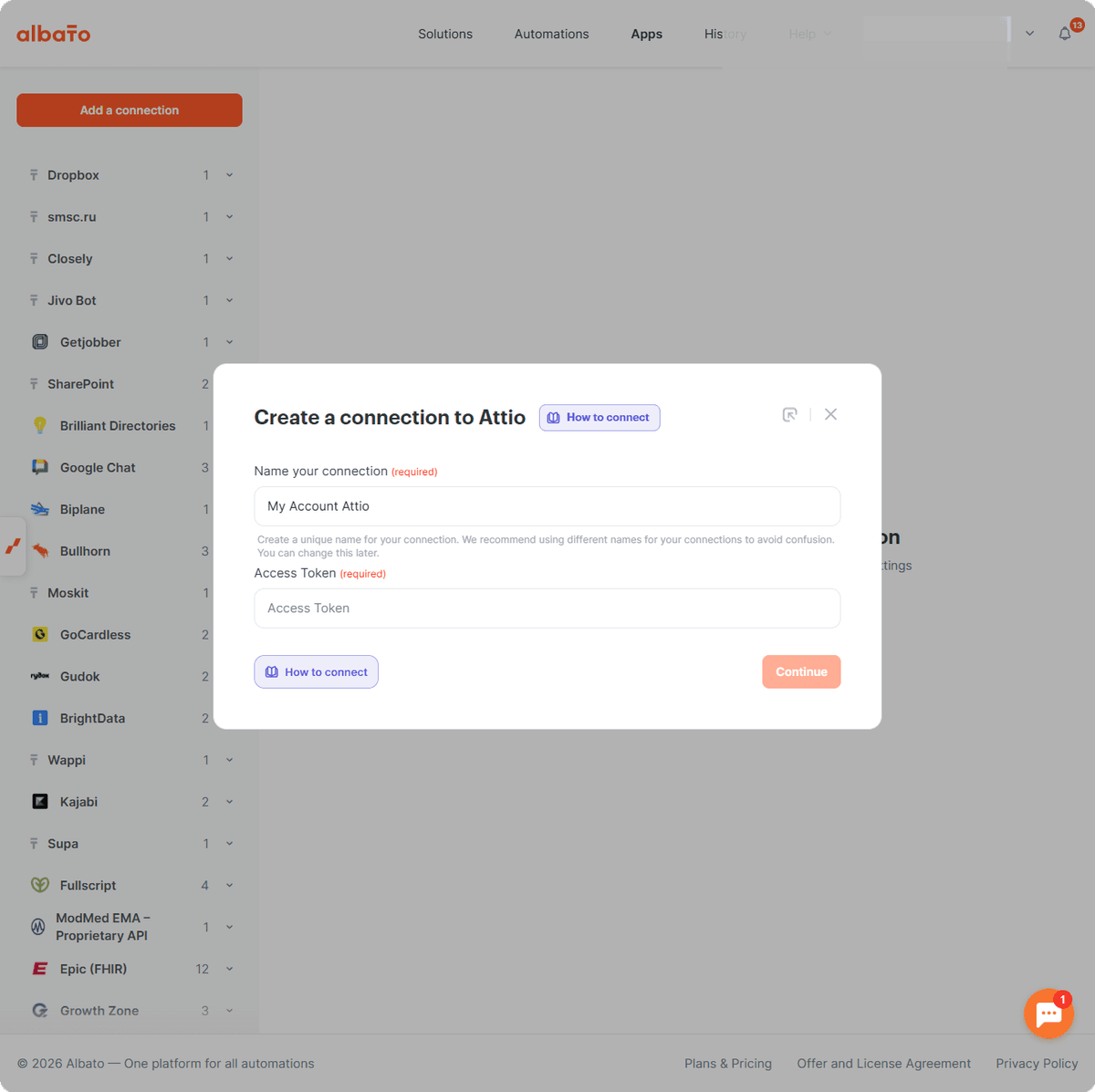
- Albato will ask for an Access Token. Keep this tab open and go to your Attio account.
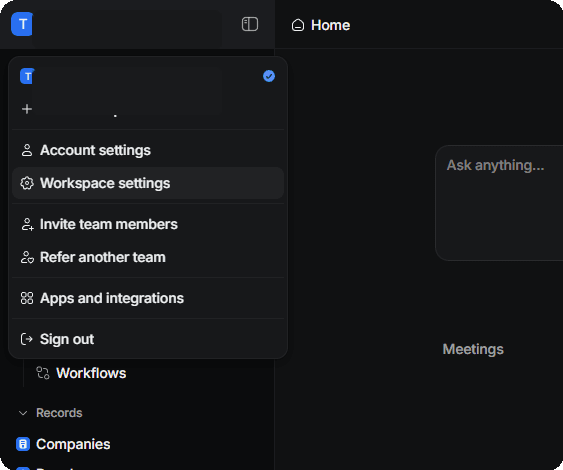
- In Attio, open your workspace menu and go to Workspace settings.
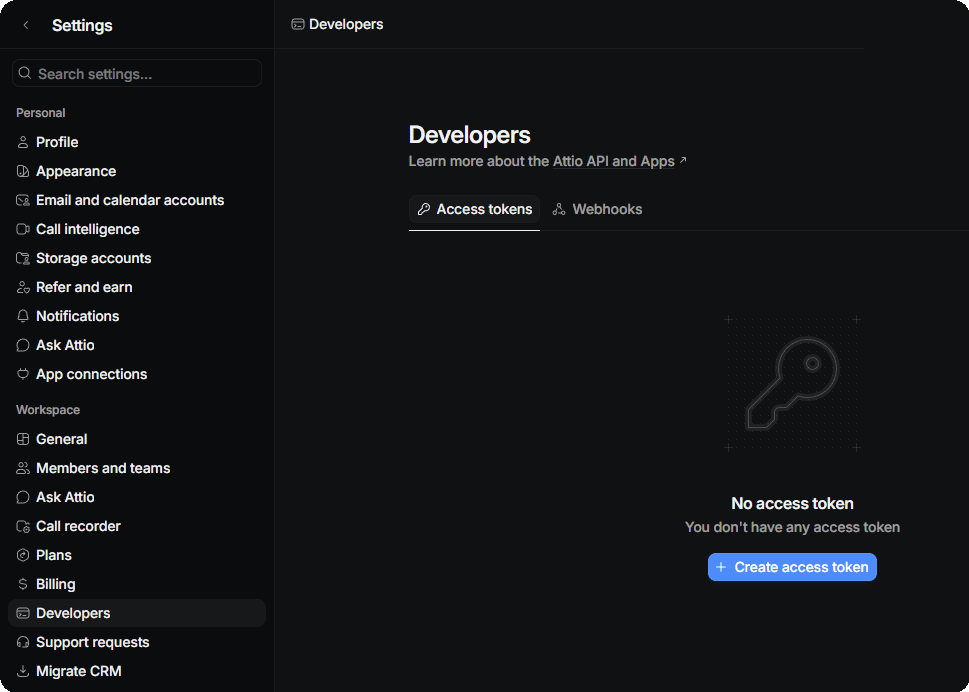
- Open Developers and click New access token.
- Set the required permissions to Read-write.
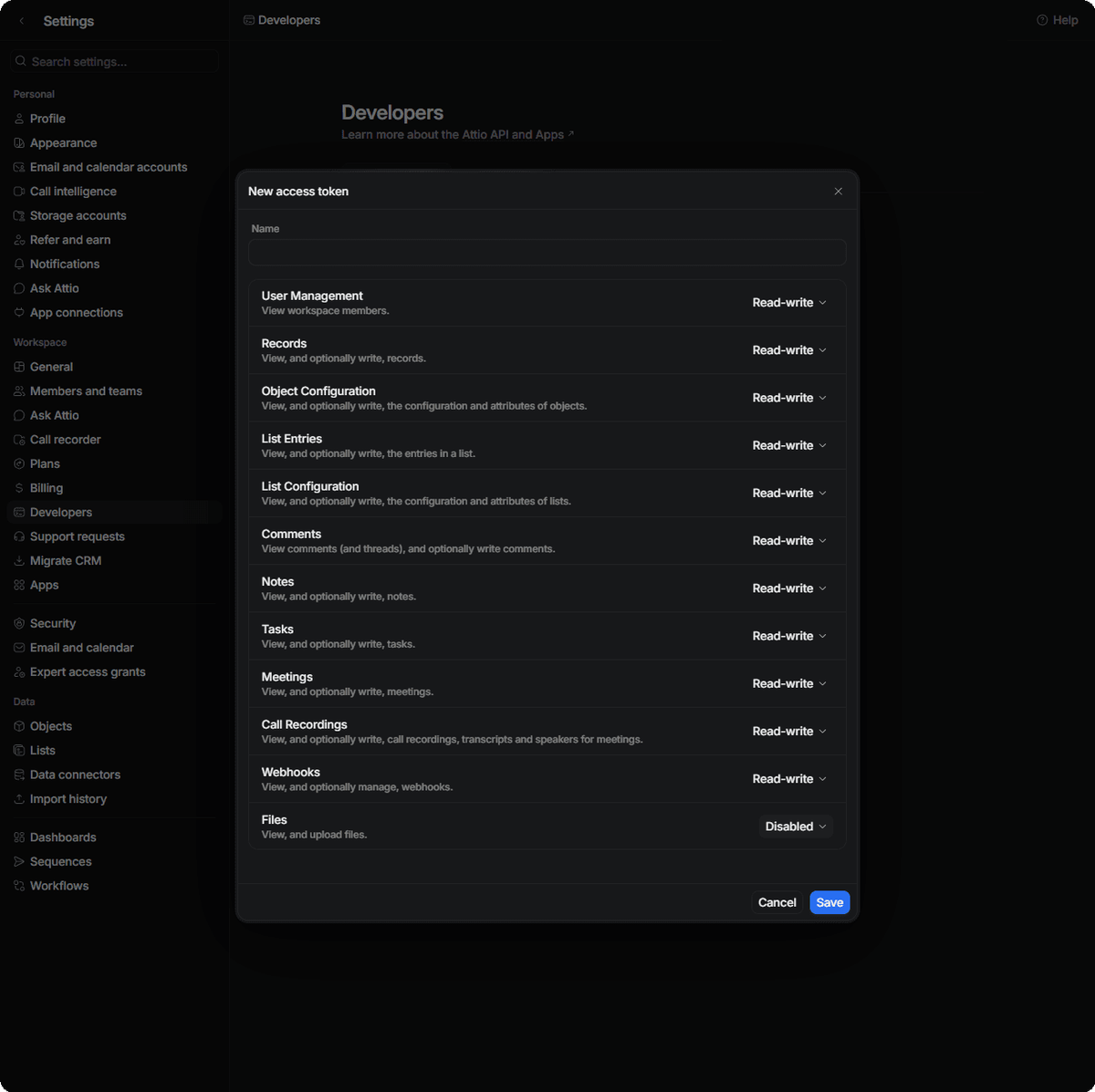
- Set the token expiration to Disabled, enter a token name, and click Save.
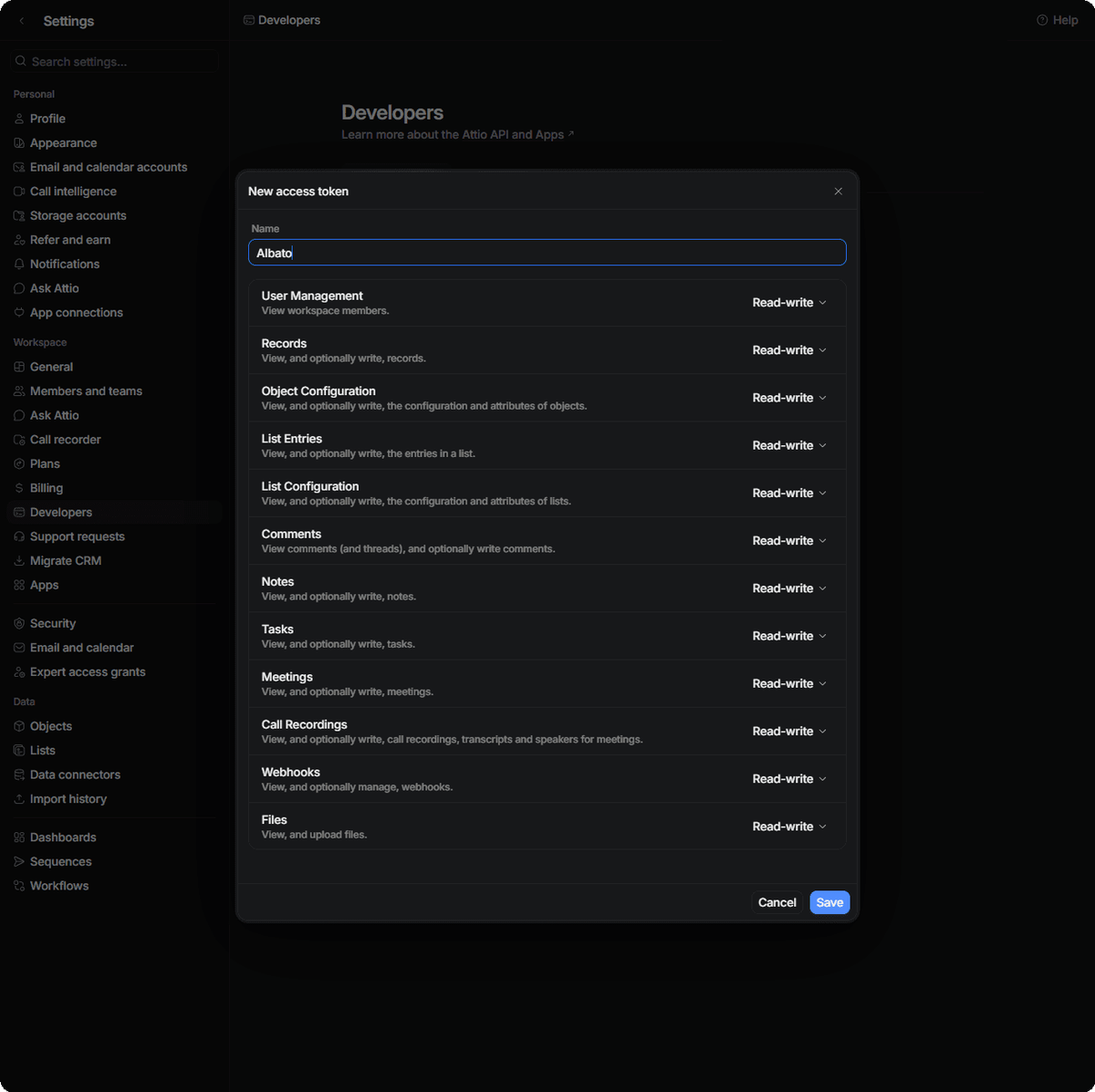
- Copy the generated access token.
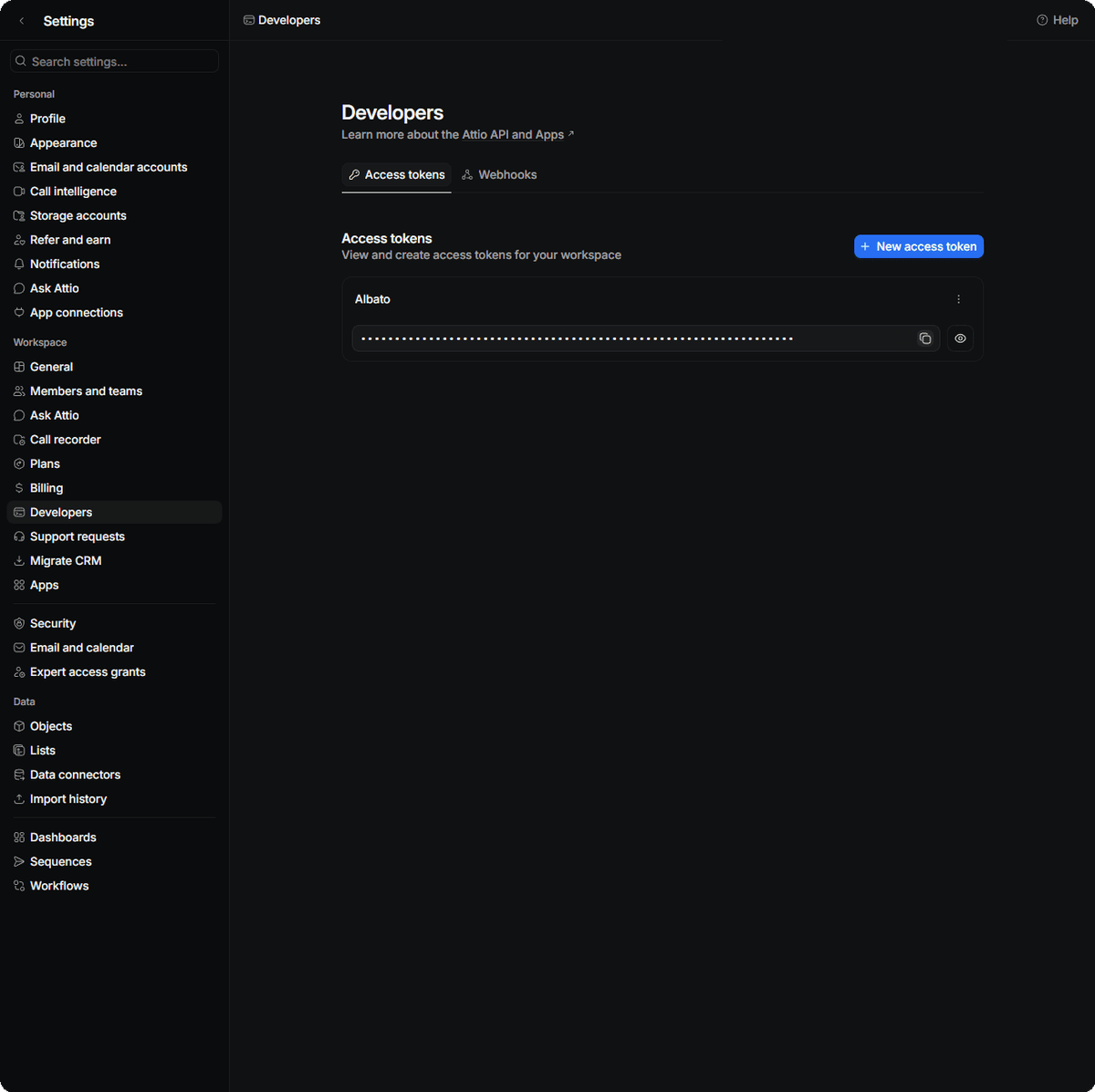
- Return to Albato. Name the connection, paste the Access Token, and click Continue.
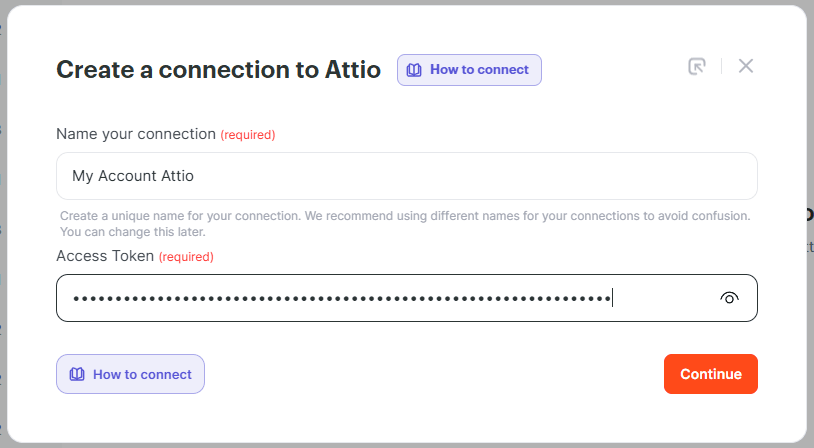
- The connection is ready.
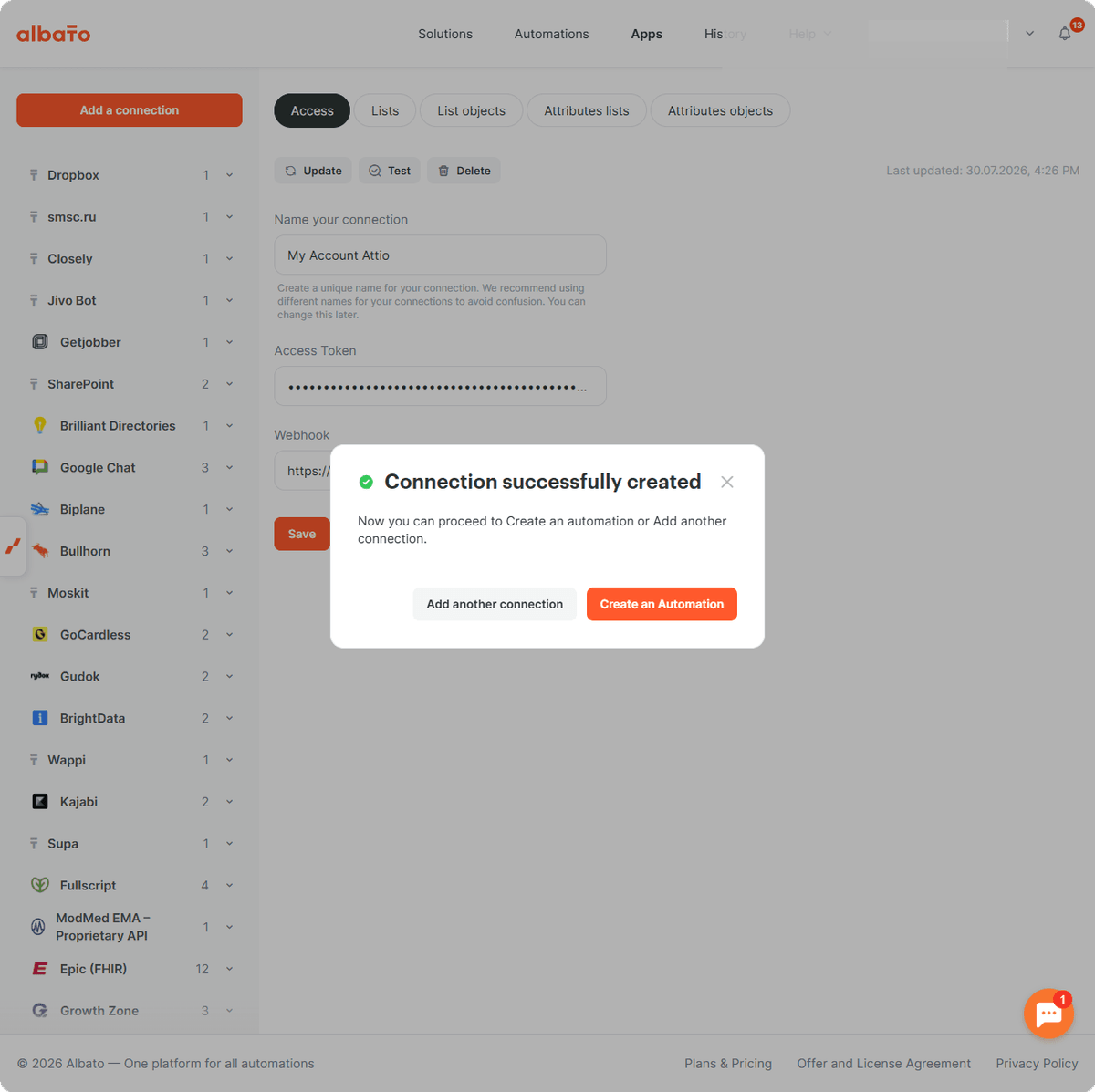
Now you can use Attio in your Albato automations. For example, you can create or update people, companies, list entries, notes, and tasks based on events from other apps. If you have any questions, reach out to the support team via the chat.
About Attio
Attio helps teams manage customer data, contacts, companies, lists, tasks, and notes in one workspace.
Attio helps with tasks such as these.
- organize people and companies;
- manage lists and related records;
- create notes and tasks;
- track updates in your customer workspace.
Did this answer your question?