

Get an Element of a Row Section Tool
IN THIS ARTICLE
The Get an Element of a Row Section tool retrieves one item from a row section (array) based on a condition. Use it when the next action needs a specific item rather than the full list, for example, to route a wholesale order or notify a team about a low-stock product.
How to Use the Tool
For example, find an item in a customer's cart by quantity and send its details to the manager responsible for wholesale orders.
- Set up an integration with the required apps. Click the + icon between steps to add a tool.
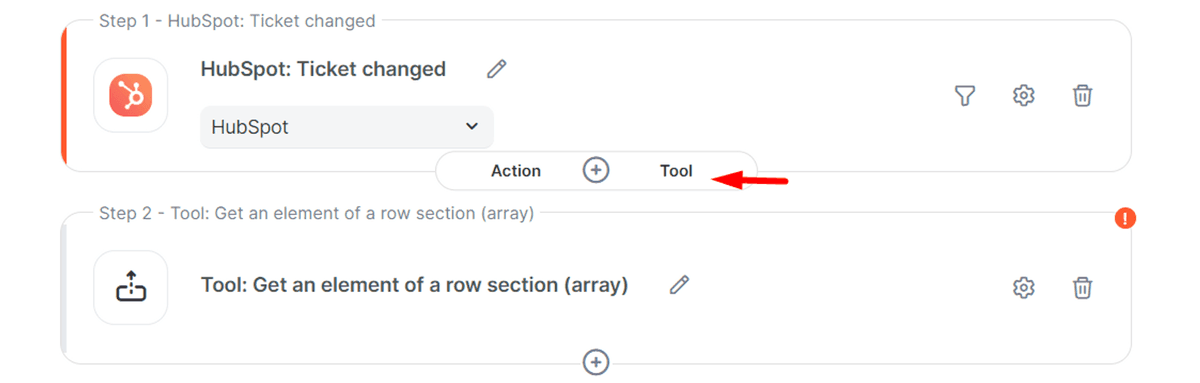
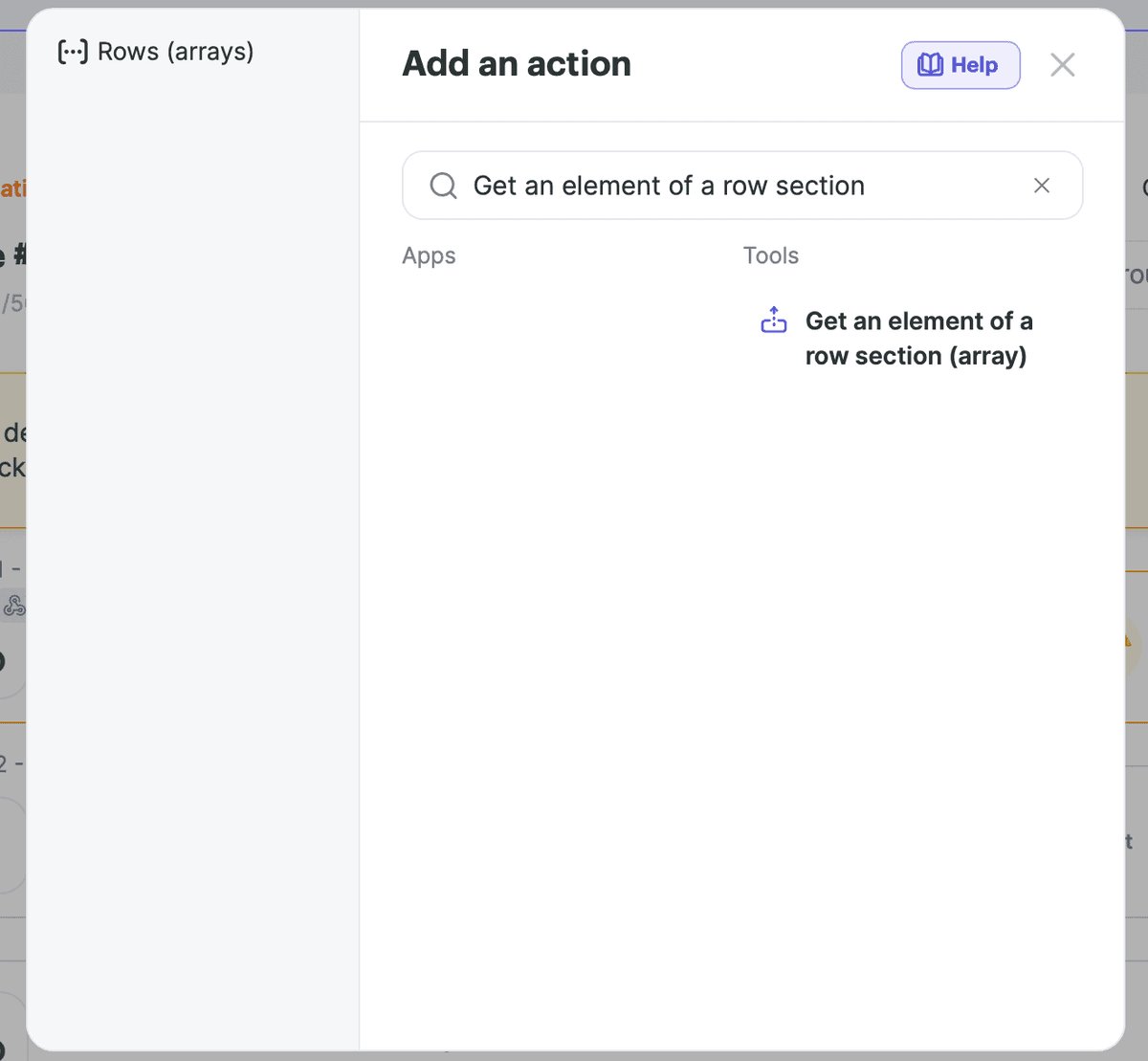
- Select Get an element of a row section (array).
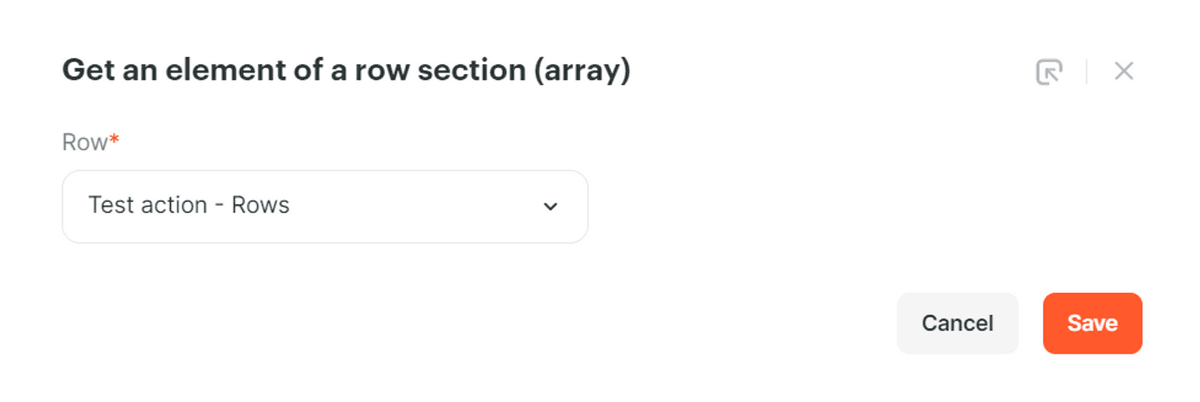
- Select the row section to search.
- Open the tool settings to configure the conditions for finding an element.

- Set the search conditions. Under Do if event not found, choose what should happen if no element matches, then save the settings.
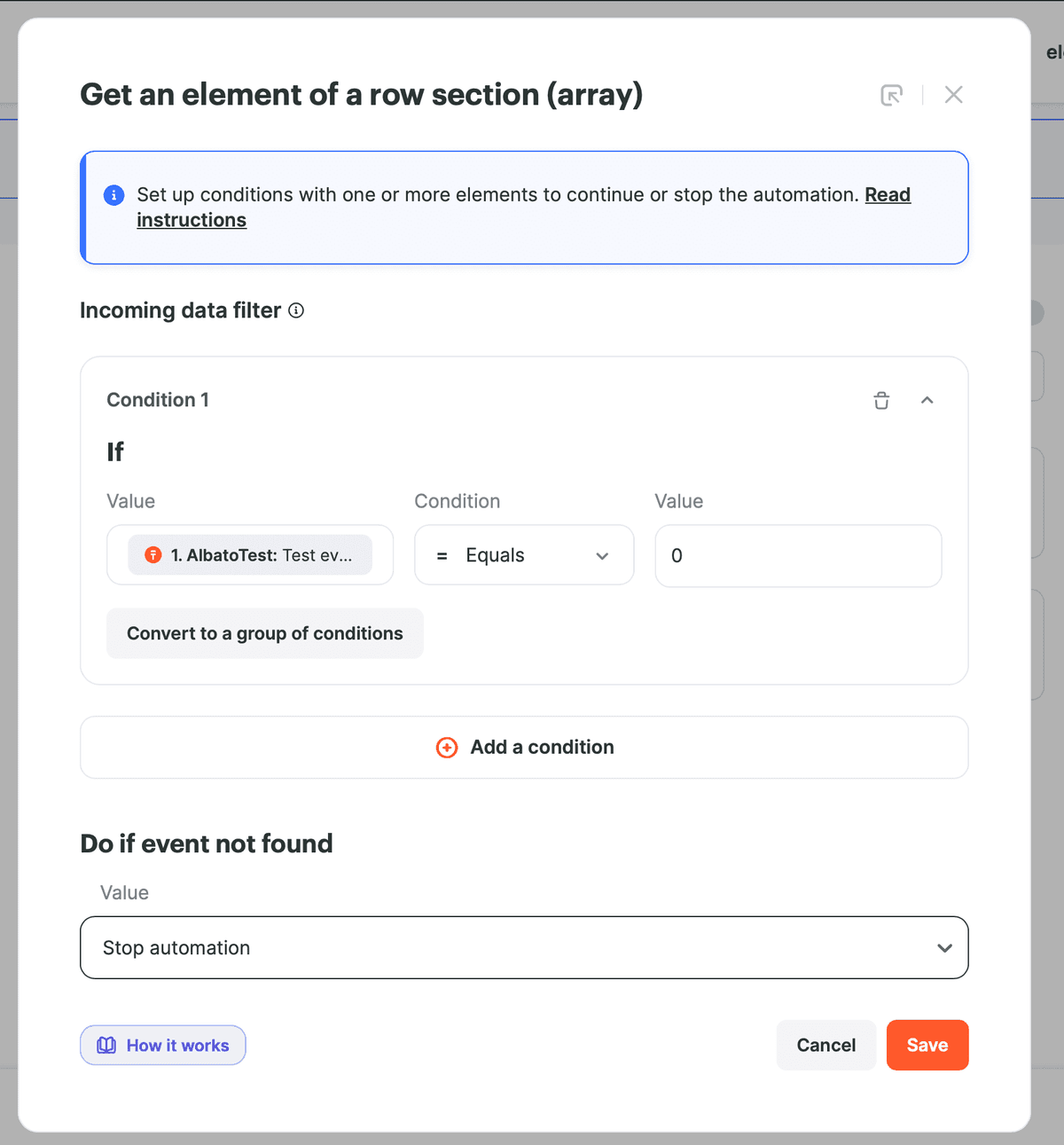
For the wholesale example, set the quantity condition to greater than 100. The matching item's details can then be sent to the Telegram group for the wholesale department.
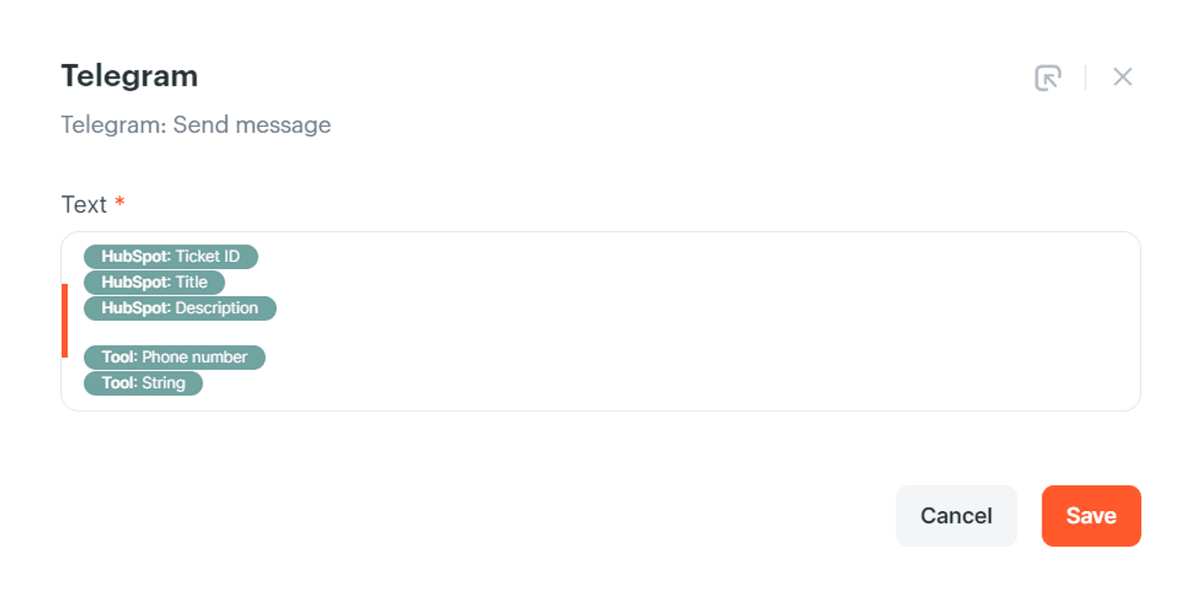
- In the Telegram action, map the order ID and creation date from the store. Select Name and Description from the tool's output.
-
Save the settings.
-
Run the automation.
Identify Low-Stock Products and Notify Your Team
Checking stock levels manually can take time when a store has many products. Use this tool to find a product at or below a chosen stock level, create a task, and notify the team responsible for replenishment or production.
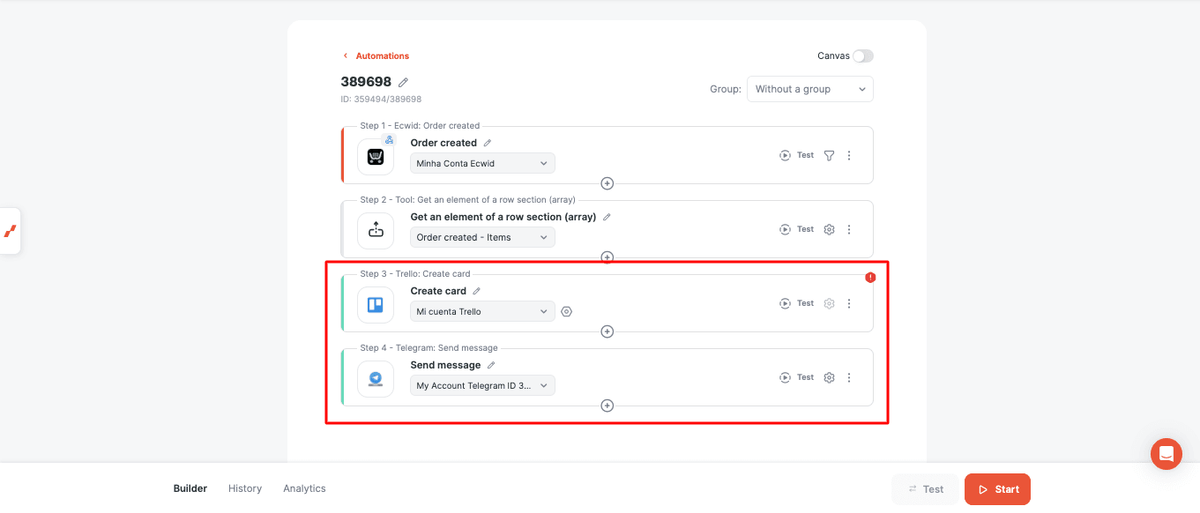
This example uses Ecwid as the online store, Trello to create a card, and Telegram to send a notification. The team can then review the product and act before its stock reaches zero.
You can apply the same approach with other stores, such as Mercado Libre, Shopify, WooCommerce, or Tiendanube. Alternatives for tasks include Monday, ClickUp, and Todoist. For notifications, you can use Slack, email, or notes in your CRM.
Create the Automation
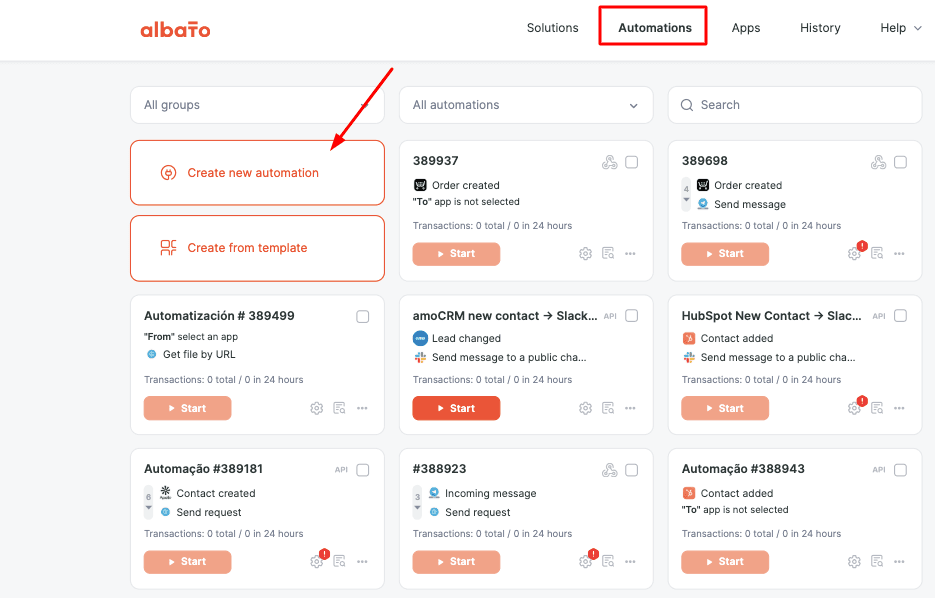
- Go to Automations and click Create new automation.
- Select Ecwid and its Order created trigger.
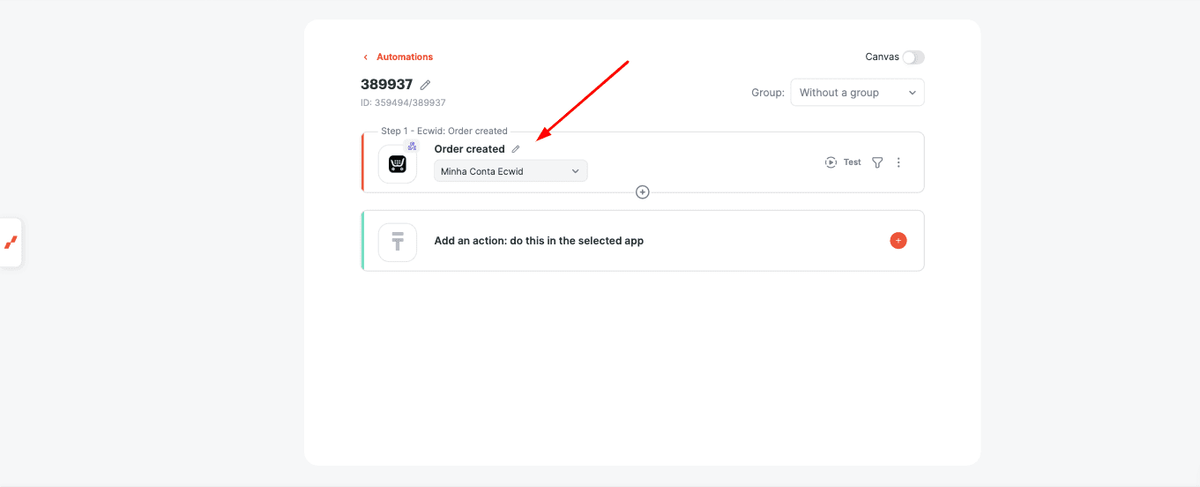
Each new order provides information about the products sold and their stock levels for the following steps.
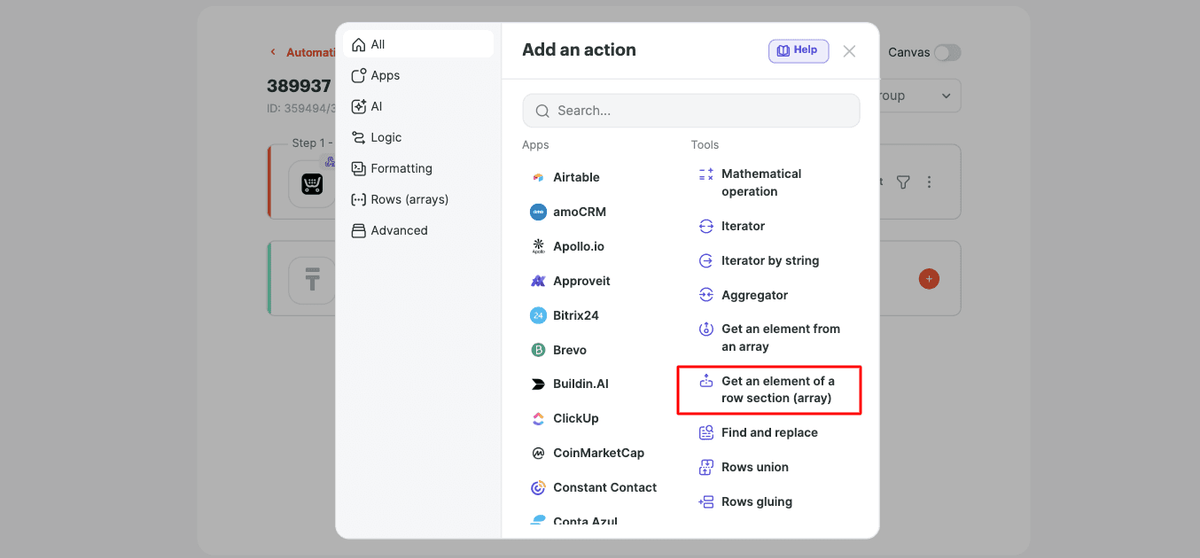
- Add Get an element of a row section (array) and select the product row section.
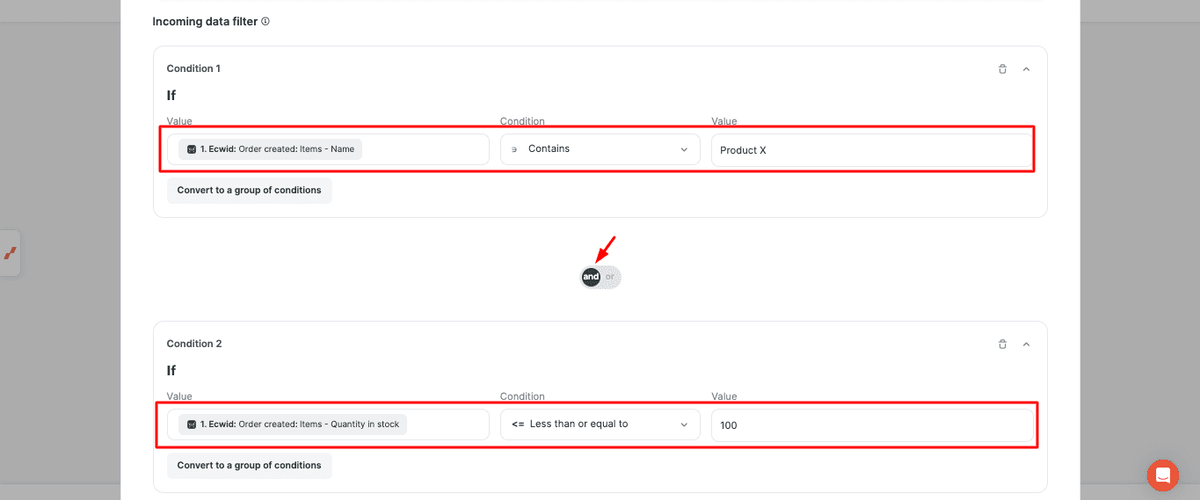
- Set a condition for Quantity in stock to be less than or equal to your chosen threshold. You can also add a condition for the product name.
For example, to find Product X when its stock is 100 or less, configure both conditions and combine them with AND so that both must be met.
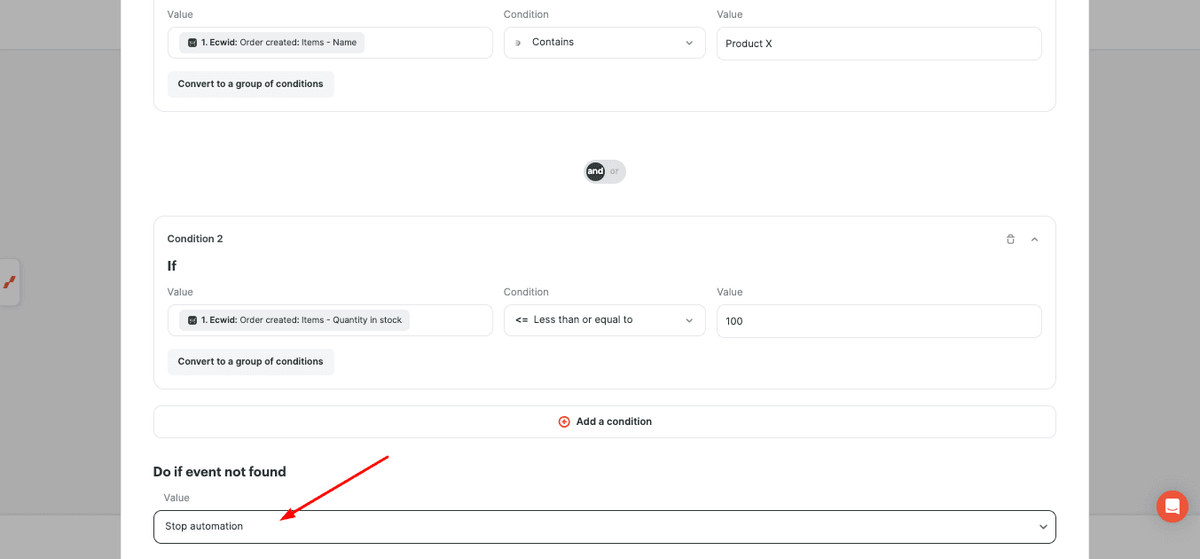
- Under Do if event not found, select Stop automation. This stops the automation if no product meets the conditions, so the notification steps run only when a matching product is found.
- Save the tool settings, then add a Trello action and a Telegram action.
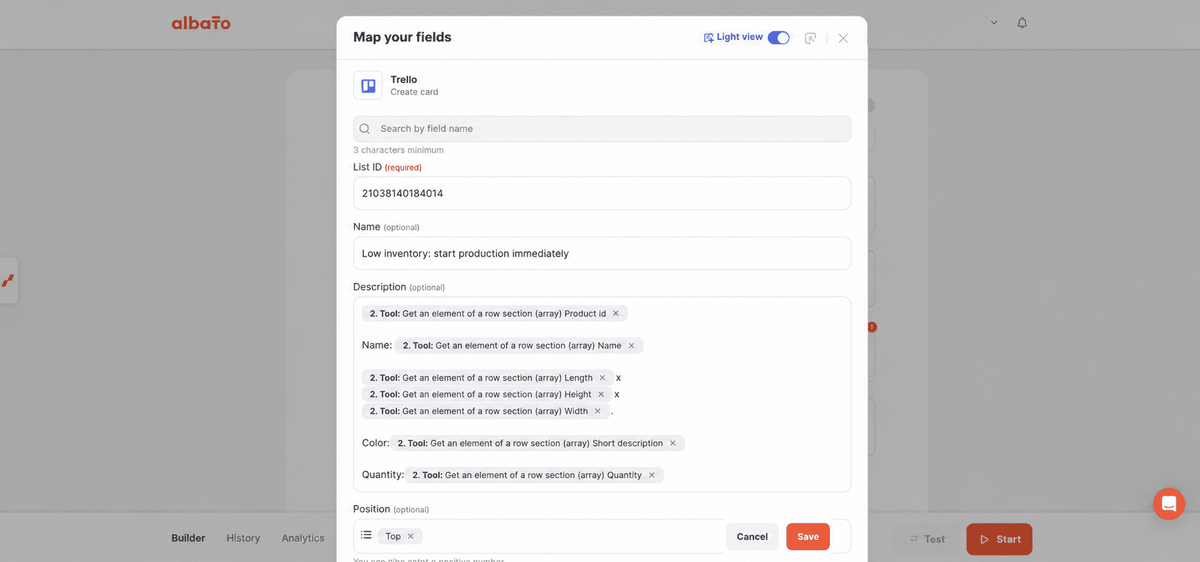
- Map the product fields from the tool's output into the card and message. Include the information the team needs to continue the production or replenishment process.
- Save the remaining settings and activate the automation.
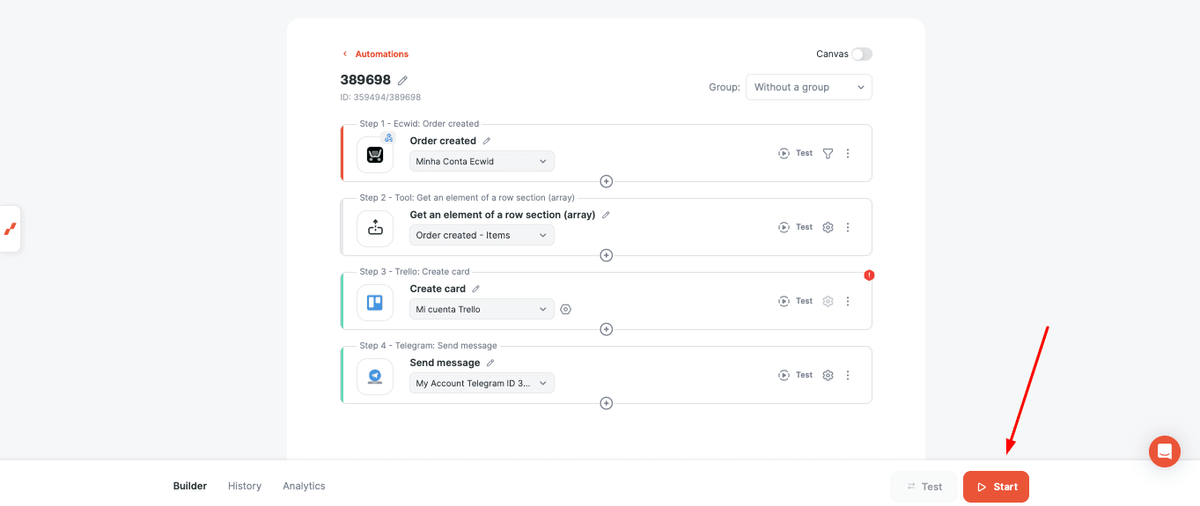
When an order triggers the automation and a product meets the conditions, the responsible team receives a low-stock alert and a task. This helps the team plan replenishment and reduce the risk of stockouts.
Did this answer your question?