

How to Connect Marvee to Albato
IN THIS ARTICLE
Before setting up automations with Marvee, connect the app to Albato.
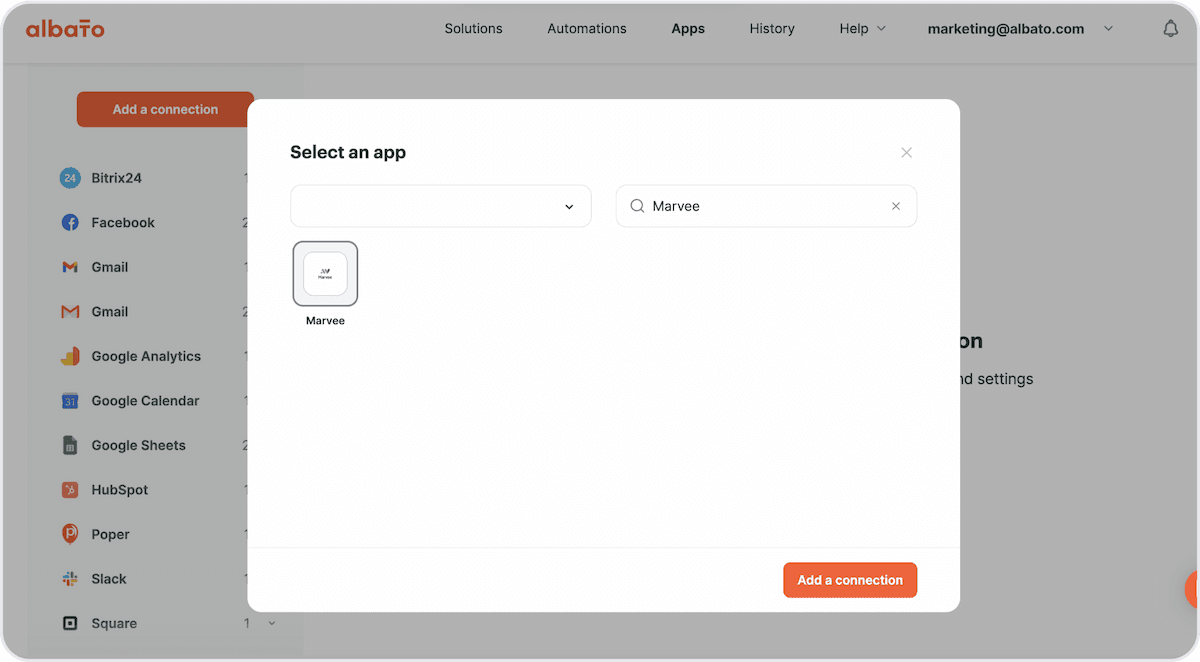
To do this, go to the Apps section and click the Add a connection button.

Select the app and click the Add a connection button.
Come up with a Name for your connection.
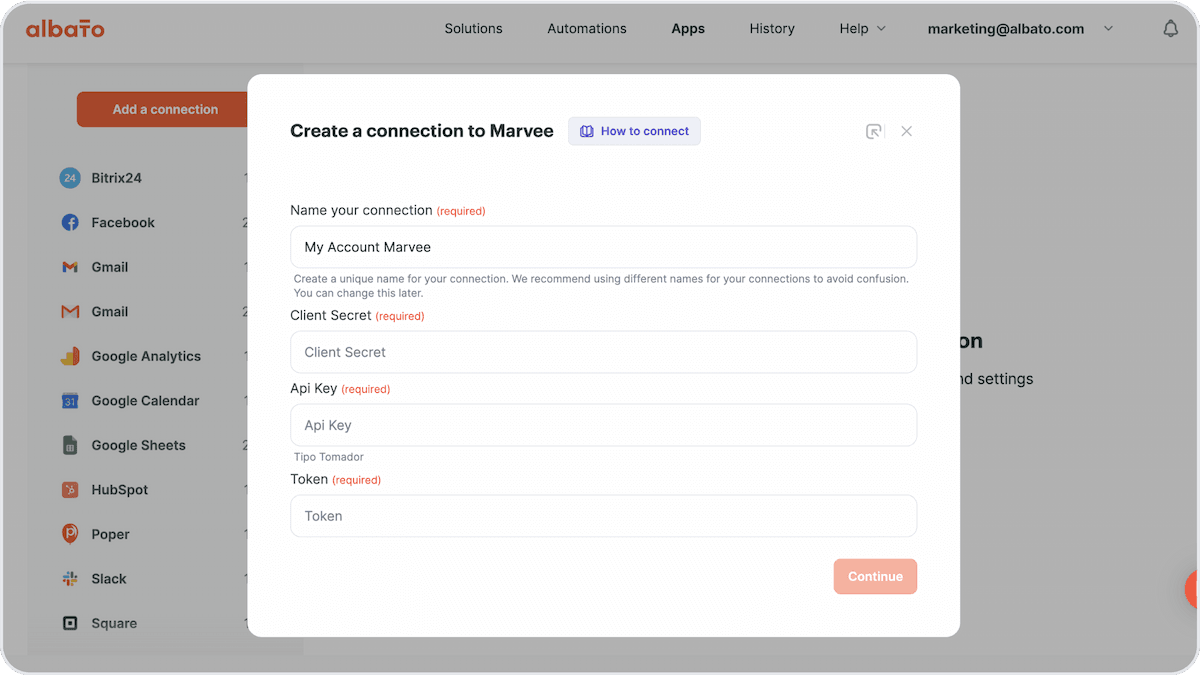
To get the Client Secret, Api Key and Token, access your Marvee account.
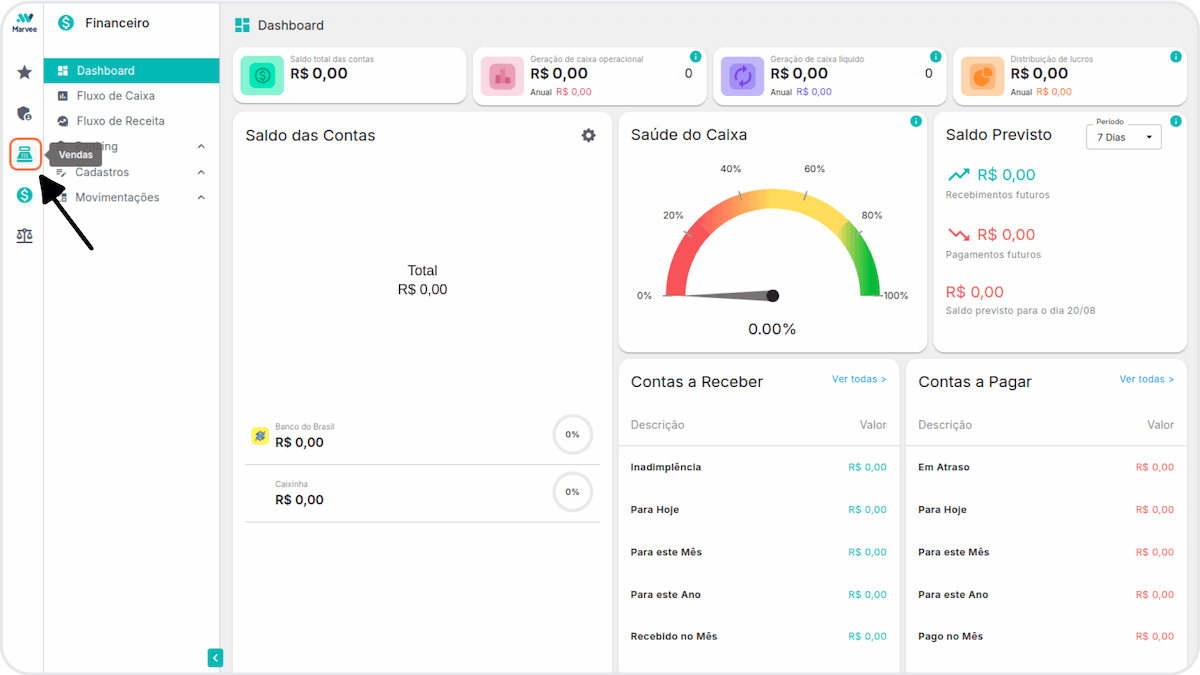
Then, click on Vendas icon.
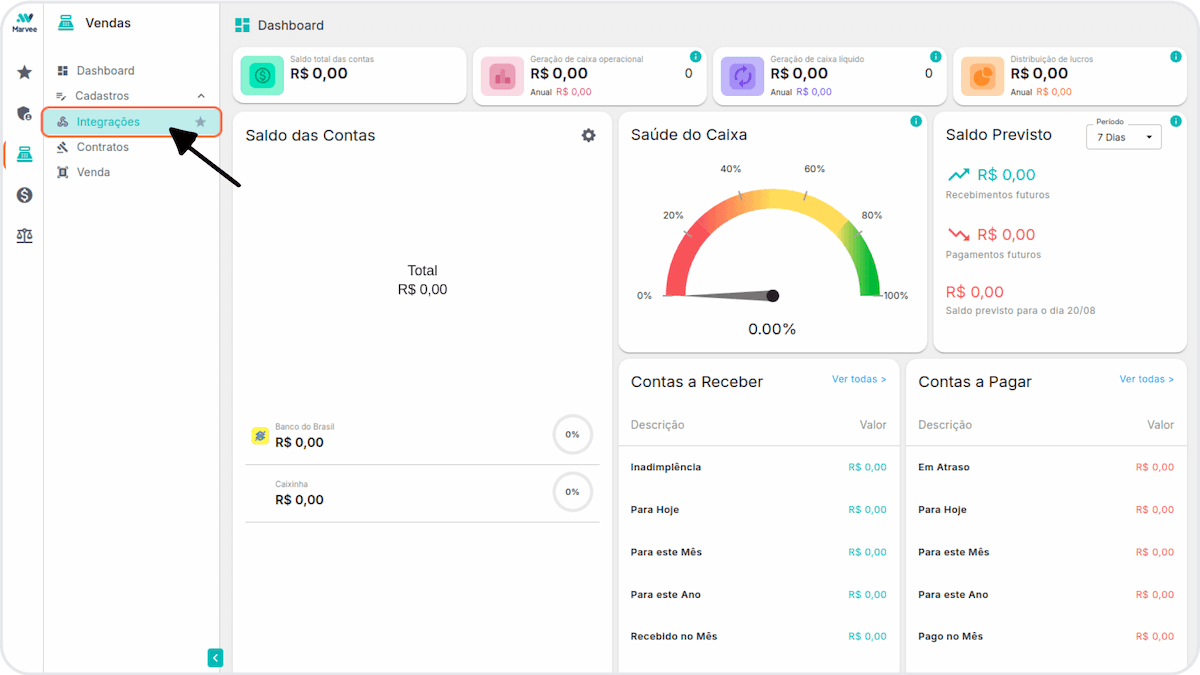
Click on the Integrações button.
After that, click on Novo button, in the top right corner.
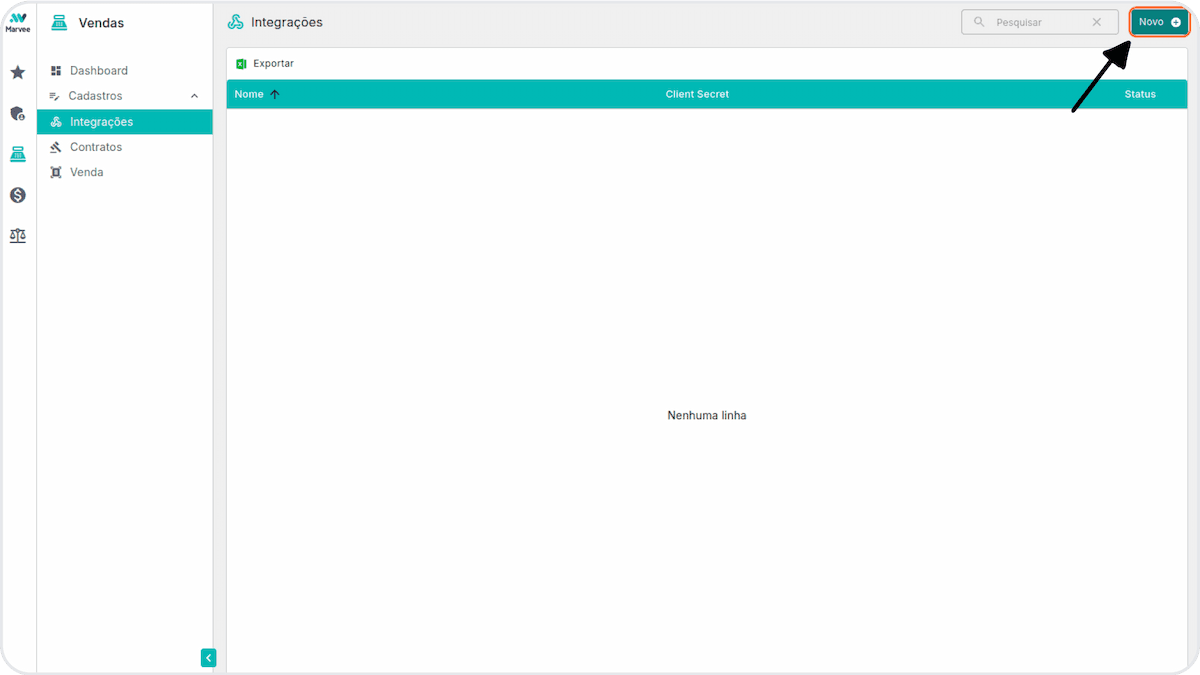
Fill the name in the Nome field.
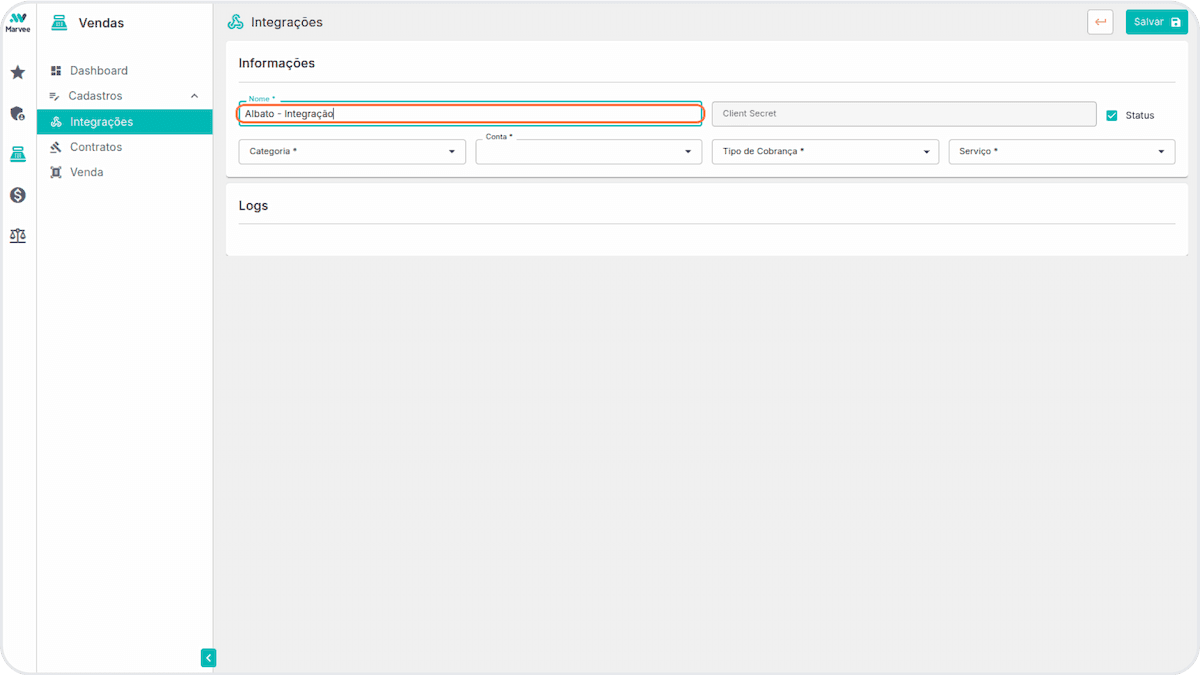
Select your category in Categoria.
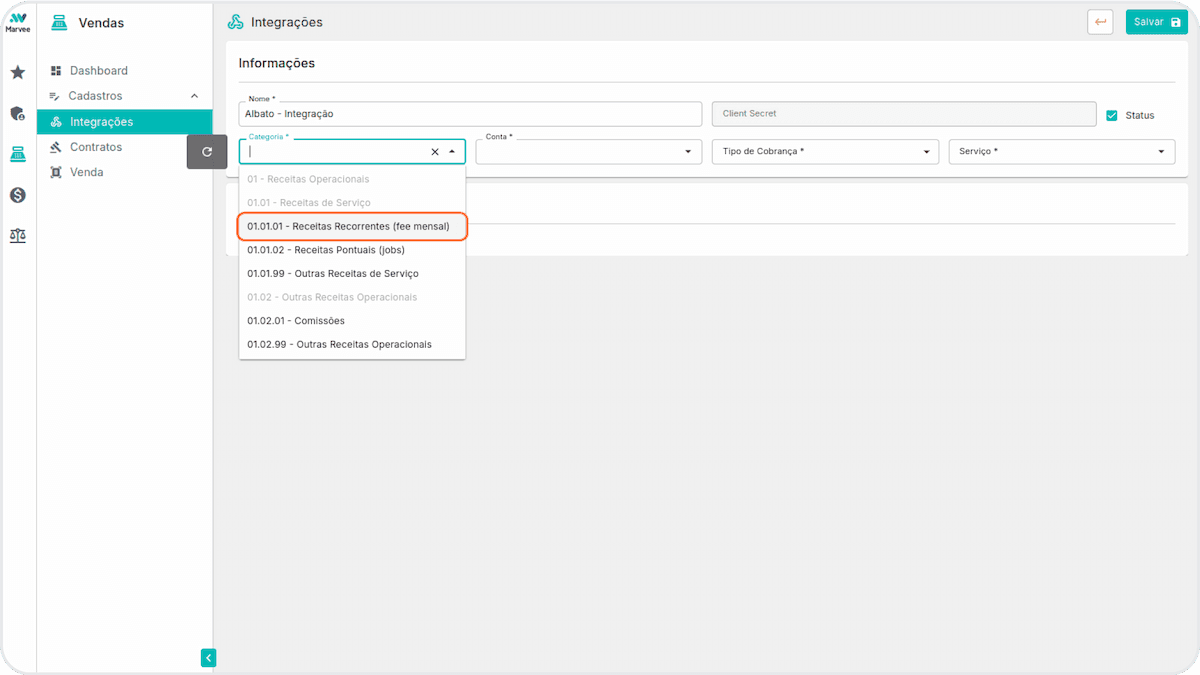
Choose your account and type of charge in Conta and Tipo de Cobrança.
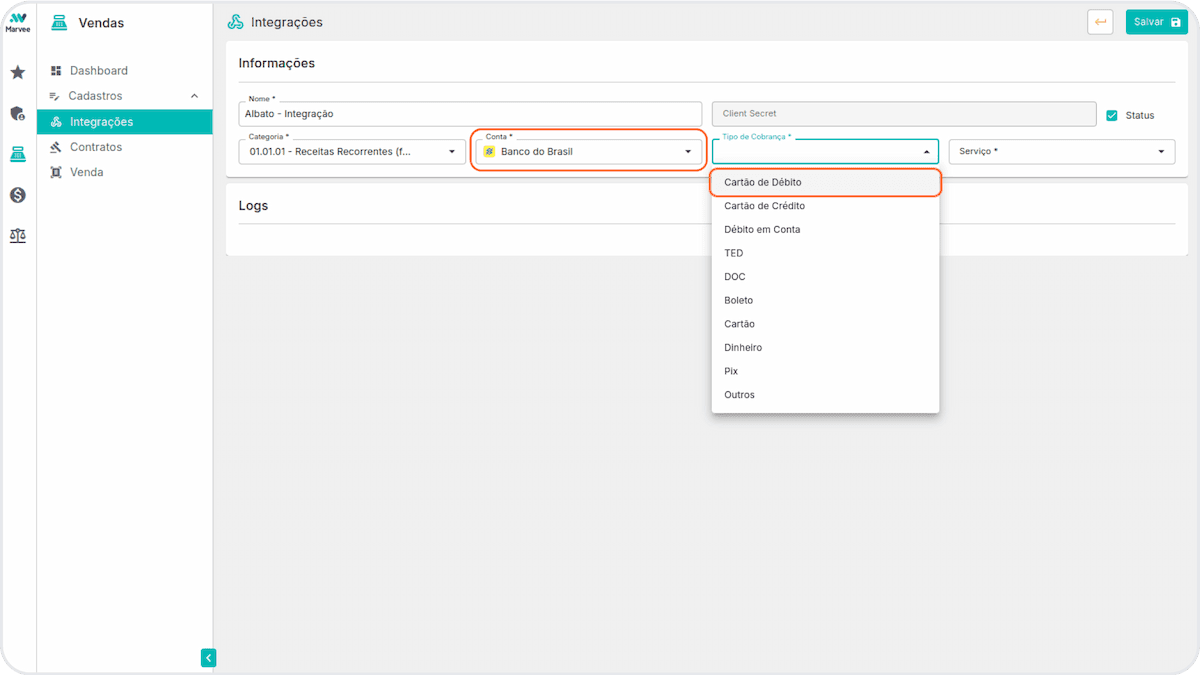
Select your service in Serviço.
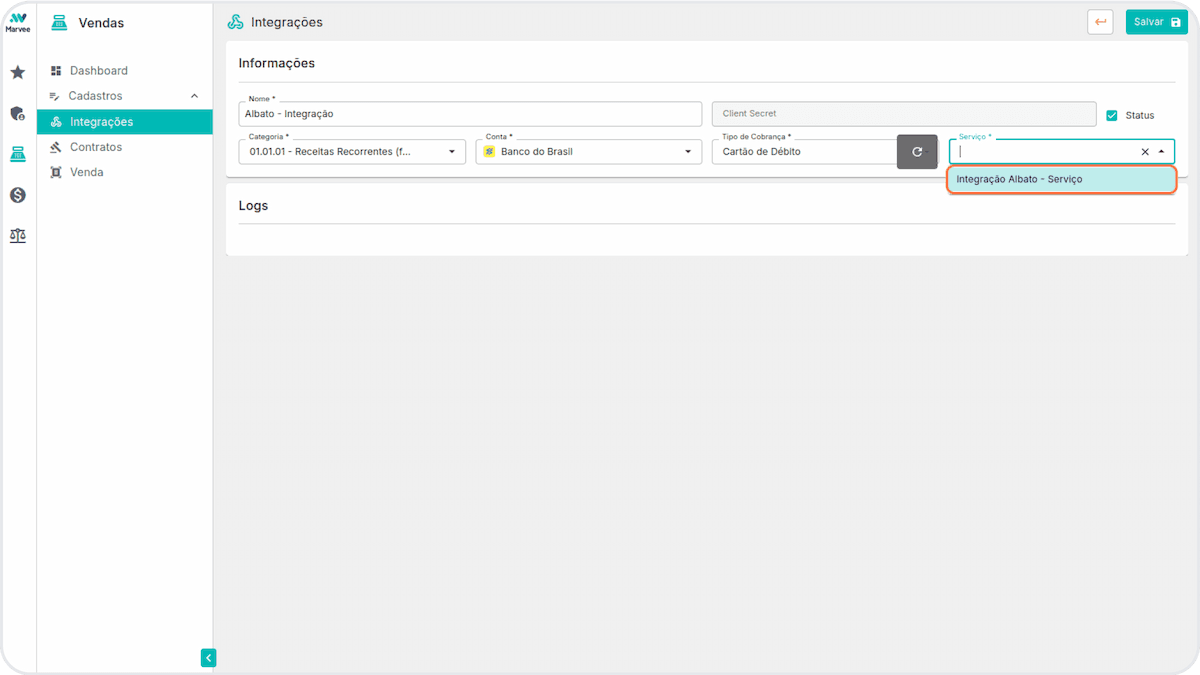
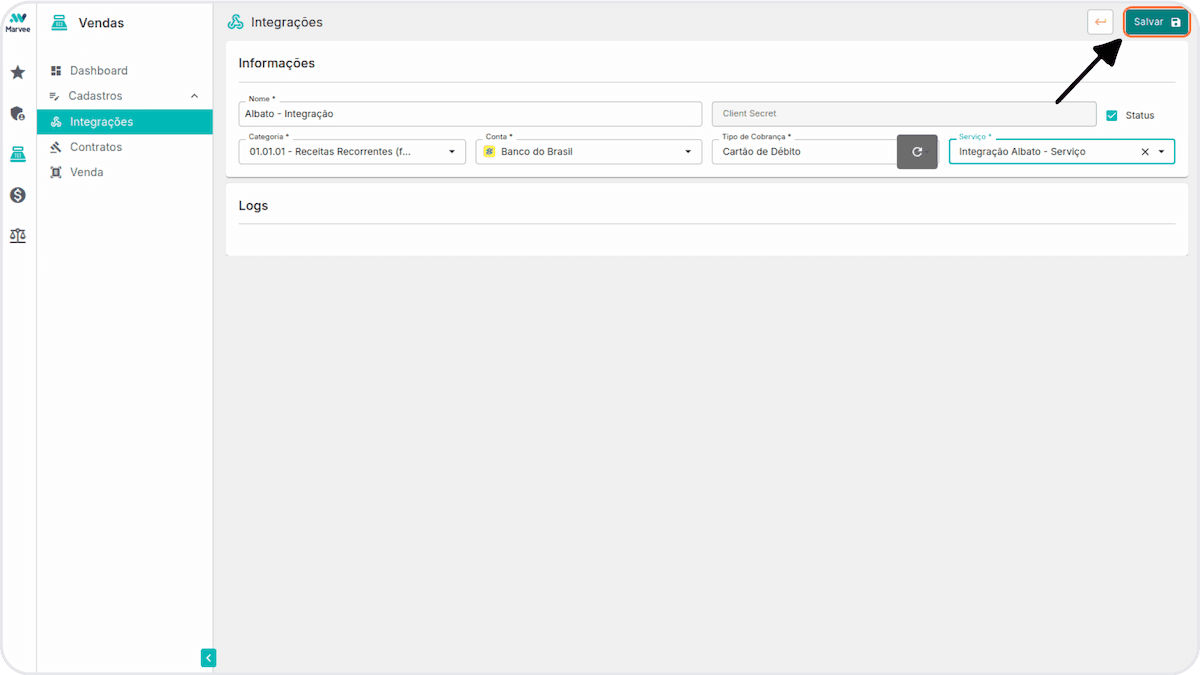
And click Salvar.
Copy your Client Secret.
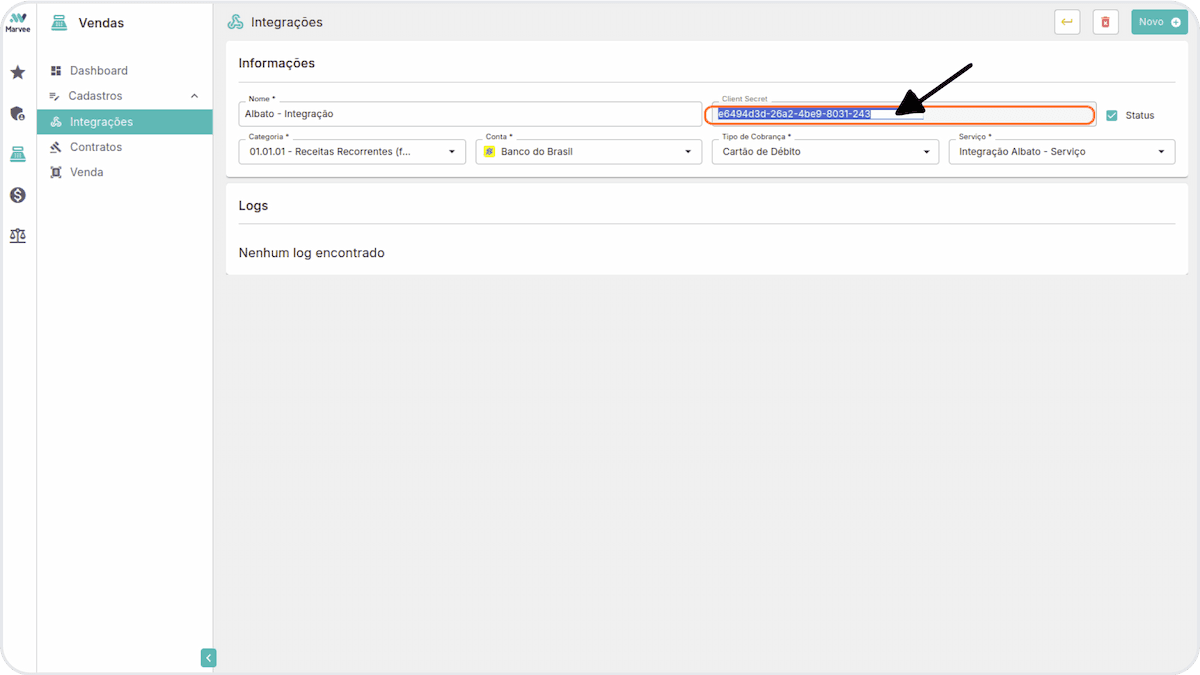
Paste the value into the Albato Client Secret field.
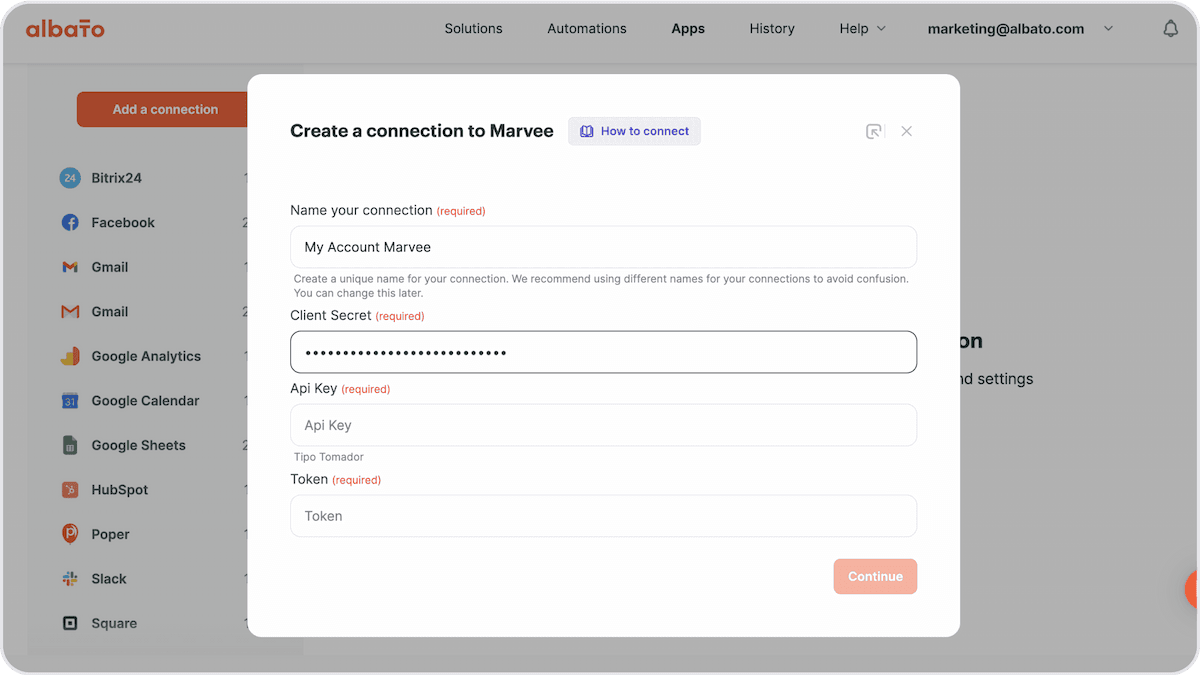
Go to your email and copy your Api Key and Token sent by Marvee.
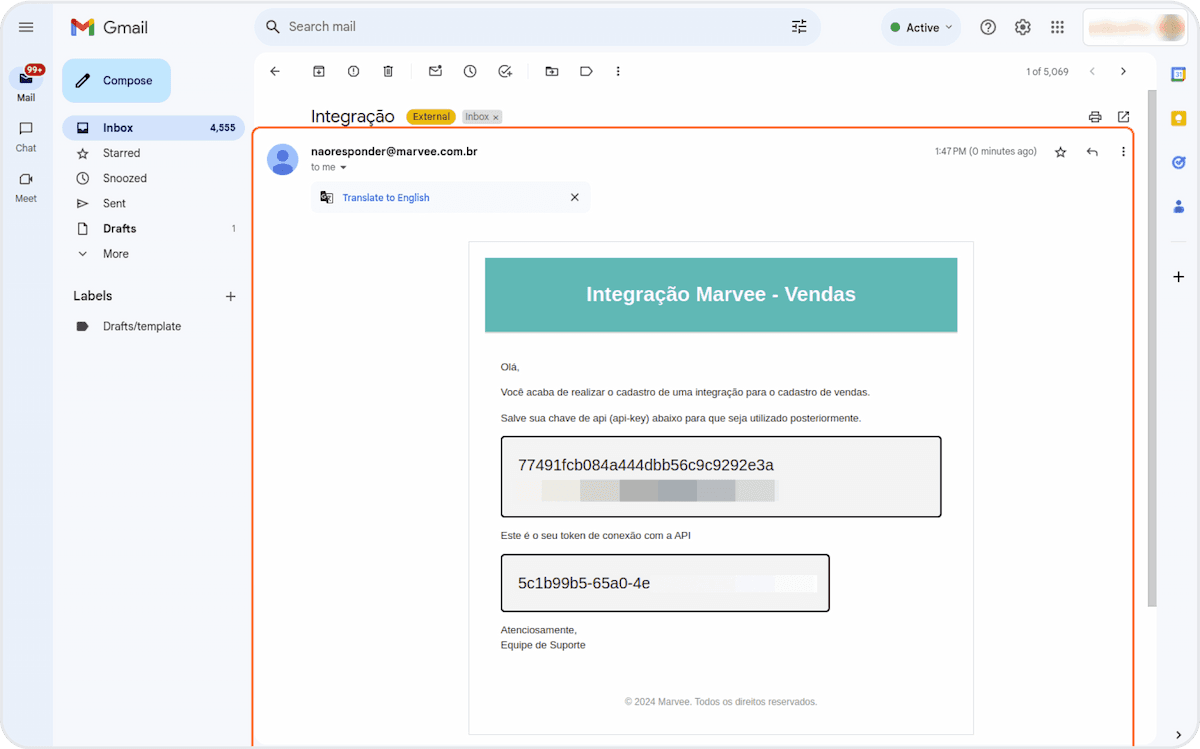
Paste them respectively into Albato's Api Key and Token fields.
Then click Continue.
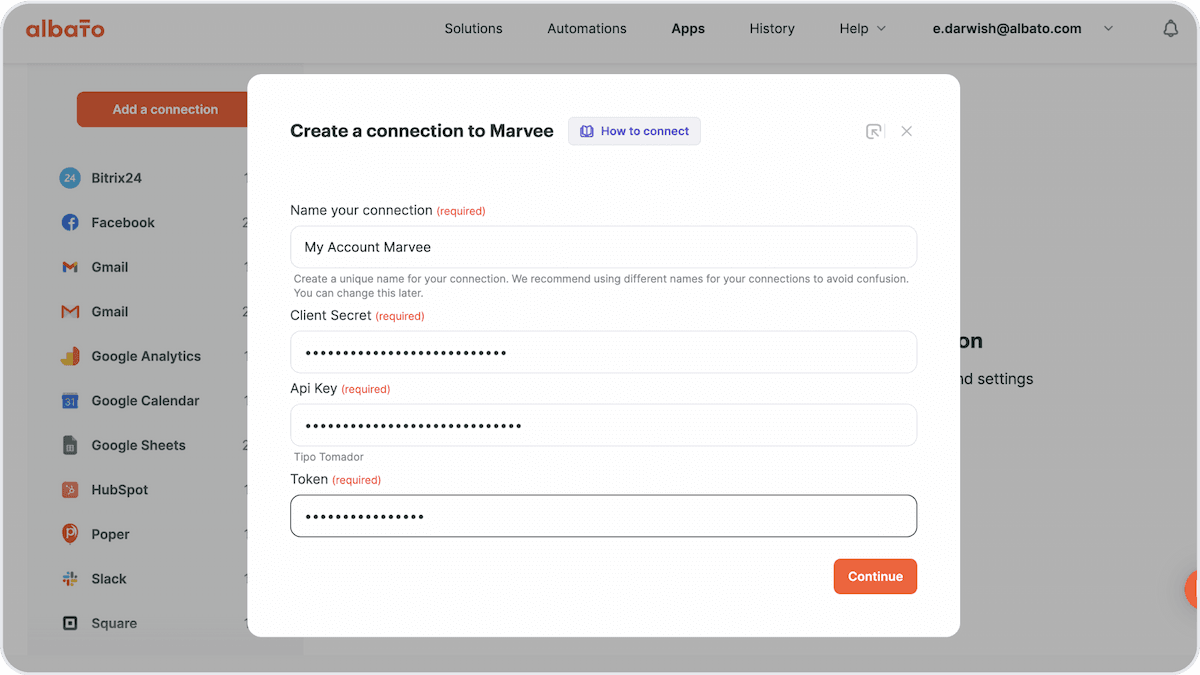
The connection is ready!
Did this answer your question?