

How to Connect Zadarma to Albato
IN THIS ARTICLE
Zadarma provides IP telephony, virtual numbers in 90 countries, free cloud PBX, CRM integrations, website widgets, and call tracking. Connect Zadarma with Albato to integrate it with 1,000+ apps, including AI tools like ChatGPT or Grok, and automate workflows. Follow the steps below to complete the setup.
Available Triggers
Triggers are events that start an automation. All triggers run in real time, meaning data is transferred as soon as the event occurs.
- Incoming call to PBX started
- Subscriber's response to a given action
- Incoming call to internal PBX number started
- Outgoing call from PBX started
- Call response created
- End of an incoming call to an internal number
- End of an outgoing call from a PBX
Available Actions
Actions are steps performed after a trigger. They allow you to send data to other applications and systems.
- Create Lead
- Order callback
- Get link to a conversation recording
How to connect Zadarma to Albato
- Log in to your Albato account.

- Go to the Apps tab and click Add a connection.

- In the pop-up window, search for Zadarma, click the app icon, and click Add a connection.
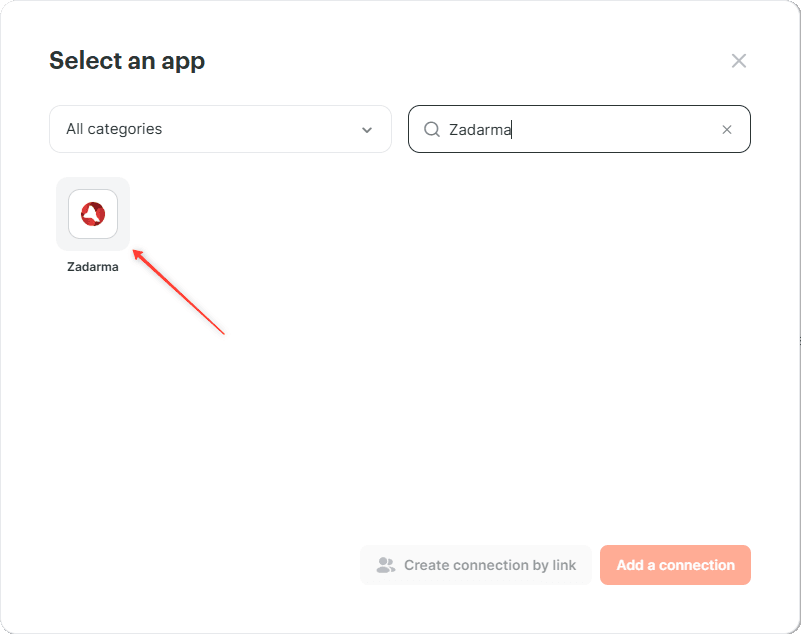
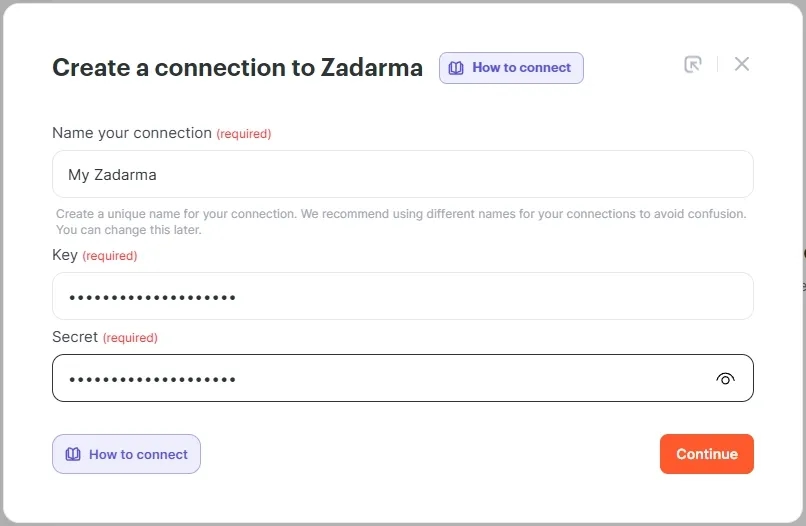
- In the connection settings window, enter a connection name. Albato will ask for Key and Secret.
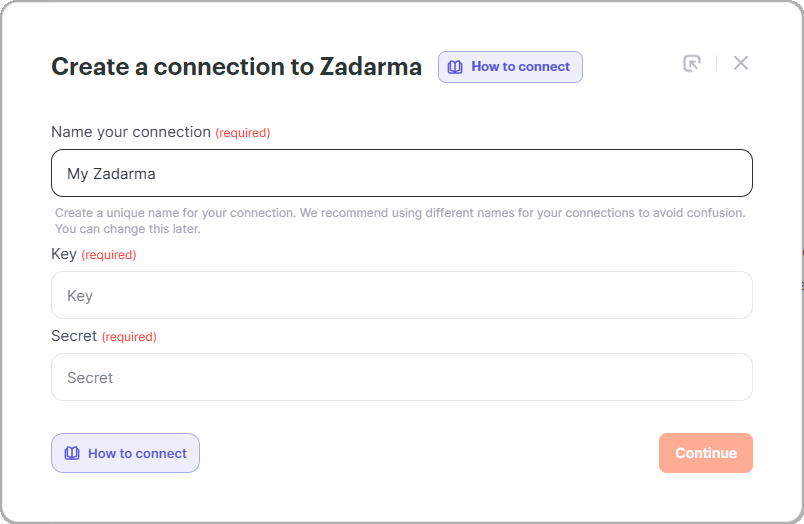
- To get the Key and Secret, open your Zadarma account and go to Settings → Integration and API.
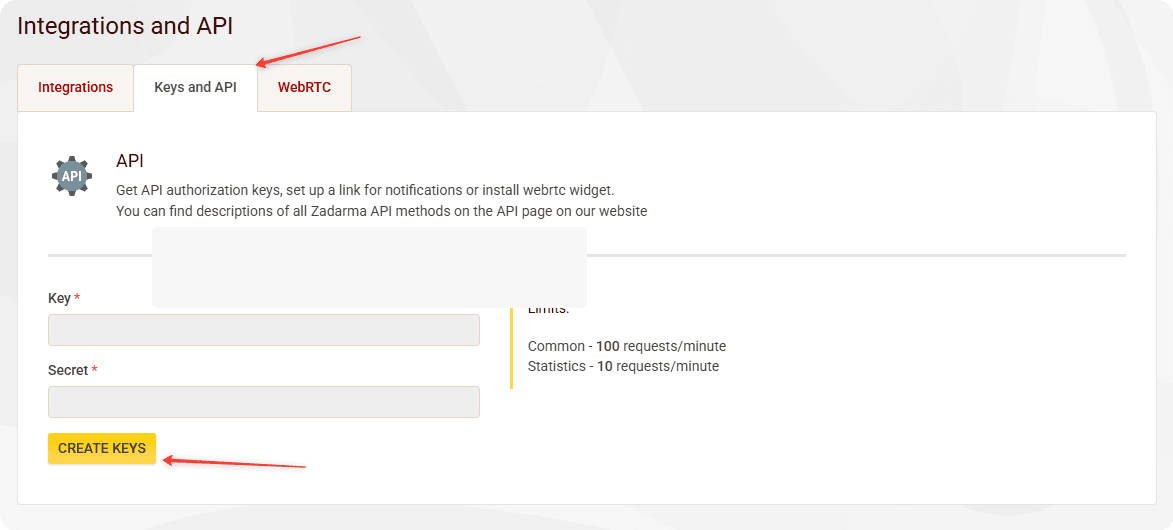
- Open Key and API and click CREATE KEYS.
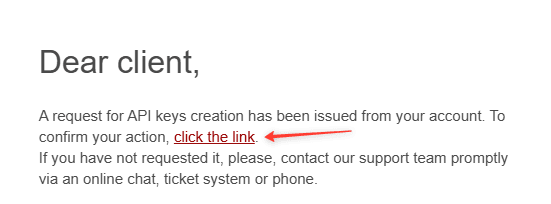
- Zadarma will send an email with a confirmation link. Follow the link to generate the connection data.
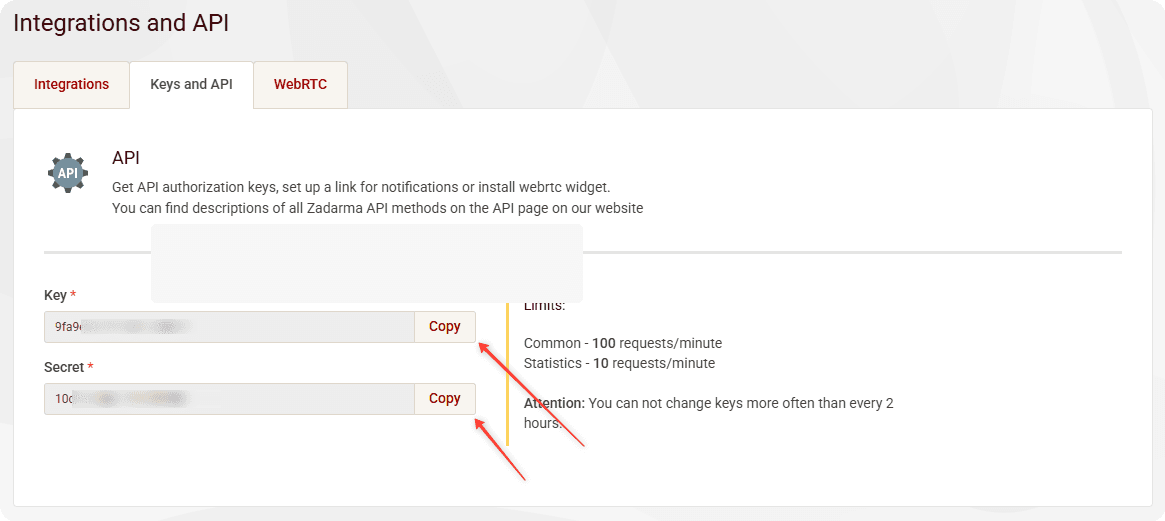
- Copy the keys one by one, paste them into the Albato connection settings window, and click Continue.
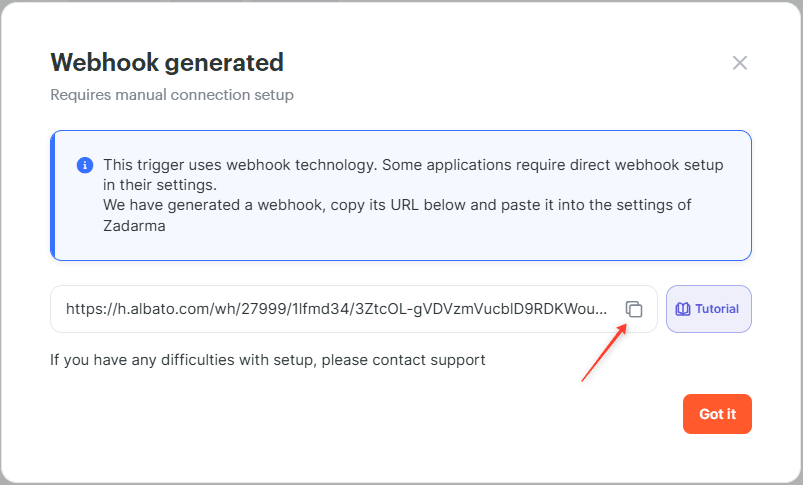
- Albato will generate a webhook URL. Click the copy icon, then click Got It.
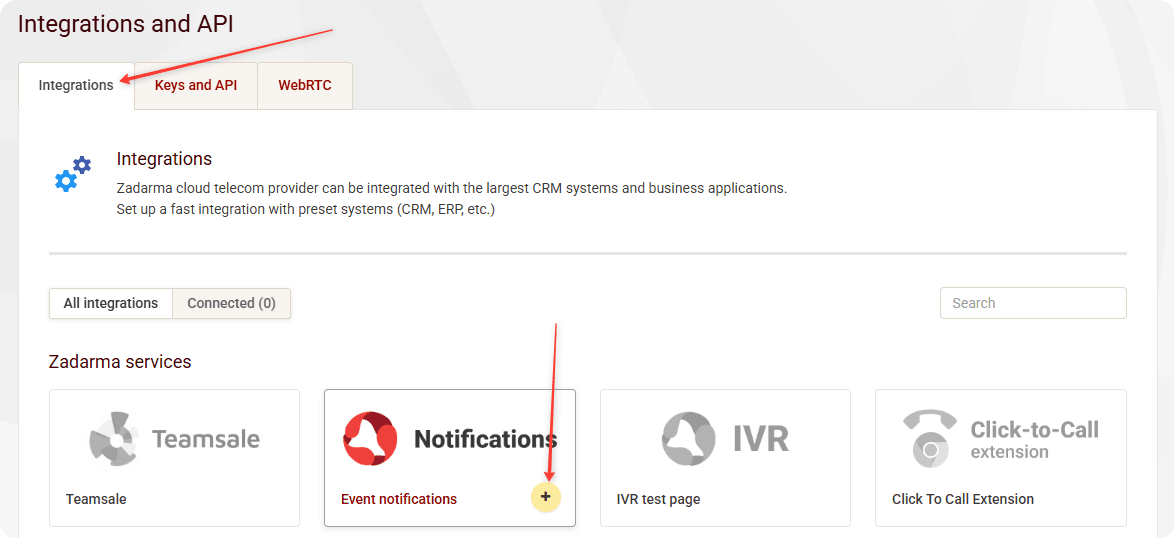
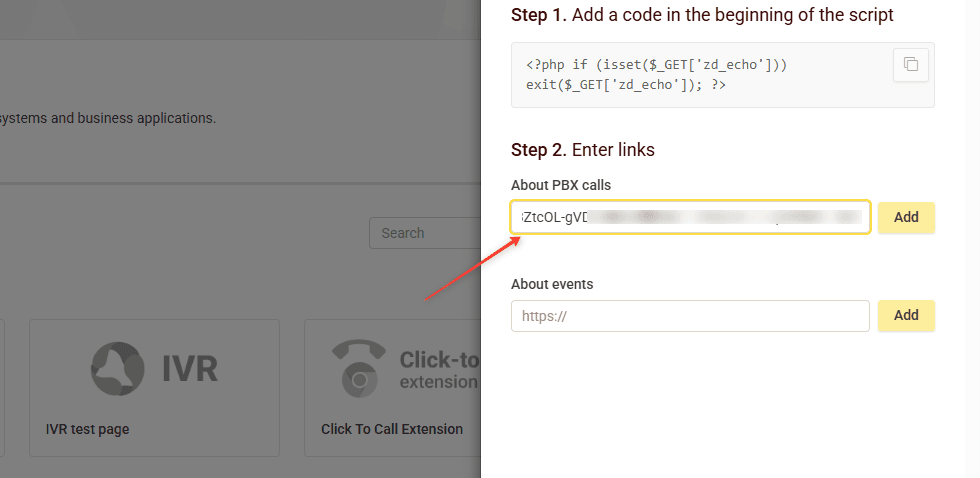
- Return to your Zadarma account. Go to Settings → Integration and API, open the Integrations tab, and click the + icon for the integration service.
- Paste the webhook URL into the About PBX calls field and click Add.
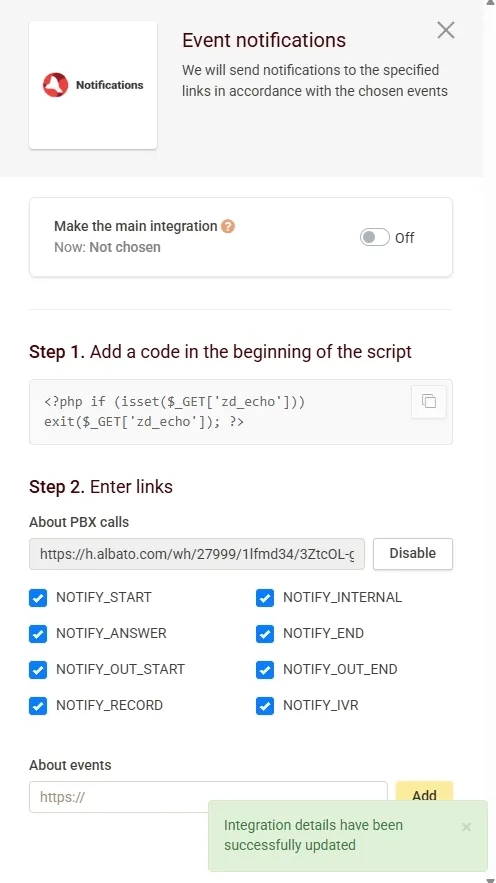
- Zadarma will show that the integration details have been successfully updated.
Now you can use Zadarma in your Albato automations to process call events, create leads, order callbacks, and get links to call recordings. If you have any questions, contact our support team in your Albato account chat.
Did this answer your question?