

How to Connect Linear to Albato
IN THIS ARTICLE
Linear is an issue tracking and project management platform for product and engineering teams.
Connect Linear with Albato to integrate it with 1,000+ apps, including AI tools like ChatGPT or Grok, and automate workflows. Follow the steps below to complete the setup.
Attention: Linear shows a personal API key only once. Copy it and store it securely before closing the page.
Step-by-step instructions
- Log in to your Albato account.

- Go to the Apps section and click Add a connection.

- Open your Linear workspace, click your workspace name, and select Settings.
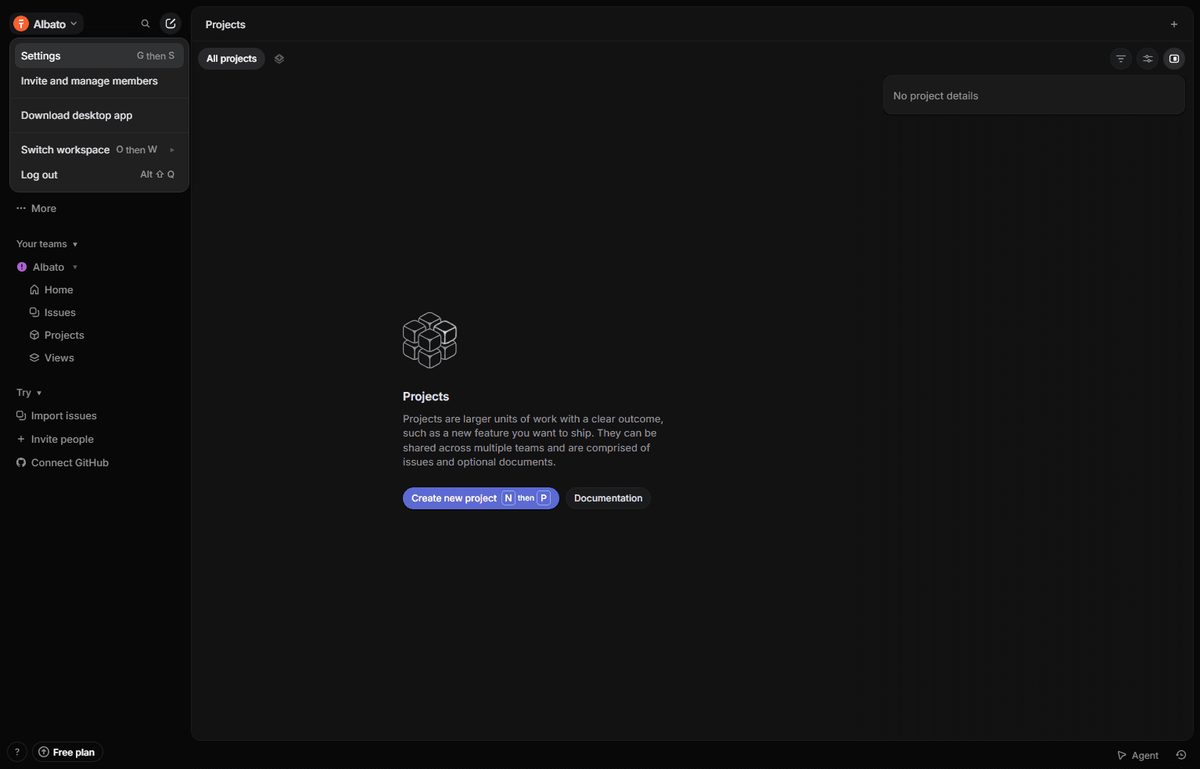
-
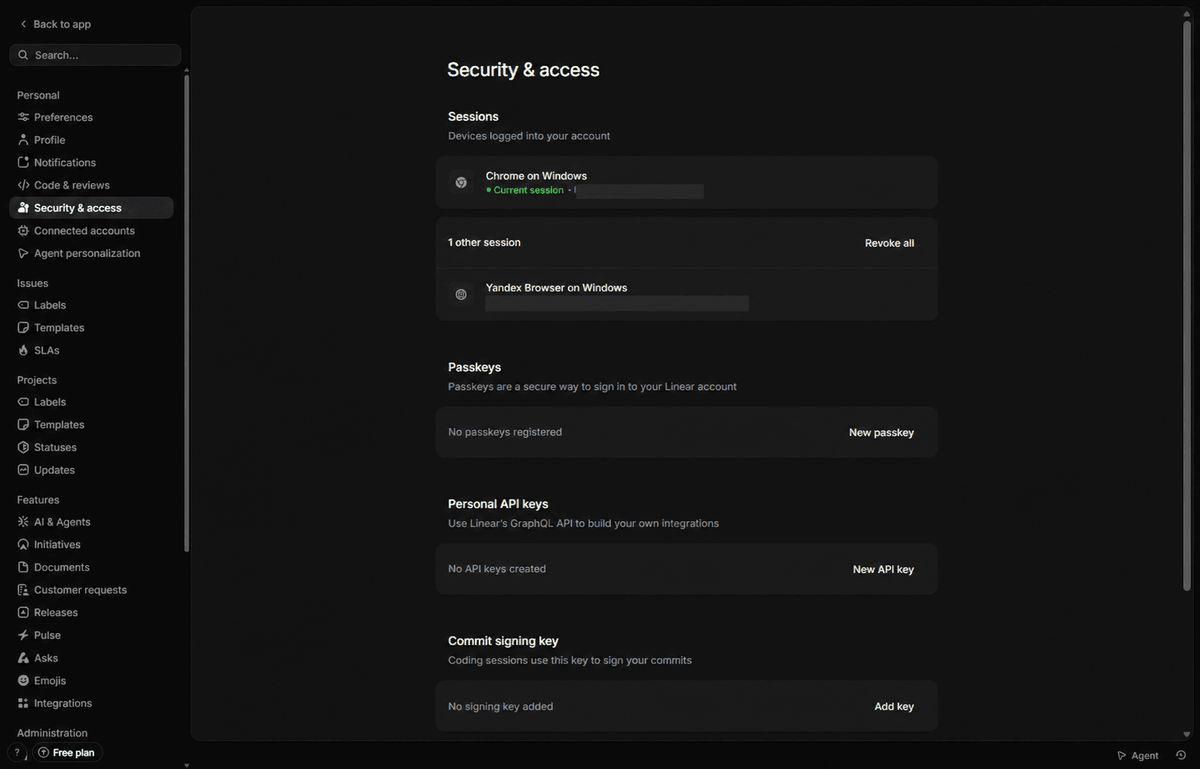
Open Security & access and find the Personal API keys section.
-
Click New API key.
- Enter a Key name. Under Permissions and Team access, select the permissions and teams your automation needs, then click Create.
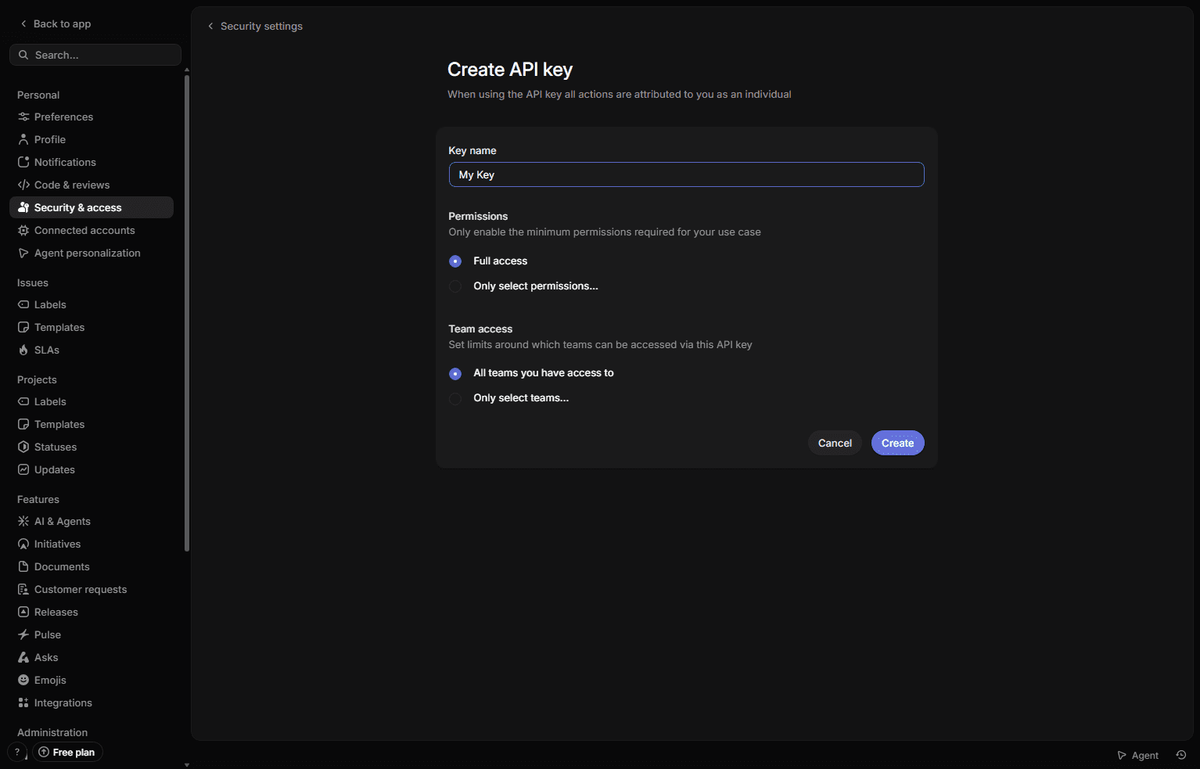
Note: If you cannot create an API key, ask your Linear workspace administrator whether members are allowed to create personal API keys. See Linear's API key documentation for details.
- Copy the generated API key.
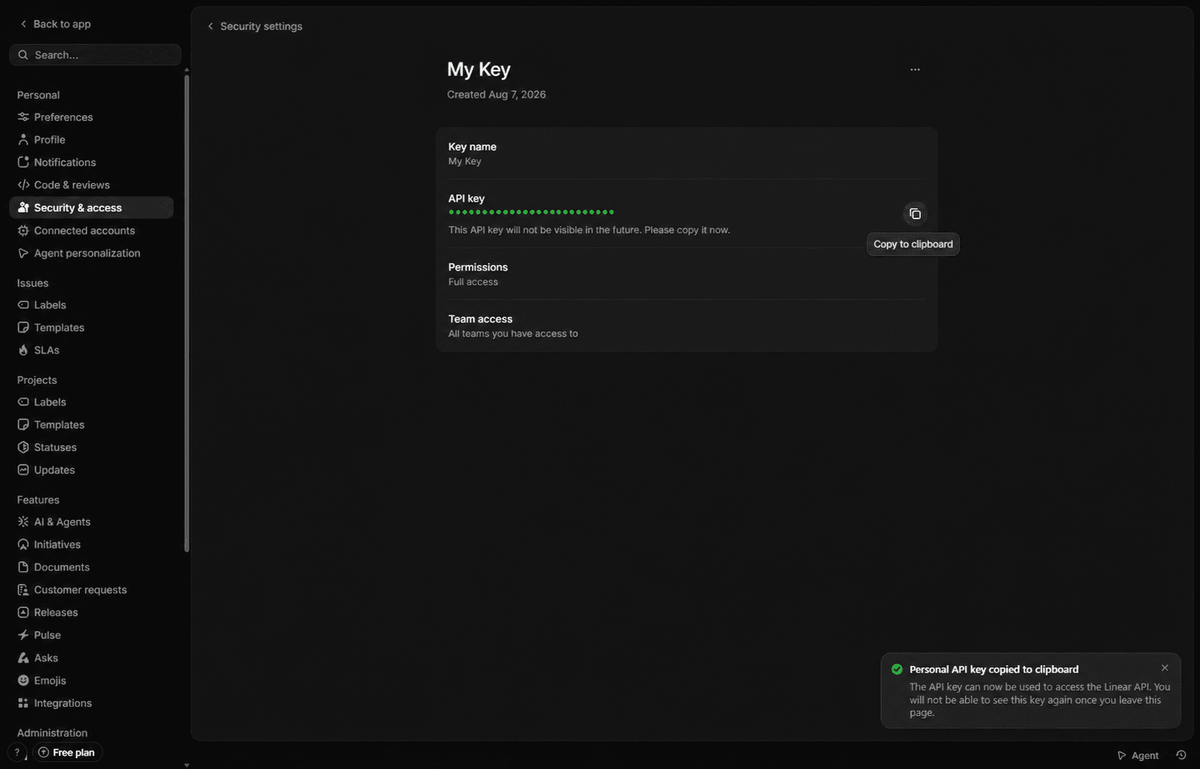
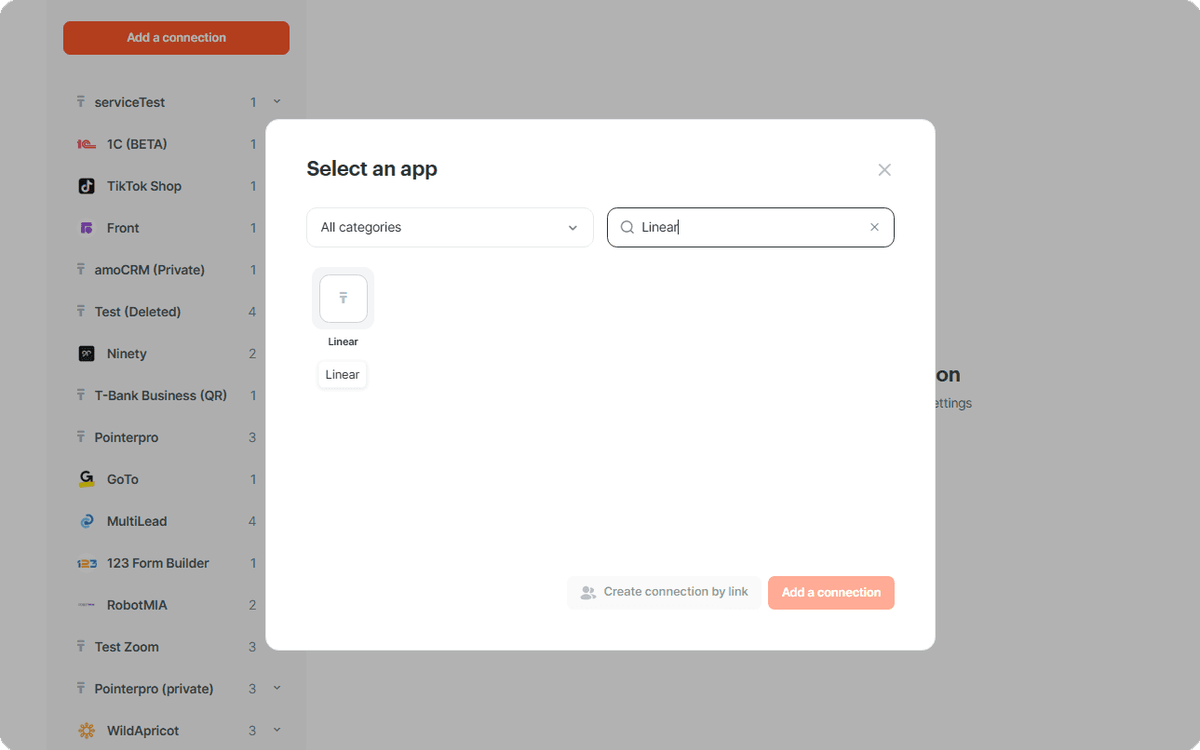
- Return to Albato. Type Linear in the search field, select it from the results, and click Add a connection.
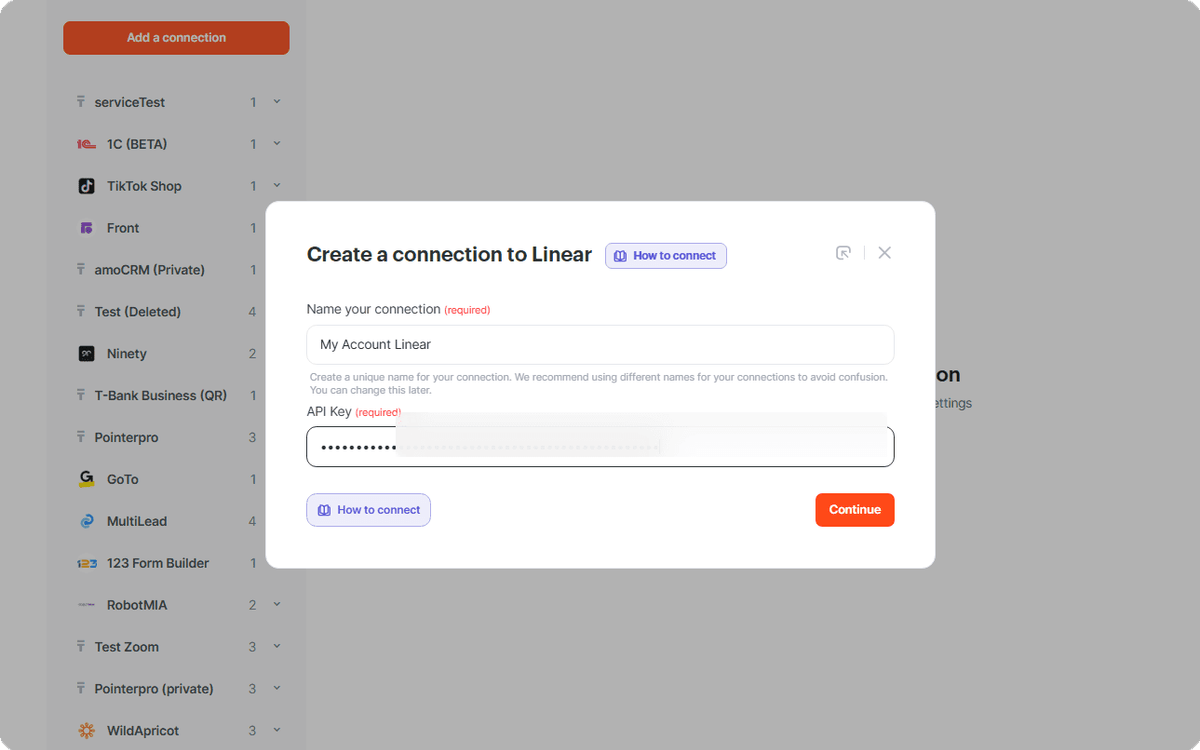
- Name the connection, paste the API key, and click Continue.
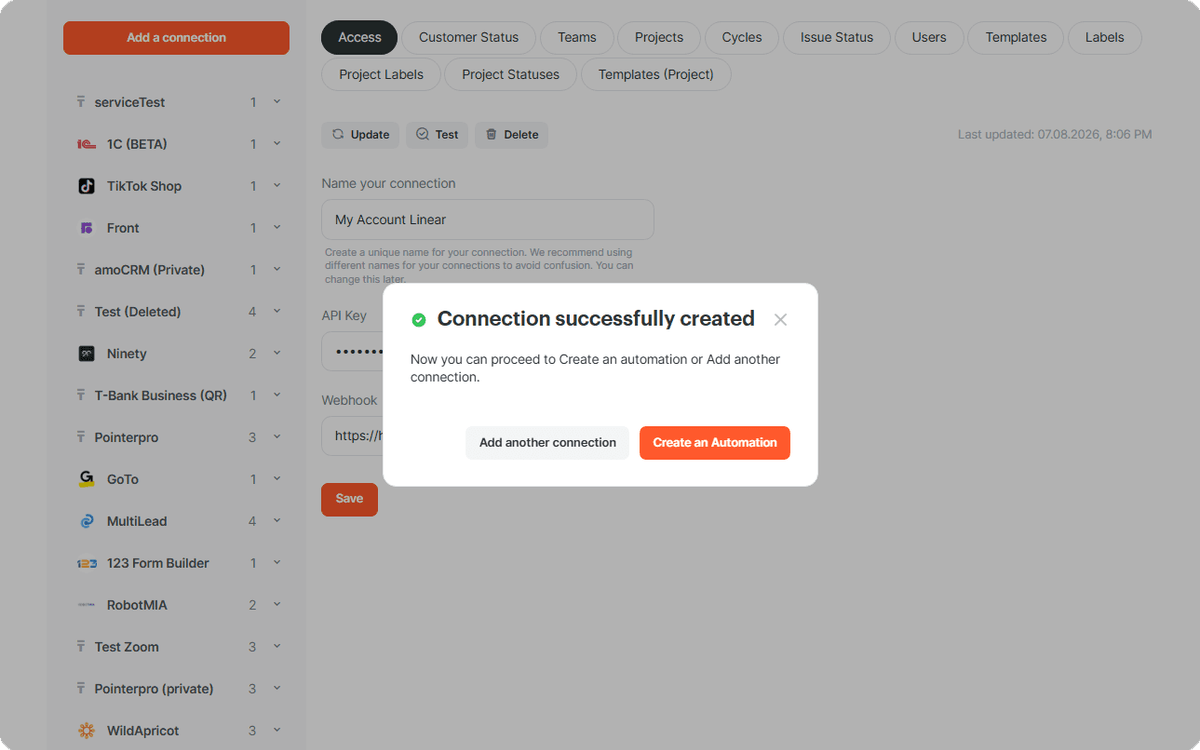
- When Connection successfully created appears, click Create an Automation to start setting up an automation, or Add another connection to connect another app.
Now you can use Linear in your Albato automations. If you have any questions, reach out to the support team via the chat.
About Linear
Linear helps product and engineering teams plan, track, and manage product work.
With it, you can:
- manage issues and projects;
- track customer requests;
- share comments and project updates;
- connect external tools through its GraphQL API.
For details about API keys and access, see Linear's API and webhooks documentation.
Did this answer your question?