

How to Connect Duda to Albato
IN THIS ARTICLE
Duda is a website-building platform for businesses that create and manage websites for small businesses.
Connect Duda with Albato to integrate it with 1,000+ apps, including ChatGPT and Grok. You can send website form submissions to a CRM or pass form data to an analytics service without entering it manually. Follow the steps below to connect a form and make its fields available in your automation.
Available triggers
A trigger is an event that starts an automation. Duda sends form data to Albato in real time through a webhook.
- Form submission: starts an automation when a visitor submits a connected form.
Step-by-step instructions
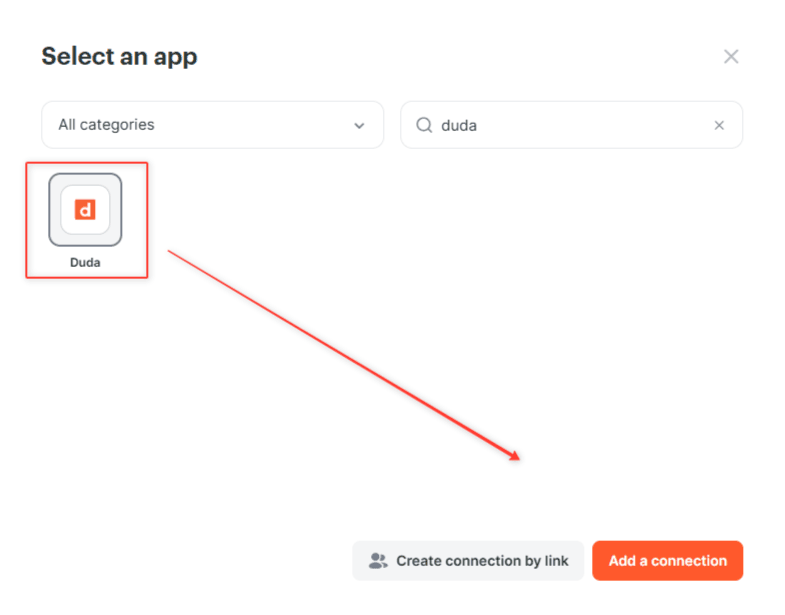
- Log in to Albato, open Apps, and click Add a connection.

- Search for Duda, select the app, and click Add a connection.
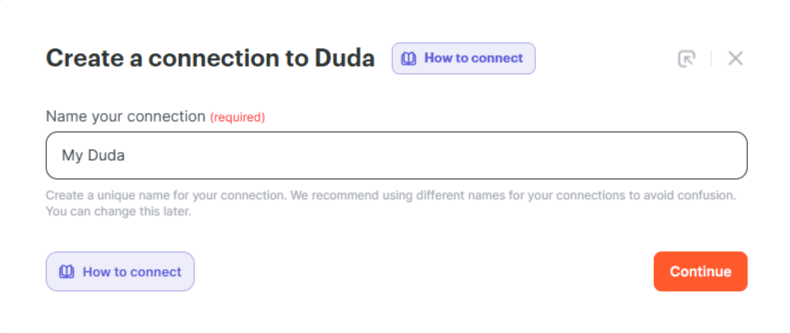
- Enter a name for the connection and click Continue. Use a name that helps you identify the form, especially if you plan to connect several forms.
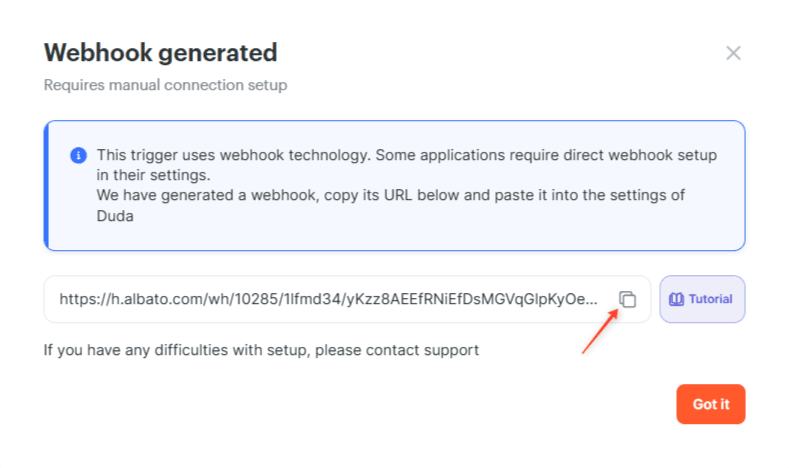
- Copy the generated Webhook URL, then click Got it. You will add this URL to your Duda form.
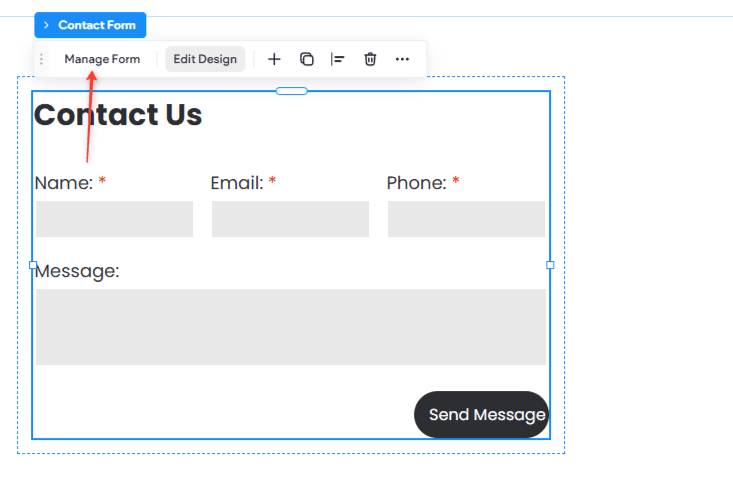
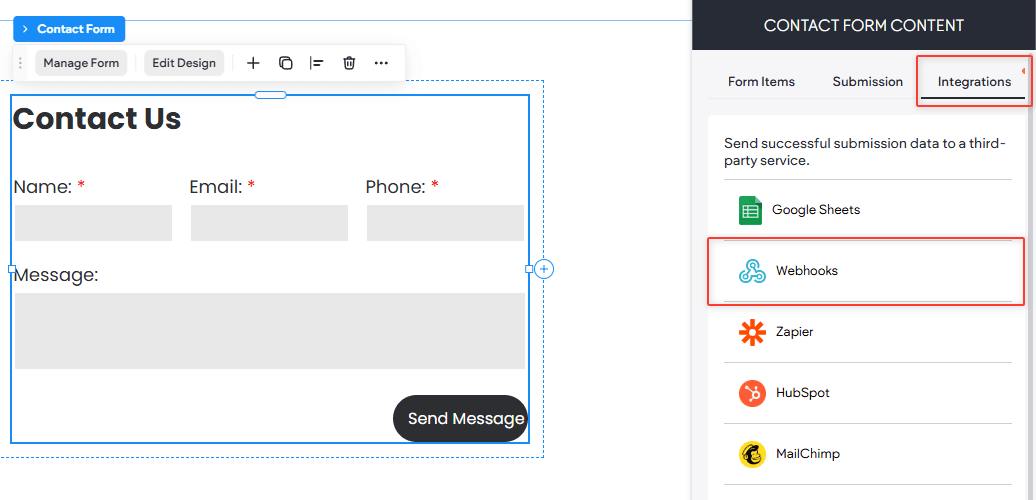
- Log in to Duda and open your website project. Select the form you want to connect, then click Manage Form.
- Open the Integrations tab and select Webhooks.
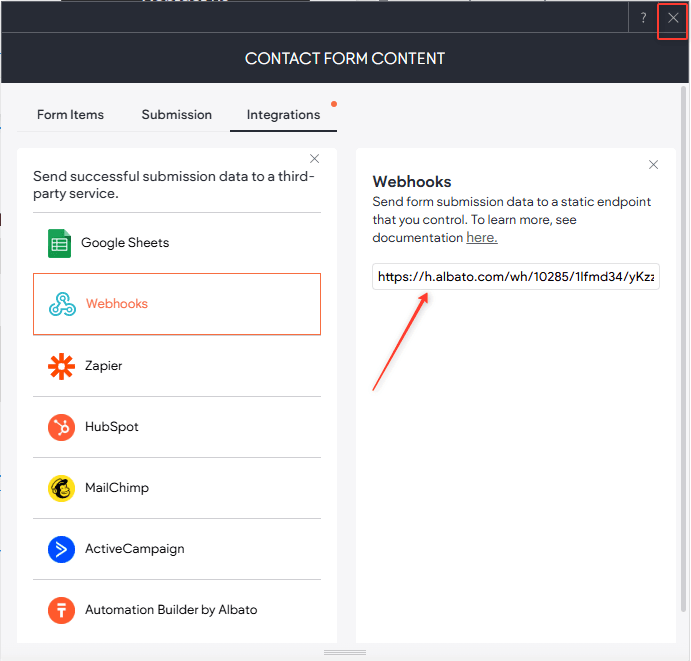
- Paste the webhook URL you copied from Albato, then close the form settings.
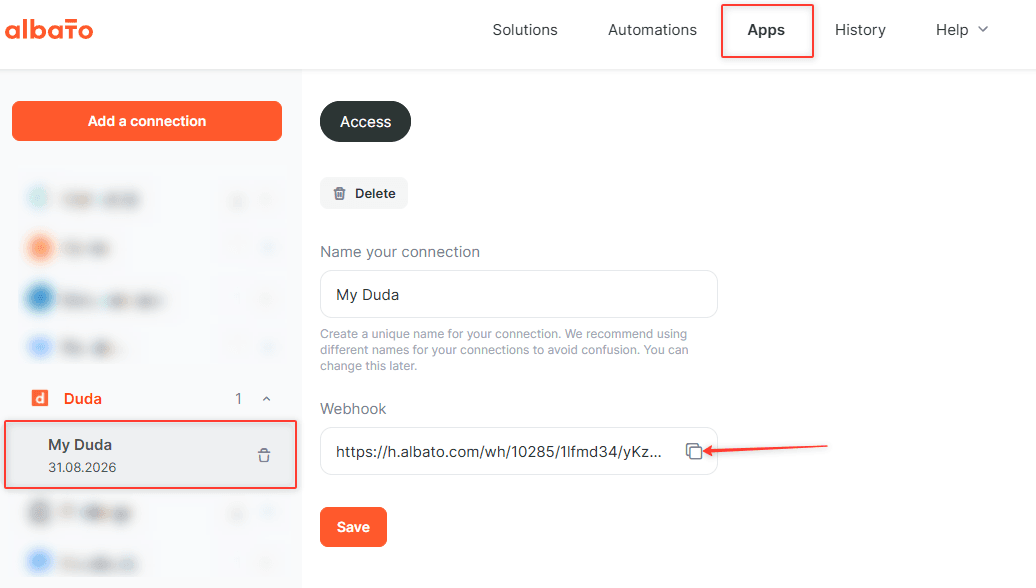
If you need to copy the URL again, open Apps in Albato and select your Duda connection. The URL is available in its settings.
-
Finish configuring your Duda page and publish it. The next steps use the published form to send a test submission to Albato.
-
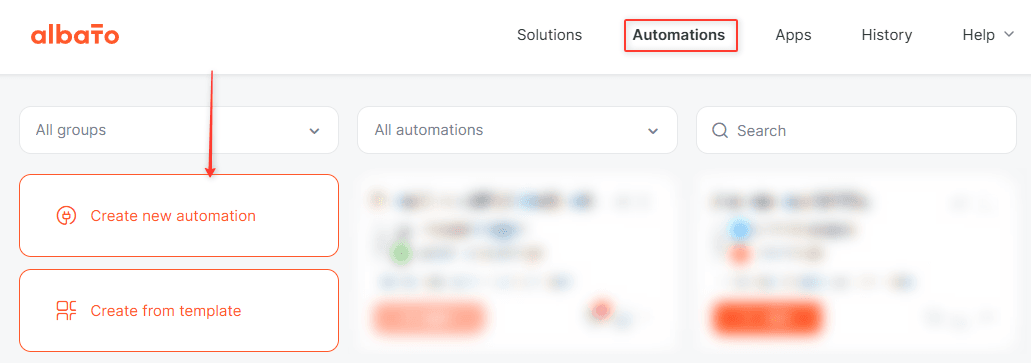
Return to Albato, open Automations, and click Create a new automation.
- In the new automation, add a trigger step.
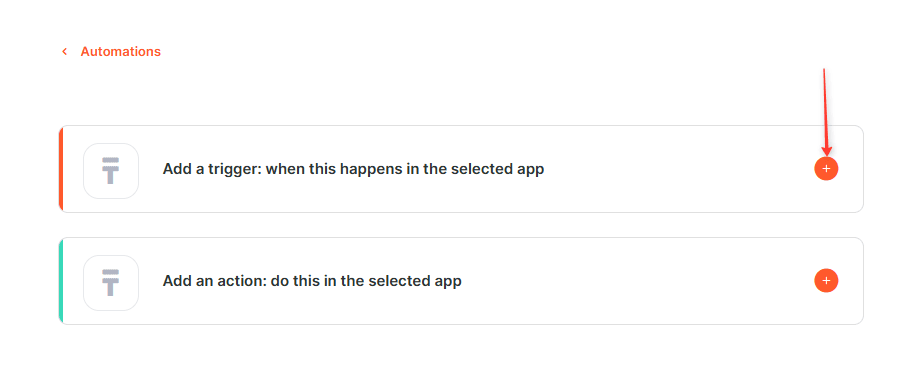
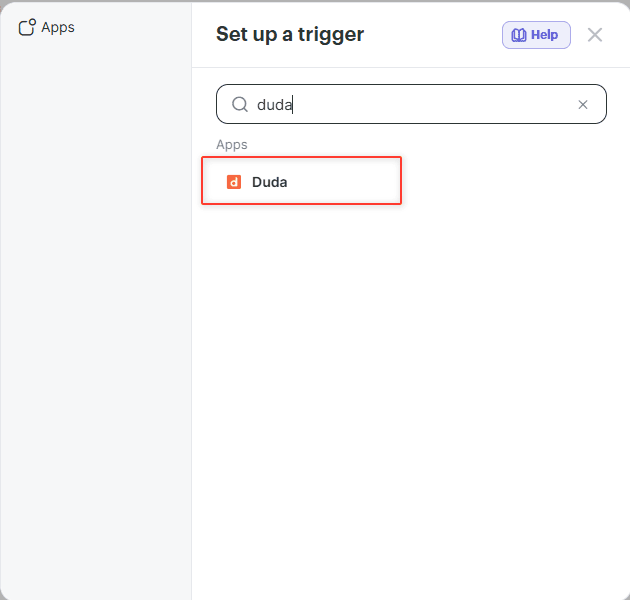
- Search for Duda and select it.
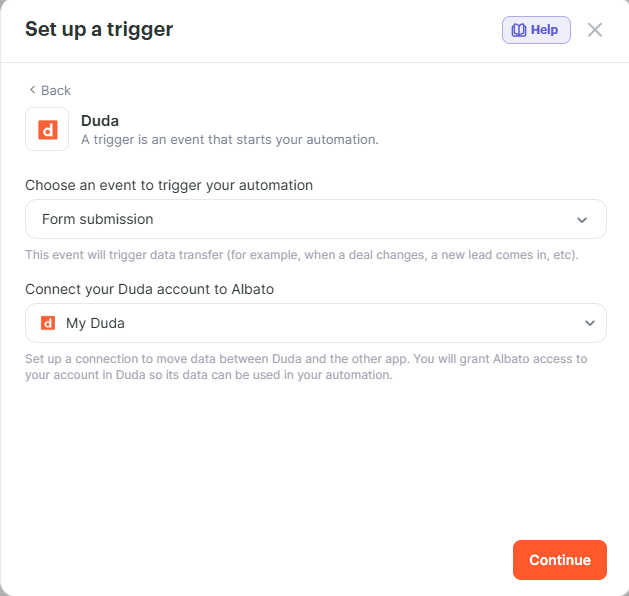
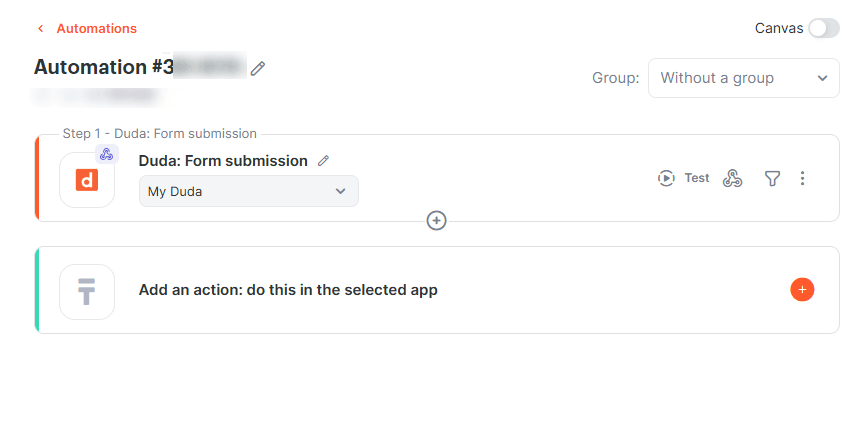
- Select the Form submission event and the Duda connection you created, then click Continue.
- In the Webhook catcher window, click Wait for webhook.
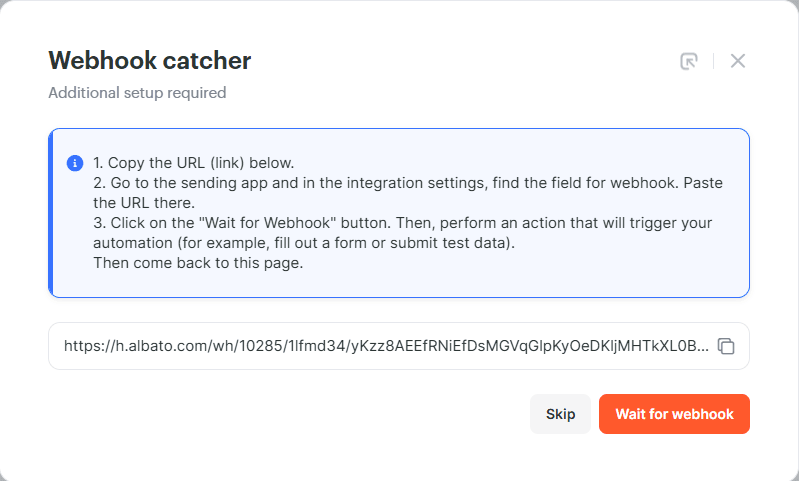
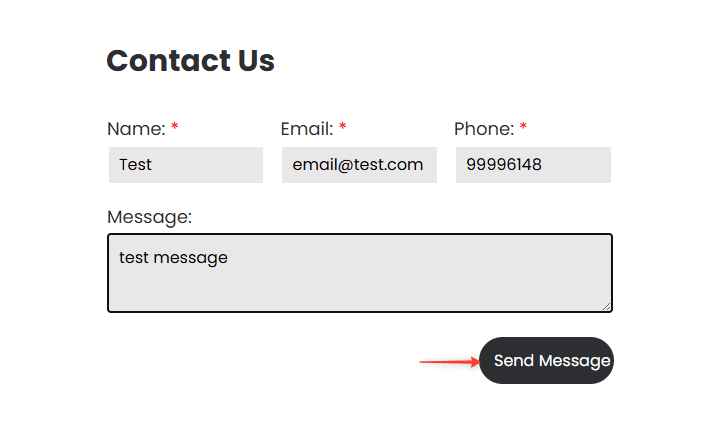
- Open your published Duda page, fill in all the form fields with test data, and submit the form. This lets Albato receive the form's field structure so you can use those fields when configuring the automation.
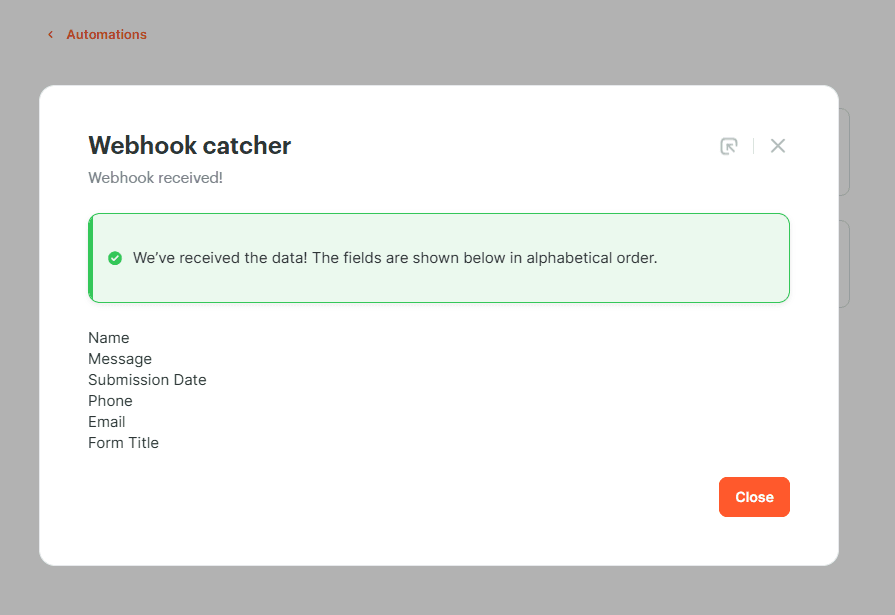
- Return to the Webhook catcher in Albato. Check that it displays the fields from your form, then click Close.
- Continue setting up the automation's action steps. The trigger is configured, and you can now choose where to send the data collected through the form.
Now you can use Duda in your Albato automations. If you have any questions, reach out to the support team via the chat.
About Duda
Duda provides tools for building and managing websites for clients.
With it, you can:
- Create and publish websites for small businesses.
- Collect visitor information through website forms.
- Send form submissions to other services through webhooks.
Did this answer your question?